A Python Selenium proxy routes browser traffic from your WebDriver session through a proxy server instead of your local IP. In practice, that means configuring Chrome, Firefox, or another Selenium-supported browser before the browser starts, then testing that pages, assets, redirects, and authenticated requests all use the expected exit IP.
Use a Python Selenium proxy when you need browser automation to behave like traffic from a specific region, ISP, or session. It is useful for QA, localization checks, price monitoring, and scraping public pages where a real browser is required. It is not a shortcut around site rules: keep request rates reasonable, respect robots and terms where they apply, and debug access problems before assuming rotation is the fix.
If you are still choosing a proxy format or protocol, start with SOCKS5 vs HTTP proxy. If you already have residential or ISP proxies, this guide shows how to wire them into Selenium with Python.
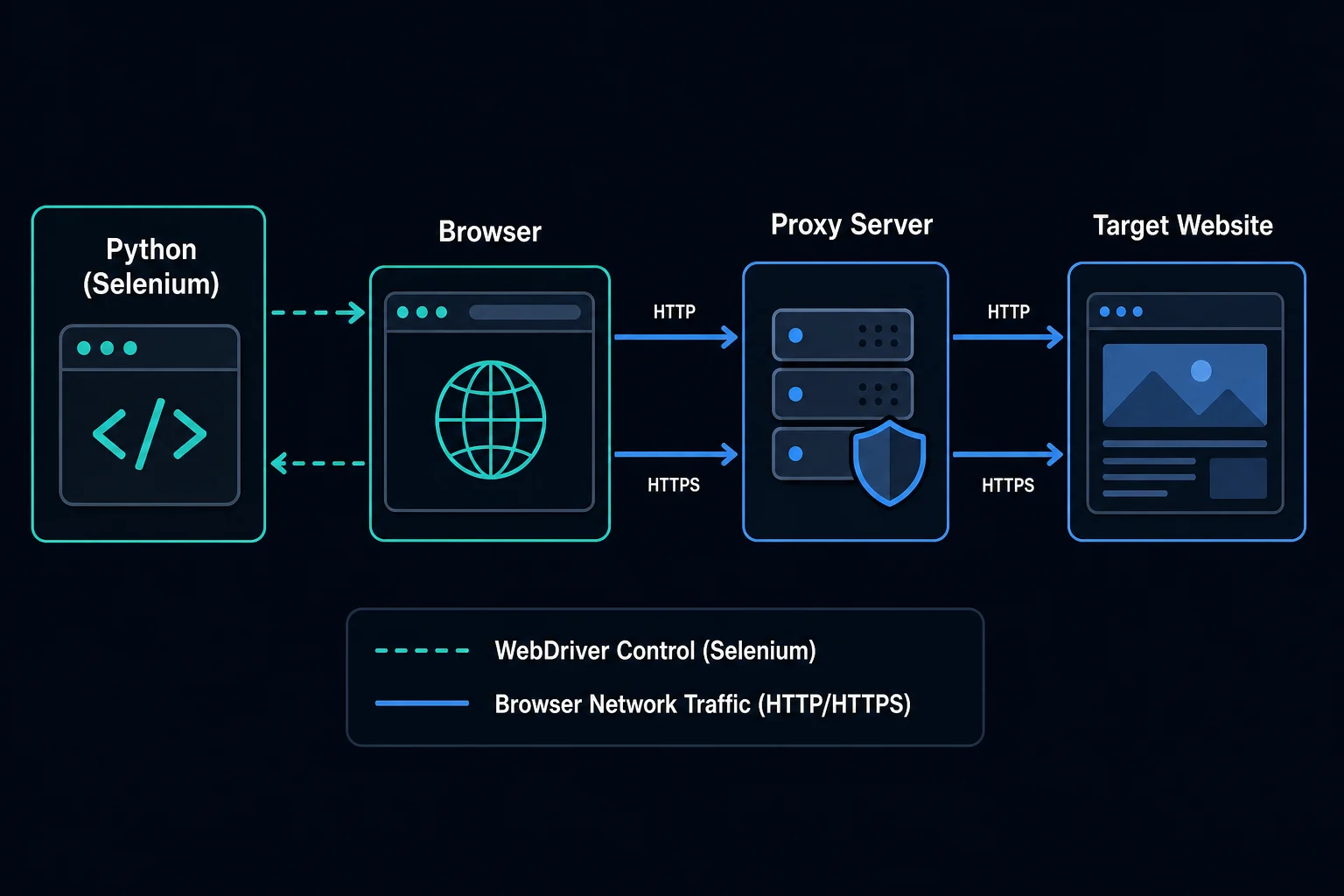
Python Selenium Proxy: Quick Setup
For a simple HTTP proxy without authentication, pass Chrome a --proxy-server argument before creating the driver:
from selenium import webdriver
from selenium.webdriver.chrome.options import Options

proxy = "http://proxy.example.com:8080"

options = Options()
options.add_argument(f"--proxy-server={proxy}")

driver = webdriver.Chrome(options=options)
driver.get("https://example.com")
print(driver.title)
driver.quit()
The important detail is timing. Selenium launches a real browser process, so proxy settings must be attached to browser options before webdriver.Chrome() starts. Changing the proxy after the driver is already running usually requires a new browser session. Apply the same launch-time discipline to a custom Selenium user agent, and keep that browser profile aligned with the route for the session.
Proxy Formats Selenium Accepts
Most Python Selenium proxy mistakes are format mistakes. Keep these shapes separate:
| Proxy format | Example | Use it when |
|---|---|---|
| Host and port | proxy.example.com:8080 |
A tool has separate protocol fields |
| HTTP URL | http://proxy.example.com:8080 |
Chrome option or HTTP proxy URL |
| Auth URL | http://user:[email protected]:8080 |
Some clients accept credentials in the URL |
| SOCKS URL | socks5://proxy.example.com:1080 |
The browser and proxy both support SOCKS5 |
Chrome's proxy command-line support expects a proxy server identifier, and Chromium documents --proxy-server plus proxy bypass rules for excluding hosts. Selenium also exposes proxy capabilities through its WebDriver API, but browser command-line options are often the most direct path for Chrome-based automation.
If your proxy dashboard gives you host:port:username:password, convert it to the format your browser expects. Unknown Proxies users can use the proxy converter to rewrite lists for different tools.
Using an Authenticated Proxy
Authenticated proxies are trickier because Chrome does not always accept username and password cleanly through --proxy-server in every environment. Try the URL format first if your stack supports it:
from selenium import webdriver
from selenium.webdriver.chrome.options import Options

proxy_user = "USERNAME"
proxy_pass = "PASSWORD"
proxy_host = "proxy.example.com"
proxy_port = "8080"

options = Options()
options.add_argument(
    f"--proxy-server=http://{proxy_user}:{proxy_pass}@{proxy_host}:{proxy_port}"
)

driver = webdriver.Chrome(options=options)
driver.get("https://example.com")
driver.quit()
If Chrome opens an authentication dialog or ignores the credentials, do not keep retrying the target site. Test the proxy with a simpler client first:
curl -x "http://USERNAME:[email protected]:8080" https://ipv4.unknownproxies.com/ip
If curl fails, the issue is the proxy address, credentials, allowlist, or provider account. If curl works but Selenium fails, the issue is browser configuration.
For production browser automation, many teams use one of these patterns:
- Use IP-allowlisted proxies when the provider supports them.
- Use a local forwarding proxy that injects upstream authentication.
- Use a Chrome extension or browser profile that handles proxy auth.
- Launch a fresh browser session per proxy identity.
Keep credentials out of code. Load proxy usernames, passwords, and endpoints from environment variables or a secret manager, especially if the script lives in a repository.
ChromeOptions vs Selenium Proxy Object
There are two common ways to configure proxy behavior.
ChromeOptions is browser-specific and practical for Chrome:
options = webdriver.ChromeOptions()
options.add_argument("--proxy-server=http://proxy.example.com:8080")
driver = webdriver.Chrome(options=options)
Selenium's proxy object is WebDriver-level configuration:
from selenium import webdriver
from selenium.webdriver.common.proxy import Proxy, ProxyType

proxy = Proxy()
proxy.proxy_type = ProxyType.MANUAL
proxy.http_proxy = "proxy.example.com:8080"
proxy.ssl_proxy = "proxy.example.com:8080"

capabilities = webdriver.DesiredCapabilities.CHROME.copy()
proxy.add_to_capabilities(capabilities)

driver = webdriver.Chrome(desired_capabilities=capabilities)
The browser-specific option is usually easier with modern Selenium and Chrome. The proxy object can still be useful when you are working across drivers or maintaining older code, but check your installed Selenium version because capability APIs have changed over time.
Rotating Proxies with Selenium
Selenium does not rotate a browser's proxy on every request by itself. Treat each proxy identity as part of the browser session.
A safe rotation pattern looks like this:
from contextlib import suppress
from selenium import webdriver
from selenium.webdriver.chrome.options import Options

proxies = [
    "http://proxy-1.example.com:8080",
    "http://proxy-2.example.com:8080",
    "http://proxy-3.example.com:8080",
]

for proxy in proxies:
    options = Options()
    options.add_argument(f"--proxy-server={proxy}")

    driver = webdriver.Chrome(options=options)
    try:
        driver.get("https://example.com")
        # Run one bounded workflow for this proxy identity.
    finally:
        with suppress(Exception):
            driver.quit()
That pattern is slower than swapping a proxy variable inside an HTTP client, but it is more reliable for browser automation. A browser session carries cookies, TLS state, local storage, service workers, and connection pools. Reusing one browser while changing network identity mid-flow can create inconsistent sessions.
For logged-in workflows, carts, or multi-step forms, use sticky sessions instead of rotating aggressively. For independent page checks, rotating between short browser sessions can work well when paired with realistic pacing.
Residential vs ISP Proxies for Selenium
Choose the proxy type based on the workflow:
| Workflow | Better fit | Why |
|---|---|---|
| Localized public page checks | Residential | Broad geography and consumer-style IPs |
| Repeated account workflow | ISP | Stable dedicated IPs and consistent sessions |
| High-volume independent pages | Residential | Rotation helps spread load when allowed |
| QA from one market | ISP or sticky residential | Consistency matters more than constant rotation |
| Retail monitoring | Depends | Stability, latency, and target tolerance all matter |
Unknown Proxies offers residential and ISP options, but the right choice depends on session needs. If the site expects the same visitor identity across several browser actions, stable sessions matter more than a large proxy list. If each page view is independent and allowed by the target, rotation can reduce false positives from overusing one route.
Debugging a Selenium Proxy
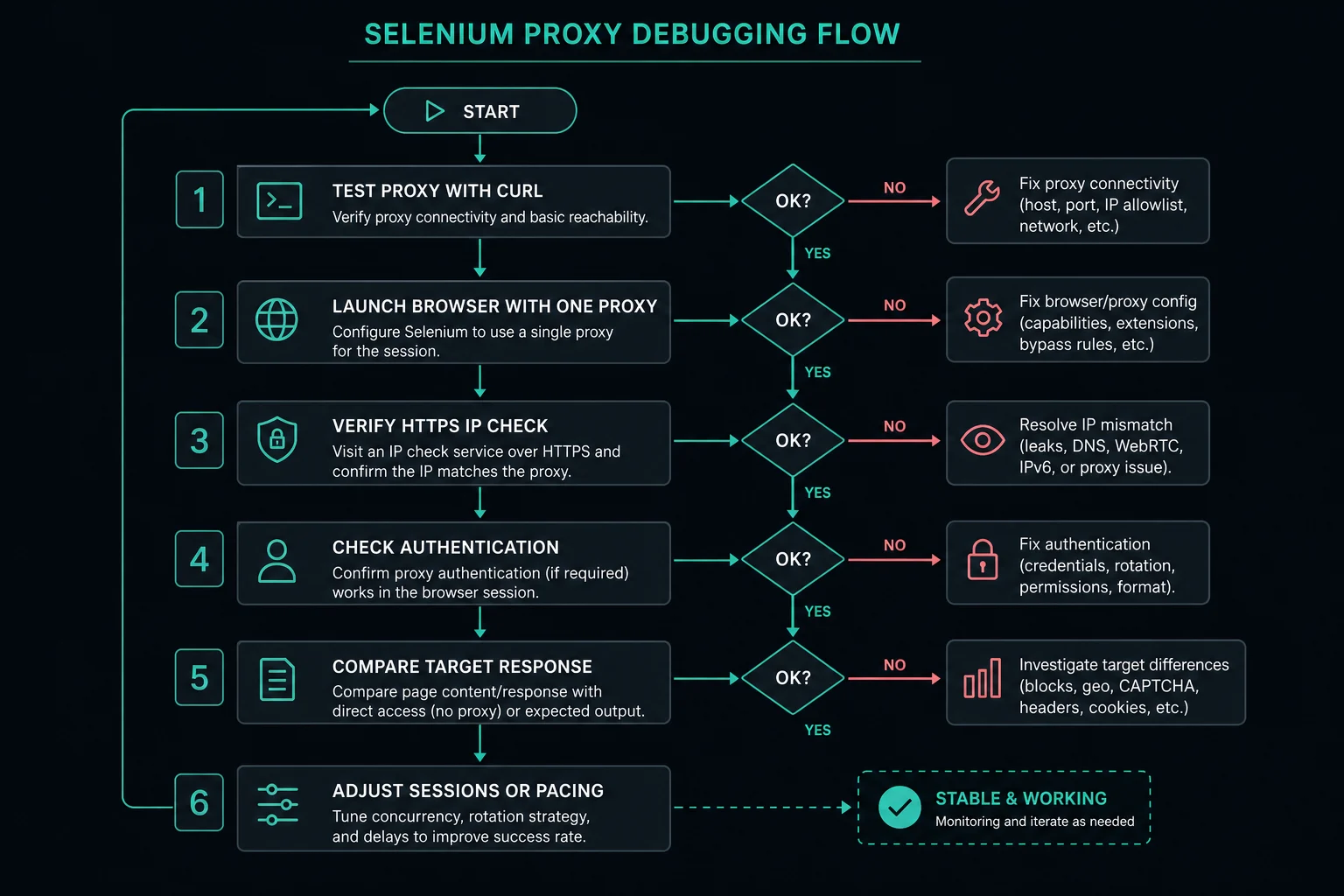
When a Python Selenium proxy fails, isolate the layer before changing everything at once.
- Test the proxy outside Selenium with
curl. - Launch Selenium with one proxy and visit an IP echo page.
- Confirm HTTPS pages load, not only plain HTTP pages.
- Check whether credentials are being rejected by the proxy.
- Remove extensions, custom profiles, and headless mode while debugging.
- Add a proxy bypass list only for hosts that should go direct.
- Compare the same target with and without the proxy.
Common symptoms:
| Symptom | Likely cause | First fix |
|---|---|---|
| Browser opens but pages never load | Bad host, port, protocol, or blocked proxy | Test with curl |
| Proxy auth popup appears | Credentials were not accepted by Chrome | Use allowlisting or a local forwarder |
| HTTP works but HTTPS fails | Missing HTTPS proxy config or blocked tunnel | Test https://ipv4.unknownproxies.com/ip |
| Only localhost breaks | Browser is proxying local traffic | Add a bypass rule |
| Target returns 403 or 429 | Site rules, rate limit, fingerprint, or session mismatch | Slow down and debug behavior |
If you see HTTP 403 Forbidden or HTTP 429 Too Many Requests, do not assume the proxy setting is broken. Those responses often mean the target received the request and chose not to serve it.
Headless Mode and Proxy Testing
Headless mode can hide useful browser prompts and make proxy authentication harder to diagnose. When you first configure a proxy, run with a visible browser:
options = webdriver.ChromeOptions()
options.add_argument("--proxy-server=http://proxy.example.com:8080")
# Do not add --headless until the proxy works.
driver = webdriver.Chrome(options=options)
After the proxy works in a visible browser, enable headless mode and test again:
options.add_argument("--headless=new")
If the visible browser works and headless fails, compare Chrome versions, flags, extensions, and authentication handling. Keep the proxy constant while testing so you do not confuse proxy quality with browser-mode behavior.
Session and Rate-Limit Guidelines
Browser automation creates heavier traffic than a simple HTTP request. Each page can load HTML, JavaScript, images, fonts, XHR requests, and tracking endpoints. A single Selenium driver.get() can therefore produce many network requests through the same proxy.
Use these guardrails:
- Keep concurrency low until you know the target's tolerance.
- Use explicit waits instead of rapid reload loops.
- Reuse a sticky session for multi-step workflows.
- Rotate only between independent tasks.
- Cache or skip assets when the target and use case allow it.
- Log proxy ID, session ID, status code, and failure reason.
If you are sizing tasks across proxies, the delay calculator can help reason about pacing instead of guessing.
FAQ
How do I set a proxy in Python Selenium?
Create browser options before launching the driver, then add a proxy server argument such as --proxy-server=http://proxy.example.com:8080. Start a new driver for each proxy identity.
Can Selenium use authenticated proxies?
Yes, but browser handling varies. Some setups accept http://user:pass@host:port, while others need IP allowlisting, a local forwarding proxy, or a browser extension/profile that handles authentication.
Can I rotate proxies without restarting Selenium?
Usually you should restart the browser session. The proxy identity is tied to browser network state, cookies, and connection pools, so a fresh session per proxy is more predictable.
Should I use residential proxies with Selenium?
Use residential proxies when you need consumer-style IPs, broad geography, or rotating sessions for allowed public-page workflows. Use ISP proxies when stability and repeated access from the same IP are more important.
Why does my Selenium proxy work with curl but not Chrome?
The proxy itself may be fine, while Chrome is rejecting the format, credentials, certificate flow, or bypass settings. Start with a visible browser and remove extra flags until the issue is isolated.
Final Thoughts
A Python Selenium proxy works best when you treat proxy choice, browser state, and session behavior as one system. Set the proxy before launching the driver, test credentials outside Selenium, use sticky sessions for multi-step workflows, and rotate by starting fresh browser sessions when tasks are independent.
For proxy format issues, use the proxy converter. For rotating residential browser workflows, compare residential proxies. For stable dedicated automation sessions, review ISP proxy pricing.
Technical references: Selenium Proxy API documentation, Chromium network proxy settings, and Chromium proxy support notes.