A Selenium user agent is the browser identity string sent in the HTTP User-Agent request header and exposed to page JavaScript as navigator.userAgent. To set the user agent in Selenium with Python and Chrome, add --user-agent=<value> to ChromeOptions before you create the driver, then read navigator.userAgent to confirm it.
Quick answer, checked against Selenium for Python 4.51 (the current PyPI release, which requires Python 3.10 or newer) in October 2026:
- Chrome, at launch:
options.add_argument(f"--user-agent={ua}"). - Chrome, without restarting:
driver.execute_cdp_cmd("Network.setUserAgentOverride", {"userAgent": ua}). - Firefox:
options.set_preference("general.useragent.override", ua). - Check it:
driver.execute_script("return navigator.userAgent").
Changing the string alone leaves other signals untouched. In Chrome, navigator.userAgentData and the Sec-CH-UA client hint headers can still describe the real browser, so a server sees two identities that disagree. The sections below show how to set each method, how to keep client hints aligned, and how to verify what the server received.
Use an override for compatibility testing, localization QA, or a site you are allowed to automate. It does not grant access or fix aggressive traffic.
Set the user agent in Selenium Python (Chrome)
Read the value from configuration rather than burying a browser version in source code:
import os

from selenium import webdriver
from selenium.webdriver.chrome.options import Options


user_agent = os.environ["SELENIUM_USER_AGENT"]

options = Options()
options.add_argument(f"--user-agent={user_agent}")

driver = webdriver.Chrome(options=options)

try:
    driver.get("https://example.com")
    active_user_agent = driver.execute_script(
        "return navigator.userAgent"
    )
    print(active_user_agent)
finally:
    driver.quit()
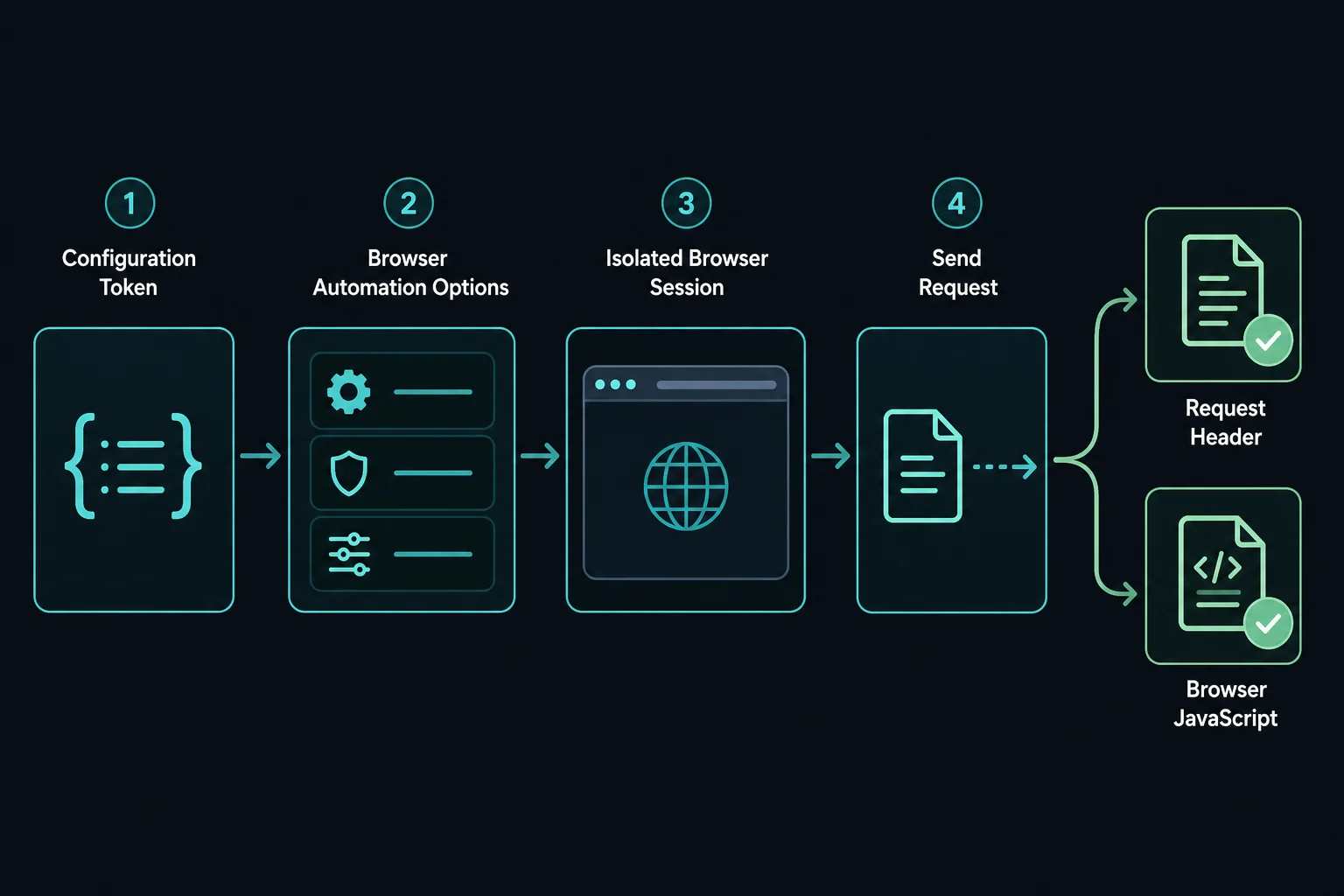
Set SELENIUM_USER_AGENT to a maintained value that matches the browser and operating system in your approved test profile. Selenium's Options.add_argument() API passes command-line arguments to Chrome when WebDriver starts it.
The timing is important: add the argument before webdriver.Chrome(). The first navigation, redirects, page resources, and JavaScript then see the same launch-time override. If the browser is already running, changing the Python variable does nothing to that session.
What the user agent changes and what it does not
The User-Agent header identifies the client software and usually includes browser, rendering engine, operating system, and version tokens. MDN's User-Agent reference documents the common format and explains modern user-agent reduction.
In Selenium, a Chrome launch override normally changes two values you will notice first:
- The
User-Agentrequest header sent to servers. - The string returned by
navigator.userAgentin page JavaScript.
It does not change Chrome into Firefox, turn a desktop machine into a phone, or automatically align every browser-visible signal. A website can also observe viewport dimensions, touch support, language, time zone, cookies, WebGL behavior, and User-Agent Client Hints such as Sec-CH-UA-Platform and Sec-CH-UA-Mobile.
This distinction matters for testing. Chrome's DevTools documentation notes that overriding the user-agent string changes the content a server may return, not how Chrome functions internally. Use the override to test code paths keyed to a user agent, not as proof that you reproduced the advertised device.
For a broader view of request metadata, see the web scraping headers guide. It explains why browser-generated headers should remain consistent with the client that sends them.
Find Selenium's default user agent
Before overriding anything, record the browser default. That gives you a known-good baseline and prevents a stale copied string from becoming permanent configuration:
from selenium import webdriver


driver = webdriver.Chrome()

try:
    driver.get("https://example.com")
    print(driver.execute_script("return navigator.userAgent"))
finally:
    driver.quit()
Open our user-agent checker in the Selenium browser to see navigator.userAgent, navigator.userAgentData, client hints, language, and viewport on one page. It runs in the page, so it is useful for profile checks, but it does not capture the raw navigation header on the wire.
For network verification, send one request to an endpoint you control and inspect the incoming User-Agent header in its server logs. A controlled echo endpoint is better than guessing from the rendered page because it proves what the server actually received.
Default user agent in headless Chrome
Run the same baseline script with options.add_argument("--headless") and compare. Chrome unified its headless and headful modes, and since Chrome 132 the old headless implementation ships only as the separate chrome-headless-shell binary, according to the Chrome headless documentation. Headless builds have long reported a HeadlessChrome token in place of Chrome, but Chrome's docs do not promise the current behavior, so print navigator.userAgent on your own Chrome version instead of assuming. If a test needs the same page a headed run gets, set --user-agent to the headed string you recorded.
Which string to use (October 2026)
Do not copy a string from an old tutorial. Chrome 155 is the stable Windows build as of 15 October 2026 on Chromium Dashboard, and Mozilla's product details feed lists Firefox 158.0 as the latest release. The formats are:
| Browser | Desktop user agent format (Windows) |
|---|---|
| Chrome 155 | Mozilla/5.0 (Windows NT 10.0; Win64; x64) AppleWebKit/537.36 (KHTML, like Gecko) Chrome/155.0.0.0 Safari/537.36 |
| Firefox 158 | Mozilla/5.0 (Windows NT 10.0; Win64; x64; rv:158.0) Gecko/20100101 Firefox/158.0 |
Chrome fixes the minor version at 0.0.0 under user-agent reduction. Match the major version to the browser Selenium actually launches. A Chrome 155 string on a Chrome 141 binary contradicts the client hints the browser still sends.
Compare the expected and active values
Fail the test when Selenium launches with the wrong identity:
import os

from selenium import webdriver
from selenium.webdriver.chrome.options import Options


expected_user_agent = os.environ["SELENIUM_USER_AGENT"]

options = Options()
options.add_argument(f"--user-agent={expected_user_agent}")

driver = webdriver.Chrome(options=options)

try:
    driver.get("https://example.com")
    actual_user_agent = driver.execute_script(
        "return navigator.userAgent"
    )
    assert actual_user_agent == expected_user_agent, (
        f"Expected {expected_user_agent!r}, "
        f"received {actual_user_agent!r}"
    )
finally:
    driver.quit()
An exact assertion is appropriate when the value comes from your own versioned test profile. If you are testing the browser default, assert capabilities or required tokens instead of pinning a complete string that changes with browser updates.
Change the Selenium user agent between sessions
For most automation, "rotation" should mean selecting one approved profile for a new browser session, not replacing the identity on every navigation. A fresh driver also gives that profile a fresh cookie jar, storage partition, cache, and connection state.
from selenium import webdriver
from selenium.webdriver.chrome.options import Options


approved_profiles = [
    "YOUR_MAINTAINED_DESKTOP_CHROME_UA",
    "YOUR_SECOND_MAINTAINED_DESKTOP_CHROME_UA",
]

for user_agent in approved_profiles:
    options = Options()
    options.add_argument(f"--user-agent={user_agent}")

    driver = webdriver.Chrome(options=options)
    try:
        driver.get("https://example.com/compatibility-test")
        print(driver.execute_script("return navigator.userAgent"))
    finally:
        driver.quit()
In production code, put the strings in a versioned configuration file or test matrix and validate them when browser packages are updated. Do not scrape random user-agent lists at runtime. A random string may advertise a browser version, device class, or operating system that the actual session cannot support.
Also avoid using a random choice when reproducibility matters. Map each test case to a named profile so a failure can be rerun with the same browser build, user agent, locale, viewport, and network conditions.
Change the user agent without restarting Chrome (CDP)
Chromium exposes Network.setUserAgentOverride through the Chrome DevTools Protocol (CDP), and Selenium's Chrome and Edge drivers expose execute_cdp_cmd(). The CDP reference lists the parameters: userAgent (required), plus optional acceptLanguage, platform, and an experimental userAgentMetadata object.
from selenium import webdriver


driver = webdriver.Chrome()

try:
    driver.execute_cdp_cmd(
        "Network.setUserAgentOverride",
        {"userAgent": "YOUR_MAINTAINED_DESKTOP_CHROME_UA"},
    )
    driver.get("https://example.com")
    print(driver.execute_script("return navigator.userAgent"))
finally:
    driver.quit()
Send the command before the navigation you want to affect. It applies to the current page target, so a new tab may need the command again.
CDP is Chromium-only, and Selenium's documentation describes its CDP support as temporary until WebDriver BiDi covers the same features. The W3C BiDi spec already defines an emulation.setUserAgentOverride command, and Selenium's Java and .NET bindings expose it. Check the Selenium BiDi documentation for your Python version before relying on it. The examples here use CDP. It is useful for a narrow test that must change the header inside one driver process. It is a poor default for separate identities: cookies, storage, cache, and open connections stay in the session.
Selenium user agent and client hints (Sec-CH-UA)
Chrome reports its identity in three places: the User-Agent header, navigator.userAgentData in JavaScript, and Sec-CH-UA request headers such as Sec-CH-UA, Sec-CH-UA-Mobile, and Sec-CH-UA-Platform. Neither --user-agent nor a CDP override without metadata gives you a matching set of client hints. Depending on the method and Chrome version, the hints can keep naming the real Chrome build, or Chrome may stop sending them. A request that says "Chrome 120 on macOS" in User-Agent and "Chrome 141 on Linux" in Sec-CH-UA-Platform is an obvious mismatch.
The CDP command accepts userAgentMetadata for this reason. The CDP description says it is "to be sent in Sec-CH-UA-* headers and returned in navigator.userAgentData". Required fields are platform, platformVersion, architecture, model, and mobile:
driver.execute_cdp_cmd(
    "Network.setUserAgentOverride",
    {
        "userAgent": ua_string,
        "platform": "Win32",
        "userAgentMetadata": {
            "brands": [
                {"brand": "Google Chrome", "version": "MAJOR"},
                {"brand": "Chromium", "version": "MAJOR"},
                {"brand": "Not.A/Brand", "version": "99"},
            ],
            "fullVersion": "MAJOR.0.0.0",
            "platform": "Windows",
            "platformVersion": "10.0.0",
            "architecture": "x86",
            "model": "",
            "mobile": False,
        },
    },
)
Replace MAJOR and the platform values with the ones your ua_string claims. Copy the brand list from navigator.userAgentData.brands in a real browser of that version, because the placeholder brand changes between releases. The simplest consistent setup is still to not override at all and use the real browser's values, or to change only what your test needs and keep the major version and platform equal to the actual browser. After any override, run driver.execute_script("return navigator.userAgentData") and compare it with navigator.userAgent.
Set the user agent in Firefox
Firefox has no --user-agent flag. Set the general.useragent.override preference through FirefoxOptions before launch:
import os

from selenium import webdriver
from selenium.webdriver.firefox.options import Options


options = Options()
options.set_preference(
    "general.useragent.override",
    os.environ["SELENIUM_USER_AGENT"],
)

driver = webdriver.Firefox(options=options)

try:
    driver.get("https://example.com")
    print(driver.execute_script("return navigator.userAgent"))
finally:
    driver.quit()
At the time of this update, Firefox does not implement navigator.userAgentData or send Sec-CH-UA headers, so there are no client hints to align. Keep the override a Firefox string. A Chrome user agent on a Firefox engine is the same mismatch problem in a different form.
Use mobile emulation for a mobile user agent
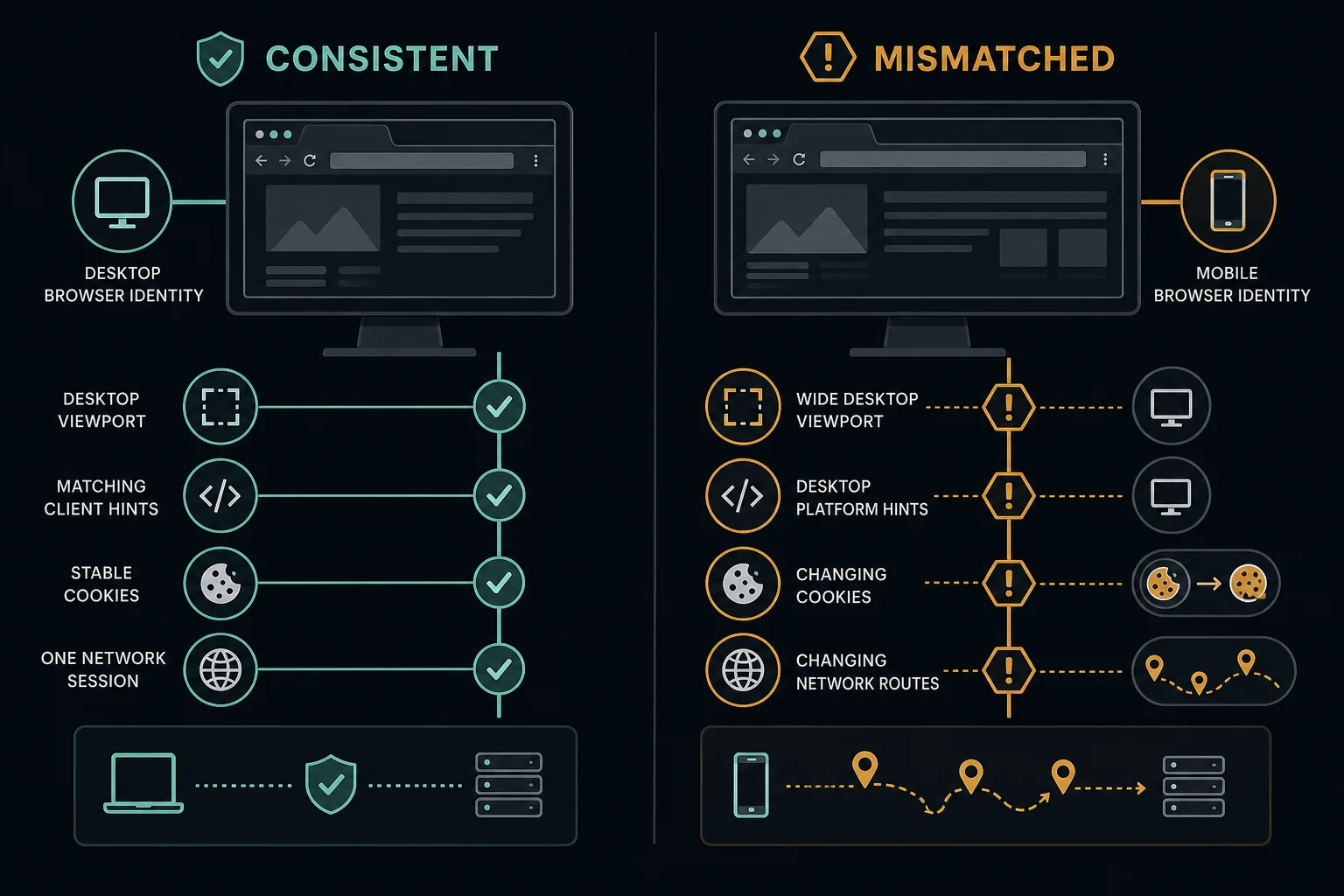
Do not combine a mobile user agent with an ordinary desktop viewport and assume you now have a mobile test. ChromeDriver's mobile-emulation support can configure device metrics, touch behavior, client hints, and the user agent as one profile.
For a built-in device profile:
from selenium import webdriver
from selenium.webdriver.chrome.options import Options


options = Options()
options.add_experimental_option(
    "mobileEmulation",
    {"deviceName": "Pixel 7"},
)

driver = webdriver.Chrome(options=options)

try:
    driver.get("https://example.com")
    print(driver.execute_script("return navigator.userAgent"))
    print(driver.get_window_size())
finally:
    driver.quit()
Device names depend on the installed Chrome and ChromeDriver versions. If a named profile is unavailable, configure explicit device metrics and client hints based on the ChromeDriver mobile-emulation documentation. That documentation also cautions that desktop emulation is not equivalent to a real device: hardware, GPU performance, mobile UI, and some APIs still differ.
Use physical devices or an appropriate device lab when those differences affect the result. Use mobile emulation when the test is about responsive layout, touch-oriented browser behavior, or content selection under a controlled emulated profile.
Keep the browser profile consistent
A Selenium user agent is one component of a browser profile. Keep these values aligned within each stateful session:
| Signal | Keep it consistent with |
|---|---|
| User agent | Actual browser family and a maintained version profile |
| User-Agent Client Hints | Browser brand, version, platform, and mobile/desktop mode |
| Viewport and touch | Intended desktop, tablet, or phone test |
| Language and time zone | The locale scenario being tested |
| Cookies and storage | One logical account or anonymous session |
| Proxy route | The location and network identity for that session |
Consistency improves test validity and troubleshooting. It does not guarantee access to a site, and it should not be used to misrepresent an unauthorized client. Review the site's terms, robots directives where applicable, and approved access methods before automating collection.
If the workflow is stateful, keep its cookie jar, user-agent profile, and network route fixed until the workflow ends. Start a separate session for a separate profile. This also makes failures attributable: you can tell whether a change came from the browser build, profile configuration, application state, or route.
Do you need a proxy with a Selenium user agent?
No. A user-agent override changes browser identity metadata; a proxy changes the network route and source IP. You can test a Selenium user agent without a proxy, and changing the user agent will not repair proxy authentication, routing, or IP reputation.
Add a proxy only when an allowed workflow has a real network requirement, such as localization testing from a specific region, distributing independent monitoring jobs, or keeping a stable route for a browser session. For long sessions such as a retail checkout or ticketing flow, a static address from the ISP plans keeps one IP for the whole run, and residential proxies cover rotating or location-specific work. Our guide to Selenium proxy setup in Python with Chrome covers launch-time routing, why Chrome ignores user:pass in --proxy-server, and the auth options that work.
When a proxy is required, apply both settings before starting the driver:
import os

from selenium import webdriver
from selenium.webdriver.chrome.options import Options


options = Options()
options.add_argument(
    f"--user-agent={os.environ['SELENIUM_USER_AGENT']}"
)
options.add_argument(
    f"--proxy-server={os.environ['SELENIUM_PROXY_SERVER']}"
)

driver = webdriver.Chrome(options=options)
Keep credentials out of source code and logs. If the proxy uses authentication, follow the browser-compatible authentication pattern from the proxy guide rather than embedding secrets in diagnostics.
Troubleshoot a Selenium user agent that is not working
Change one variable at a time. Start from a direct, default browser session, record its behavior, then add only the user-agent override.
| Symptom | Likely cause | First check |
|---|---|---|
navigator.userAgent still shows the default |
Argument was added too late or not passed to the driver | Print options.arguments before launch and create a fresh driver |
| JavaScript value changed but server behavior did not | Response is based on another signal or cached state | Inspect the raw request header, cookies, cache, and response classification |
| Mobile page has desktop layout | Only the user-agent string changed | Use mobile emulation with viewport, touch, and client hints |
| Test changes after a browser update | Copied user-agent string is stale or profile support changed | Record browser/driver versions and refresh the approved profile |
| Direct session works but proxied session fails | Network route or proxy authentication issue | Keep the user agent fixed and test the proxy separately |
Server returns 403 or 429 |
Authorization, policy, reputation, or rate limits | Inspect the response and slow down before changing identity fields |
Confirm the argument reached Chrome
Print the options before launch during development:
print(options.arguments)
You should see one entry beginning with --user-agent=. If you build options in a helper, confirm that the same object is passed to webdriver.Chrome(options=options) and that a framework fixture does not replace it.
Verify both browser and server views
Check navigator.userAgent first, then capture the incoming request header on a test endpoint you control. The two should agree for the navigation. Also inspect low-entropy client hints in Chromium when the test depends on device or platform classification.
Do not rely only on a screenshot or page layout. A responsive site may render from viewport width while its server logs record the user agent independently.
Separate access errors from user-agent errors
A 403 Forbidden response does not prove that Selenium chose the wrong user agent. It may reflect missing authorization, cookies, a firewall rule, or an unsupported workflow. A 429 Too Many Requests response is a pacing signal; lower concurrency, honor Retry-After, and use bounded backoff.
Similarly, a 407 Proxy Authentication Required response belongs to the proxy layer. Keep the user agent constant while testing the route. For a step-by-step diagnosis of denied requests, see the HTTP 403 Forbidden guide.
Selenium user agent checklist
Before running the test suite or browser job:
- Start with Selenium's default user agent and record the baseline.
- Use a maintained string that matches the actual browser family and test profile.
- Set
--user-agent(Chrome) orgeneral.useragent.override(Firefox) before creating the driver. - Keep the value stable for the entire browser session.
- Verify
navigator.userAgentand the raw request header on a controlled endpoint. - Use mobile emulation for mobile tests instead of changing only the string.
- Check that
navigator.userAgentDataandSec-CH-UAagree with the user agent. - Keep viewport, locale, cookies, and proxy route coherent.
- Start a new driver when switching between complete identities.
- Diagnose
403,407,429, and timeouts as different failure classes. - Respect authorization, site policy, and reasonable request rates.
FAQ
How do I set a user agent in Selenium Python?
Create ChromeOptions, call options.add_argument(f"--user-agent={value}"), and pass those options to webdriver.Chrome(options=options). Set the value before the driver starts. In Firefox, use options.set_preference("general.useragent.override", value).
What is Selenium's default user agent?
It is the user agent of the browser Selenium launches, plus a HeadlessChrome token in headless Chrome builds that have it. Read it with driver.execute_script("return navigator.userAgent"), and confirm the header on an endpoint you control.
Can I change the Selenium user agent without restarting?
In Chrome, yes: driver.execute_cdp_cmd("Network.setUserAgentOverride", {"userAgent": value}). Existing cookies, storage, and cache remain, and client hints stay unchanged unless you also pass userAgentMetadata. For separate identities, a fresh driver is more predictable.
Why do client hints still show the real browser?
--user-agent changes the User-Agent header and navigator.userAgent, not the full client hint set. Pass userAgentMetadata with the CDP override, or keep the user agent's major version and platform equal to the real browser.
Should I rotate the user agent on every request?
No. A browser loads many resources and retains state across navigations. Keep one approved user-agent profile for one logical session, then rotate between independent sessions only when the test plan requires it.
Does a custom user agent hide Selenium?
No. It changes one browser identity string. It does not remove automation behavior or align every fingerprint signal, and it does not authorize access that a site has restricted.
Why does a mobile user agent still show a desktop page?
The site may use viewport size, touch capability, client hints, cookies, or account settings instead of the legacy user-agent string. Use ChromeDriver mobile emulation or a real device for a coherent mobile test.
Final thoughts
Set the user agent before Chrome starts, then check it from both sides: navigator.userAgent in the page and the raw header on a server you control. Keep it stable for the whole session, start a new driver when you switch to a different profile, and use mobile emulation for device tests. If a page still blocks you, look at authorization, rate, cookies, and the proxy route before you touch the string again, and see the HTTP 403 guide for the order to check them in.