Mac proxy settings are in System Settings > Network > your active service > Details > Proxies. Pick the type your provider gave you (HTTP, HTTPS, SOCKS, or a PAC file), enter the server and port, add the login if required, click OK, and check your public IP in a browser. To see what macOS is applying, run scutil --proxy in Terminal.
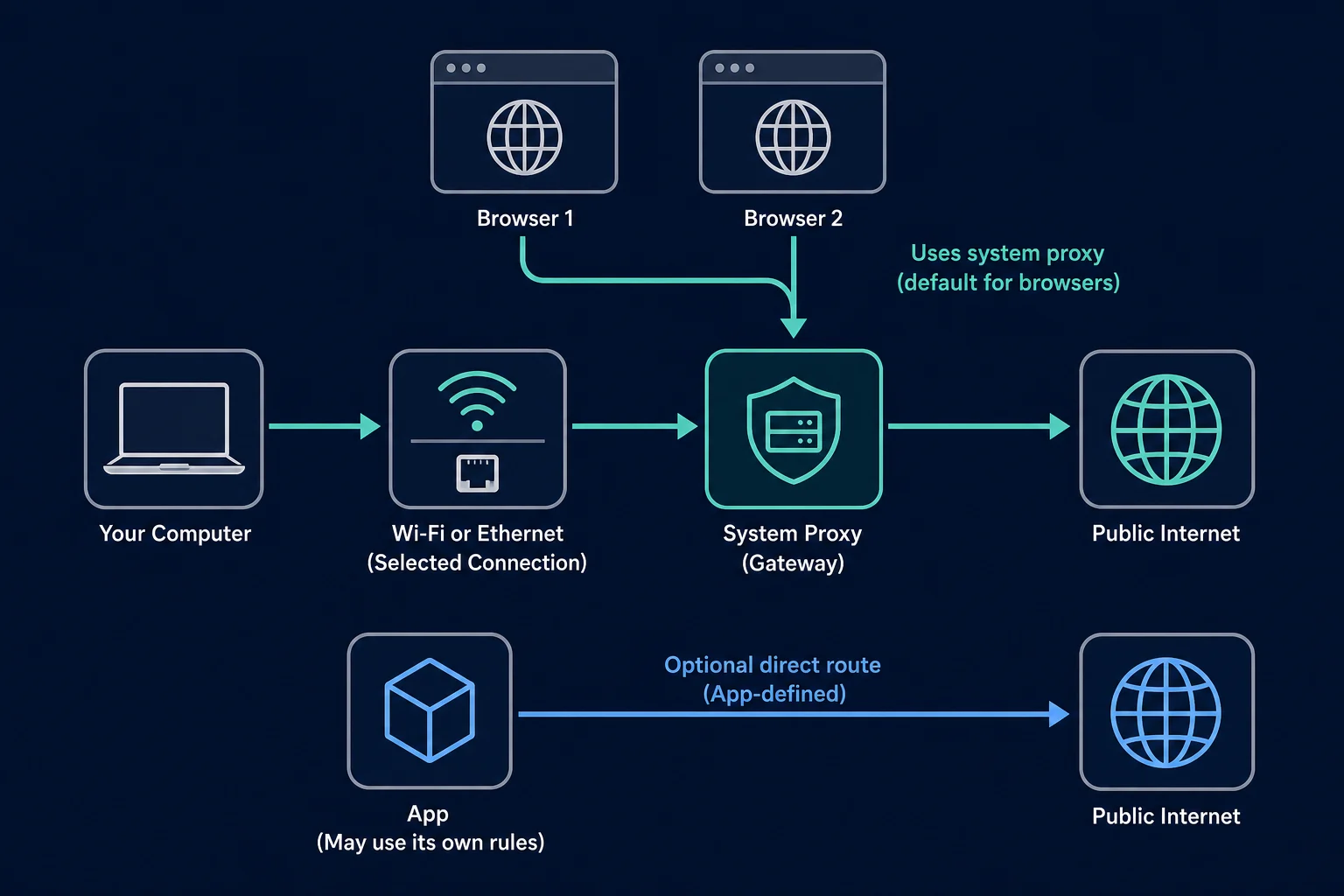
The setting belongs to a network service such as Wi-Fi or Ethernet. Safari and Chrome normally use the macOS system proxy, while Firefox can use either the system configuration or its own connection settings. Some apps and non-web traffic may ignore the system web proxy, so test every app that matters instead of assuming the whole Mac is covered.
This guide covers manual HTTP and HTTPS proxies, SOCKS proxies, PAC files, authentication, bypass rules, setting and checking proxies from Terminal, why command-line tools ignore the system proxy, and removal. The same rule holds on Windows 11 and Android: the system panel is the easy path, and SOCKS5 with a login needs more care.
Mac proxy settings: quick setup
For a manual web proxy:
- Copy the proxy protocol, hostname, port, username, and password from your provider or administrator.
- Open Apple menu > System Settings > Network.
- Select the active service, such as Wi-Fi or Ethernet, then click Details.
- Select Proxies.
- Turn on Web proxy (HTTP), Secure web proxy (HTTPS), or both, exactly as your provider instructs.
- Enter the server address and port in their separate fields.
- If needed, turn on Proxy server requires password and enter the proxy username and password.
- Click OK, then verify the public IP and load a normal HTTPS page.
Apple's Mac proxy settings reference documents the same path and the available HTTP, HTTPS, SOCKS, automatic configuration, discovery, and bypass options, including the Proxy server requires password switch for SOCKS. System Settings replaced System Preferences in macOS Ventura, so older Macs use System Preferences > Network > Advanced > Proxies.
| Information you have | Where it goes |
|---|---|
proxy.example.com |
Proxy server field |
8080 |
Port field |
username |
User name field after enabling password authentication |
password |
Password field |
http://proxy.example.com:8080 |
Split into server proxy.example.com and port 8080 |
| PAC URL | Automatic proxy configuration URL field |
Do not guess the protocol from the port alone. An HTTP proxy and a SOCKS5 proxy can use the same port number but expect different connection handshakes. If the protocol is unclear, check the provider dashboard or compare the practical differences in SOCKS5 vs HTTP proxy.
What the macOS proxy options mean
macOS exposes several proxy controls in one panel. Enable only the option that matches the endpoint or configuration your provider supplied.
| macOS option | Use it when | Information required |
|---|---|---|
| Web proxy (HTTP) | The provider gives you an HTTP proxy for HTTP destinations | Server, port, and optional credentials |
| Secure web proxy (HTTPS) | The provider tells you to proxy HTTPS destinations through that endpoint | Server, port, and optional credentials |
| SOCKS proxy | The endpoint is explicitly SOCKS4 or SOCKS5 | Server, port, and optional credentials |
| Automatic proxy configuration | An administrator gives you a PAC file URL | PAC URL |
| Auto proxy discovery | An organization tells the Mac to discover proxy rules automatically | A compatible managed network |
A commercial HTTP proxy provider often gives one host and port to enter under both Web proxy (HTTP) and Secure web proxy (HTTPS). Do that only when the provider says the endpoint supports both. Do not enable SOCKS for an HTTP endpoint or copy a SOCKS5 endpoint into the web-proxy fields.
For Chrome, the Secure web proxy (HTTPS) field selects the route for HTTPS destinations. It does not enable TLS on the connection to the proxy itself. If the provider supplies an https:// proxy endpoint, use a supported PAC file or Chrome-specific proxy configuration, as described in Chromium's HTTPS proxy documentation.
The word HTTPS in a destination URL does not mean you should paste https:// before the proxy hostname. Keep the server and port separate. Normal HTTPS pages remain protected by TLS between the browser and destination when an HTTP proxy relays the connection with a tunnel. The HTTP connection to the proxy still exposes the CONNECT destination and any Basic proxy-authentication credentials. Use that route only over a trusted network, or use a provider-supported TLS connection to the proxy. An unexpected certificate warning after setup can indicate interception or a broken network path; do not install an unfamiliar root certificate merely to dismiss it.
Before you change the proxy
Collect these values first:
- Proxy protocol: HTTP, HTTPS, SOCKS4, or SOCKS5.
- Server hostname or IP address.
- Port number.
- Authentication method: username and password, IP allowlist, or no authentication.
- PAC URL if the setup is automatic rather than manual.
- The network service that should use it: Wi-Fi, Ethernet, a USB adapter, or another connection.
Record your direct public IP before enabling the proxy. You can compare it with the result afterward using an IP-check endpoint such as https://ipv4.unknownproxies.com/ip.
Start with one proxy and one browser. Changing the endpoint, protocol, network service, browser extension, and DNS settings at the same time makes a simple formatting error much harder to find.
How to configure an HTTP or HTTPS proxy on Mac
Open the proxy panel:
- Choose Apple menu > System Settings.
- Click Network in the sidebar.
- Click the active connection, then Details.
- Select Proxies in the details window.
For a provider entry such as:
proxy.example.com:8080
username: sample-user
password: sample-password
protocol: HTTP
turn on the web-proxy options the provider supports, enter proxy.example.com as the server and 8080 as the port, then enable Proxy server requires password and put the credentials in their separate fields.
Chrome does not use credentials saved in the platform's manual proxy fields. It uses its own authentication flow when the proxy requests credentials, so a browser prompt can still appear. See Chromium's manual proxy credential notes.
Click OK to save. Open a new browser tab for the first test. If a browser was already displaying a proxy authentication prompt, close the prompt or restart that browser before deciding the new values did not work.
Do not paste a full username:password@host:port string into the server field. That format is useful in cURL and some scripts, but the macOS panel already provides separate server, port, username, and password controls. If your proxy list needs to be rearranged first, use the proxy converter.
How to configure a SOCKS proxy on Mac
Use SOCKS proxy only when the provider explicitly identifies the endpoint as SOCKS.
- Return to System Settings > Network > active service > Details > Proxies.
- Turn on SOCKS proxy.
- Enter the SOCKS server and port.
- If the endpoint uses username and password authentication, enable the password option and enter them.
- Turn off unrelated HTTP or HTTPS proxy toggles unless your network administrator told you to combine them.
- Click OK and test the applications that should use the route.
macOS provides the system SOCKS field, but app behavior still matters. A browser may honor the system route while another app uses its own network stack or proxy setting. DNS behavior can also vary by client. If remote name resolution is a requirement, test it with the actual app rather than treating a changed public IP as proof that every DNS lookup follows the proxy.
Chrome does not support SOCKS5 username/password authentication, even when macOS stores those credentials. For Chrome, use an endpoint that allows your source IP, a local client that handles upstream authentication, or a provider-supported HTTP proxy. Our Chrome SOCKS5 proxy guide covers each workaround.
How to use a PAC file or auto discovery
A proxy auto-configuration file contains rules that decide whether each URL should use a proxy or connect directly. Use it when an employer, school, or network administrator gives you a PAC URL.
To add one:
- Open the macOS Proxies panel.
- Turn on Automatic proxy configuration.
- Enter the complete PAC URL supplied by the administrator.
- Click OK.
- Test both a destination that should use the proxy and one that should bypass it.
Do not substitute Auto proxy discovery merely because a PAC URL fails. Discovery depends on network configuration and should be enabled only when the network administrator expects it. A stale, unreachable, or malformed PAC file can prevent routes from resolving correctly, so record the URL and test it directly when troubleshooting.
Do Safari, Chrome, and Firefox use Mac proxy settings?
Safari follows the macOS network proxy configuration. Chrome also uses system network settings by default; Chromium's network settings documentation explains that the browser network stack reads the operating system proxy configuration.
Firefox can behave differently because it has its own connection setting. In Firefox, open Settings, search for proxy, open the connection settings, then choose Use system proxy settings if you want it to follow macOS. To give Firefox its own SOCKS5 route instead, follow the Firefox SOCKS5 proxy setup. Mozilla's Firefox connection settings guide also documents manual proxy and automatic configuration choices.
If one browser ignores the expected route, check for:
- A proxy or VPN extension controlling that browser.
- A browser-specific manual proxy.
- An enterprise policy.
- A separate browser profile with different extensions.
- A bypass rule that matches the test host.
System proxy settings do not guarantee that every Mac app, background service, game, or non-HTTP connection uses the proxy. Configure app-level proxy support or a routing method designed for broader traffic when that is the real requirement.
How to verify Mac proxy settings
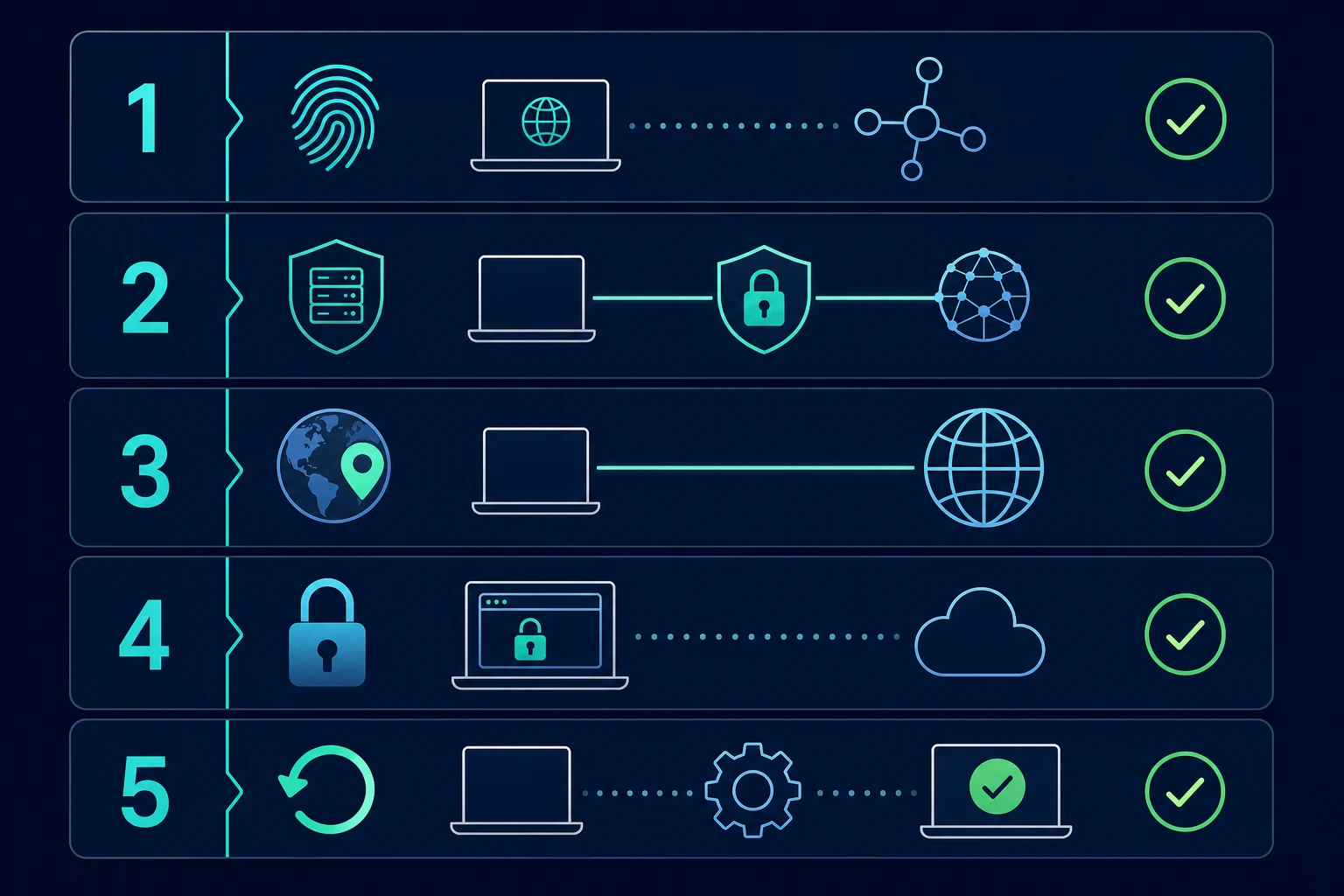
Test in layers:
- With the proxy off, record the public IP shown by an IP-check page.
- Enable the proxy and reload the IP page in a new tab.
- Confirm the result matches the expected proxy exit rather than the original connection.
- Load a separate HTTPS website.
- Test each browser or app you expect to use.
- Repeat the check after switching from Wi-Fi to Ethernet, if both connections matter.
- For a sticky or static proxy, confirm the exit stays consistent across the intended session.
A changed IP proves that the tested request used a different route. It does not prove that every app, DNS query, local service, or protocol on the Mac is proxied.
For permitted regional QA, compare both the IP and the actual page behavior. A website can also use account state, cookies, browser language, and other signals, so changing the route alone does not guarantee a particular localized response.
Check proxy settings on Mac in Terminal
You can read the current Mac proxy settings without opening System Settings. First list the network service names:
networksetup -listallnetworkservices
Then check each proxy type for the service you use, such as "Wi-Fi":
networksetup -getwebproxy "Wi-Fi"
networksetup -getsecurewebproxy "Wi-Fi"
networksetup -getsocksfirewallproxy "Wi-Fi"
networksetup -getautoproxyurl "Wi-Fi"
Each command prints Enabled: Yes or Enabled: No, plus the server and port. getsocksfirewallproxy is the command for the SOCKS proxy toggle.
To see the proxy configuration macOS is applying right now, across the active service, run:
scutil --proxy
Look for HTTPEnable, HTTPSEnable, SOCKSEnable, and ProxyAutoConfigEnable. A value of 1 means that proxy is on, and the matching HTTPProxy, HTTPSProxy, or SOCKSProxy line shows the server. If every enable key is 0 or missing, macOS has no system proxy set. Apps can still use their own proxy settings.
To turn proxies off from Terminal, set each state to off:
networksetup -setwebproxystate "Wi-Fi" off
networksetup -setsecurewebproxystate "Wi-Fi" off
networksetup -setsocksfirewallproxystate "Wi-Fi" off
networksetup -setautoproxystate "Wi-Fi" off
networksetup -setproxyautodiscovery "Wi-Fi" off
Some of these commands may ask for an administrator password.
Set Mac proxy settings from Terminal
networksetup can change the same panel from a script, which helps when you set up several Macs or switch proxies often. Apple documents the syntax in its networksetup reference as -setwebproxy networkservice domain portnumber (on | off) [username password]. The on | off argument turns authenticated proxy support on or off, and the username and password are only needed when it is on.
networksetup -setwebproxy "Wi-Fi" proxy.example.com 8080 on sample-user sample-password
networksetup -setsecurewebproxy "Wi-Fi" proxy.example.com 8080 on sample-user sample-password
-setsocksfirewallproxy follows the same pattern for a SOCKS endpoint. For a PAC file and a bypass list:
networksetup -setautoproxyurl "Wi-Fi" "https://example.com/proxy.pac"
networksetup -setproxybypassdomains "Wi-Fi" "*.local" "169.254/16"
Run networksetup -help to confirm the exact flags on your macOS version, then check the result with the -get commands above. A password typed on the command line stays in your shell history, so use the System Settings panel for a real credential on a shared Mac.
Why curl, git, and Homebrew ignore the system proxy
System Settings only reaches apps that read the macOS proxy configuration. Most command-line tools read environment variables instead. curl documents http_proxy, https_proxy, ALL_PROXY, and NO_PROXY, and it reads http_proxy in lowercase only.
export http_proxy="http://sample-user:sample-password@proxy.example.com:8080"
export https_proxy="http://sample-user:sample-password@proxy.example.com:8080"
export NO_PROXY="localhost,127.0.0.1,.local"
curl https://ipv4.unknownproxies.com/ip
Percent-encode symbols in the password, such as @ or :, or the URL will parse wrongly. To test one endpoint without touching any setting, pass it to a single command. Use socks5h:// for SOCKS5 so the proxy resolves hostnames:
curl --proxy "socks5h://proxy.example.com:1080" --proxy-user "sample-user:sample-password" https://ipv4.unknownproxies.com/ip
If that returns the proxy IP and the browser does not, the endpoint is fine and the problem is the browser, the active network service, or a profile.
Troubleshooting Mac proxy settings
Use the symptom to decide what to inspect.
| Symptom | Likely cause | First check |
|---|---|---|
| No pages load | Wrong host, port, protocol, or unavailable proxy | Turn off the proxy, confirm direct access, then retest one endpoint |
| Public IP does not change | Wrong network service, bypass rule, or app ignores the system proxy | Confirm the active Wi-Fi or Ethernet service and test Safari |
| Username prompt keeps returning | Wrong credentials, unsupported auth method, or inactive plan | Recopy the username and password and check provider status |
| HTTP works but HTTPS fails | Secure web proxy is missing or the endpoint does not support the configured route | Check the HTTPS toggle and provider protocol |
| Safari works but Firefox does not | Firefox is using its own proxy choice | Select Use system proxy settings in Firefox |
| Browser works but another app does not | The app bypasses the system proxy or uses non-web traffic | Check that app's proxy support |
| It works on Wi-Fi but not Ethernet | Proxy was configured only for the Wi-Fi service | Configure the intended network service separately |
| Local or internal sites fail | Bypass list is incomplete | Add only administrator-approved local hosts or domains |
Fix repeated authentication prompts
A repeated prompt means the browser can often reach the proxy but authentication is not being accepted. Recheck the complete username, including any country, region, or session suffix. Confirm the password has not expired and the endpoint supports username/password authentication.
An HTTP 407 Proxy Authentication Required response points to the proxy layer, not the destination website. Use the 407 proxy authentication guide to separate credential, protocol, format, and account-status failures.
Check the active network service
The proxy configuration is attached to the network service you edited. If the Mac moves from Wi-Fi to Ethernet, a dock, or another adapter, the new active service may have different proxy settings.
Return to Network, identify the connection marked active, and inspect its Proxies panel. Avoid duplicating settings across every service unless each one genuinely needs the same route.
Remove conflicting extensions or app settings
Temporarily disable one proxy or VPN extension at a time and retest. Also check whether the failing browser has its own manual configuration. Do not run multiple routing tools and assume their order is predictable.
If the route works in Safari but not Chrome, test a clean Chrome profile before changing the macOS configuration. If it works in both but not Firefox, switch Firefox to the system proxy or deliberately configure Firefox separately.
Fix greyed-out or resetting proxy settings
Greyed-out Proxies options usually mean a configuration profile controls them. Admin documentation for Jamf describes the panel showing a note that a profile configured the setting. Open System Settings and search for Profiles to see what is installed. On a work or school Mac, ask the administrator, because removing the profile can break access.
If the proxy comes back after you turn it off, look for an app that rewrites it. Security software, VPN clients, and local debugging proxies can reset system settings, and Symantec documents its Mac client reverting proxy edits while Web Traffic Redirection is on. Quit the suspect app, turn the proxy off, restart, and run scutil --proxy to see whether it returns. If it appears with a 127.0.0.1 address you did not set, find the app that added it before you trust that Mac with accounts.
Use bypass rules carefully
Exclude simple hostnames can keep names such as an internal server host off the proxy. The separate bypass list can exclude explicit hosts and domains. Add only what should connect directly, such as administrator-approved internal services.
A broad bypass rule can silently send more traffic directly than intended. After changing the list, retest both a bypassed internal host and an external IP-check page.
How to turn off a proxy on Mac
Return to System Settings > Network > active service > Details > Proxies. Turn off the specific options you enabled, including Web proxy (HTTP), Secure web proxy (HTTPS), SOCKS proxy, Automatic proxy configuration, or Auto proxy discovery, then click OK.
Apple's connection troubleshooting text says: "go to Applications > System Settings > Network, select the active network, click the Details… button, and deselect any proxies that may have been selected." That is this same panel. The active network is the service with a green dot and Connected under its name, usually Wi-Fi or Ethernet. On macOS Monterey and earlier, the path is System Preferences > Network > Advanced > Proxies.
Test direct browsing again. If the Mac still uses a proxy, inspect browser extensions, Firefox connection settings, VPN or routing clients, enterprise policies, and the proxy settings on the currently active network service.
Do not reset all network settings as a first step. Removing the exact proxy option preserves unrelated Wi-Fi, DNS, VPN, and adapter configuration.
Choosing a proxy for Mac browser work
Choose the proxy around the session rather than the operating system:
- A stable ISP proxy can fit repeated browser QA, account testing, or monitoring that should keep one exit IP.
- A sticky residential proxy can fit permitted regional checks that need a consumer-network route and session continuity.
- Rotating residential access fits independent public-page checks better than a login or multi-step workflow that expects one identity. For ticketing and retail checkouts, give each browser profile its own static ISP IP rather than one system-wide proxy, because the macOS panel applies to every app using that service. ISP vs residential proxies and sticky vs rotating proxies cover the choice.
Proxies do not override website permissions or usage policies. For scraping or automation, respect robots directives where applicable, terms, access controls, rate limits, and relevant law. Use app-level Playwright, Puppeteer, Selenium, or HTTP-client proxy settings when automation needs isolated sessions rather than changing the whole Mac network service.
FAQ
Where are proxy settings on a Mac?
Open Apple menu > System Settings > Network, select the active network service, click Details, then select Proxies. On macOS Monterey and earlier, the path is System Preferences > Network > Advanced > Proxies.
How do I check proxy settings on a Mac in Terminal?
Run scutil --proxy to see the active configuration, or networksetup -getwebproxy "Wi-Fi" for one proxy type on one service. Replace Wi-Fi with the name from networksetup -listallnetworkservices.
How do I set a proxy on a Mac from the command line?
Use networksetup -setwebproxy "Wi-Fi" proxy.example.com 8080, adding on username password if the proxy needs a login. Use -setsecurewebproxy for HTTPS destinations and -setsocksfirewallproxy for SOCKS. Tools like curl and git read http_proxy and https_proxy instead of the system setting.
Do Safari and Chrome use Mac proxy settings?
Yes, both use the macOS system proxy by default. A browser extension, command-line flag, or enterprise policy can override it. Firefox has its own connection setting, so choose Use system proxy settings if you want it to follow macOS.
Can I use a SOCKS5 proxy on macOS?
macOS has a SOCKS proxy option with an optional username and password. Enter the server and port, then test each app and any DNS behavior that matters. Chrome does not support SOCKS5 username and password authentication.
Why are my Mac proxy settings greyed out or resetting?
A configuration profile from an employer or school usually locks the panel. Otherwise, security software, a VPN client, or a local debugging tool is rewriting the setting. Check the installed profiles in System Settings, quit the suspect app, and run scutil --proxy after a restart.
How do I remove proxy settings from a Mac?
Open the active service's Proxies panel, turn off every proxy option you enabled, and click OK. Then check browser-specific settings, extensions, and shell environment variables if traffic still looks proxied.
Final thoughts
Start with the correct protocol and the correct active network service. Enter the host, port, and credentials in separate fields, enable only the option your provider named, and verify one browser before you widen the test. Treat a changed IP as proof for that one request, not for the whole Mac, because terminal tools and some apps never read the system panel. Keep bypass rules narrow, and turn off the exact option when you finish. For phones, see the Android SOCKS5 guide and the iPhone HTTP proxy guide.