A Firefox SOCKS5 proxy can be configured directly in Firefox without changing the proxy settings for Windows, macOS, or Linux. Open Firefox's connection settings, choose manual configuration, enter the SOCKS host and port, select SOCKS v5, and keep proxy DNS enabled.
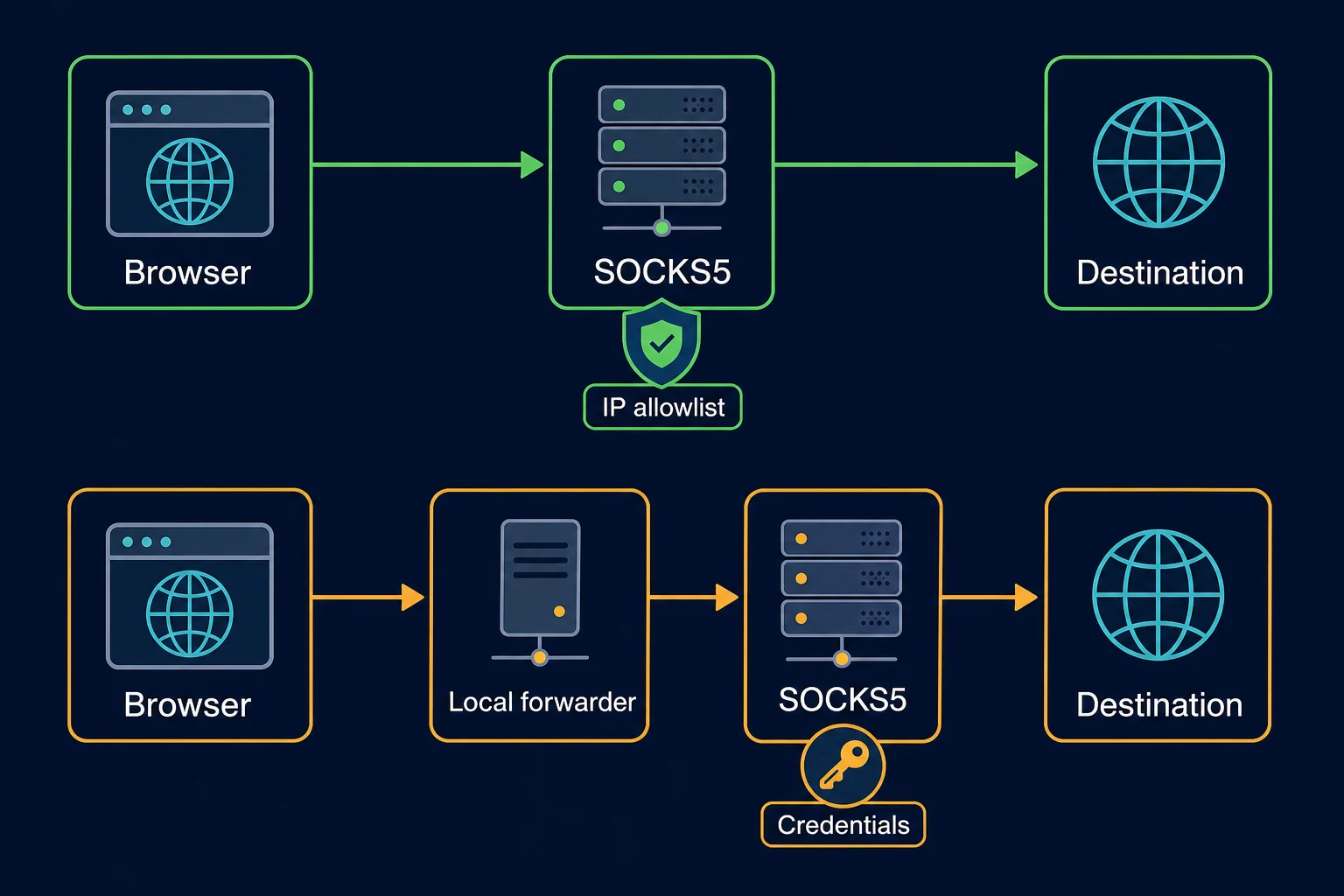
This built-in method is best for an unauthenticated SOCKS5 endpoint, a local SSH tunnel, or a proxy protected by source-IP allowlisting. Firefox's manual SOCKS form does not currently provide username and password fields, so a commercial endpoint that requires SOCKS5 credentials needs a compatible local forwarder, routing client, or a different authentication method.
Firefox SOCKS5 Proxy: Quick Setup
Use these steps when the endpoint does not require a username and password:
- Open the Firefox menu and select Settings.
- Find Proxy settings or Network Settings, depending on your Firefox version.
- Select Configure proxy or Settings.
- Choose Manual proxy configuration.
- Enter the proxy hostname in SOCKS Host and its port in Port.
- Select SOCKS v5.
- Enable Proxy DNS when using SOCKS v5 if the option is shown.
- Review the No Proxy For list so required destinations are not bypassed.
- Save the settings, then open
https://ipv4.unknownproxies.com/ip. - Confirm the displayed address is the expected proxy exit IP.
Enter only a hostname such as proxy.example.com in SOCKS Host. Do not paste socks5://, a full username:password@host:port URL, or the provider's HTTP endpoint into that field.
Before You Change Firefox
Collect the endpoint details from your proxy provider:
| Field | Example | Firefox manual setting |
|---|---|---|
| Protocol | SOCKS5 | Select SOCKS v5 |
| Host | proxy.example.com |
Enter in SOCKS Host |
| Port | 1080 |
Enter in the adjacent port field |
| Authentication | IP allowlist, none, or username/password | Manual Firefox setup works directly only without a credential prompt |
| DNS mode | Proxy-side or local | Prefer proxy-side DNS for most remote proxy tests |
Confirm that the host and port belong to a SOCKS5 endpoint. A provider may expose HTTP and SOCKS5 on different ports even when the hostname is the same. The text shape host:port does not identify a protocol by itself.
Test one endpoint before changing the browser if you have cURL:
curl --proxy "socks5h://proxy.example.com:1080" \
  https://ipv4.unknownproxies.com/ip
For an authenticated endpoint:
curl --proxy "socks5h://proxy.example.com:1080" \
  --proxy-user "username:password" \
  https://ipv4.unknownproxies.com/ip
The h in socks5h:// tells cURL to ask the proxy to resolve the destination hostname. cURL's SOCKS proxy documentation distinguishes this from socks5://, which normally resolves the hostname locally.
If the cURL test fails, fix the endpoint, port, protocol, credentials, allowlist, or plan status before troubleshooting Firefox. Be careful with the authenticated example: commands can remain in shell history, so use temporary credentials when possible and never paste real secrets into screenshots or tickets.
How to Configure a SOCKS5 Proxy in Firefox
Mozilla is reorganizing the Settings interface, so the path depends on the Firefox version:
- In newer versions, open Settings > Privacy & Security, find Connection and software security, select Advanced settings, then go to Proxy settings > Configure proxy.
- In versions with the older layout, open Settings > General, scroll to Network Settings, then select Settings.
- You can also search Firefox Settings for
proxyand open the matching connection control.
Mozilla's current Firefox connection settings guide documents both layouts.
Enter the SOCKS Host and Port
In the connection dialog:
- Select Manual proxy configuration.
- Leave HTTP Proxy and HTTPS Proxy empty unless you deliberately use separate HTTP endpoints.
- Enter the SOCKS5 hostname without a scheme in SOCKS Host.
- Enter the assigned numeric port.
- Select SOCKS v5, not SOCKS v4.
- Enable Proxy DNS when using SOCKS v5 if Firefox displays that checkbox.
- Check No Proxy For, then save.
Do not select Also use this proxy for HTTPS as a substitute for the SOCKS field. That option shares an HTTP proxy with HTTPS traffic; it does not convert an HTTP endpoint into SOCKS5 or make a SOCKS5 endpoint work in the HTTP field.
Firefox's proxy settings apply to the browser profile, not every program on the device. A terminal, another browser, an updater, and background apps can continue using the normal network route.
Configure Proxy-Side DNS
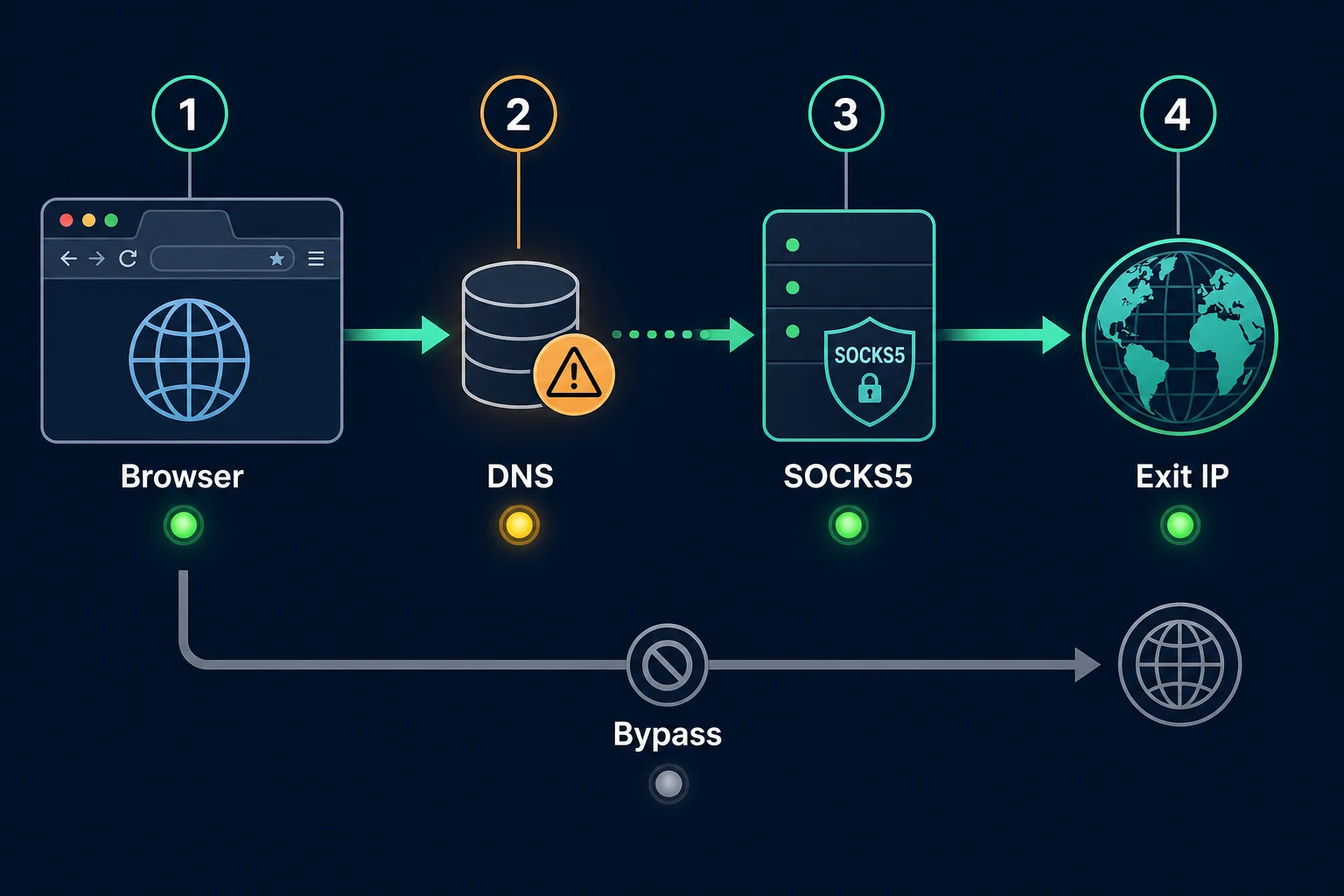
Proxy-side DNS keeps Firefox from resolving ordinary destination hostnames through the device's normal resolver before connecting through SOCKS5. This matters when you are testing regional results, using a remote tunnel, or trying to keep browser name resolution aligned with the proxy route.
In Firefox's manual connection dialog, enable Proxy DNS when using SOCKS v5 when it is available. Managed Firefox installations expose the same behavior through Mozilla's UseProxyForDNS proxy policy.
Firefox also has a separate DNS over HTTPS setting. DoH sends DNS queries to a configured HTTPS resolver, while SOCKS proxy DNS asks the SOCKS5 server to resolve a hostname. They are different paths. For a controlled SOCKS5 test, verify which one is active instead of assuming the proxy checkbox overrides every DNS behavior. Mozilla explains the current protection modes in its DNS over HTTPS guide.
Review the Bypass List
Entries in No Proxy For connect directly. Firefox commonly bypasses local destinations, and you may need that behavior for routers, development servers, or internal services.
Do not delete bypass entries without understanding why they exist. Instead:
- Keep
localhostand127.0.0.1direct when local development tools require them. - Add an internal hostname only when policy requires a direct connection.
- Remove a public test destination from the list if you expect it to use the proxy.
- Remember that a bypassed site showing your normal IP does not prove the SOCKS5 endpoint is broken.
Firefox SOCKS5 Username and Password Authentication
Firefox's manual connection dialog currently has no username or password fields for SOCKS5. Mozilla's long-running SOCKS5 username/password authentication issue is still open, so do not expect Firefox to prompt reliably or parse credentials pasted into SOCKS Host.
Use one of these approaches for a credential-protected upstream proxy:
- Source-IP allowlisting: authorize your current public IP in the provider dashboard, then enter only the SOCKS5 host and port in Firefox.
- Local authenticated forwarder: configure a trusted local client to authenticate upstream and expose a no-auth SOCKS5 listener on
127.0.0.1. Point Firefox at that local host and port. - Provider HTTP endpoint: if the workflow is ordinary web browsing and the provider supports HTTP proxy authentication, use the correct HTTP setup instead of forcing SOCKS5.
- Automation-level settings: for Playwright, Selenium, or another controlled browser workflow, configure the proxy where the framework supports its server and credentials.
Do not install an arbitrary proxy extension just to work around authentication. An extension that controls proxy routing can observe destinations and redirect browser traffic. If an organization requires an extension or routing client, verify its publisher, permissions, update history, deployment policy, and data handling first.
The SOCKS5 protocol can negotiate authentication methods, including username/password, but each client must implement them. RFC 1928 defines the negotiation; it does not guarantee that Firefox's manual UI can supply every method.
Verify the Firefox SOCKS5 Proxy
Verify the change in layers:
- Before enabling the proxy, open
https://ipv4.unknownproxies.com/ipand note the normal public IPv4 address. - Enable the Firefox SOCKS5 proxy and reload the page.
- Confirm the address changes to the expected proxy exit.
- Open a new private window and repeat the IP check to reduce confusion from an old tab or cached navigation.
- Load a normal HTTPS page and verify that Firefox reports a valid certificate.
- Test a hostname that has not recently been opened.
- Confirm that a destination in No Proxy For still uses its intended direct route.
- Open the same IP page in another browser and confirm that it remains direct if only Firefox should be proxied.
An exit-IP change proves that the tested Firefox request used the proxy. It does not prove that every application, WebRTC peer connection, DNS mode, IPv6 path, or non-web protocol on the device uses the same route.
For stable login, QA, or account workflows, keep one browser profile, proxy session, region, and cookie set together. If you rotate the exit during a stateful session, the destination may treat the change as suspicious. The sticky vs rotating proxies guide explains when continuity matters.
Troubleshoot a Firefox SOCKS5 Proxy
Change one variable at a time. The fastest order is endpoint reachability, protocol, authentication method, DNS, bypass rules, and only then the destination response.
| Symptom | Likely cause | First check |
|---|---|---|
| Firefox shows "The proxy server is refusing connections" | Wrong host or port, offline endpoint, or local firewall | Recopy the SOCKS5 endpoint and test it with cURL |
| Every page times out | HTTP endpoint entered as SOCKS5, or the reverse | Confirm the provider protocol and assigned port |
| cURL authenticates but Firefox does not connect | Upstream requires username/password | Use IP allowlisting or a trusted local authenticated forwarder |
| IP addresses open but hostnames fail | DNS is resolving on the wrong path | Enable proxy DNS and review DoH behavior |
| IP-check page still shows the normal IP | Wrong proxy mode, bypass rule, or proxy-controlling extension | Confirm manual mode and inspect No Proxy For |
| Firefox works but other apps stay direct | Expected profile-level scope | Configure those apps separately if they should use the proxy |
| Neutral pages work but one site returns 403 or 429 | Destination policy, permissions, reputation, or rate limit | Stop changing proxy fields and debug the HTTP response |
| Settings are locked or revert | Enterprise policy or a controlling extension | Contact the administrator or inspect the notice in connection settings |
Fix "The Proxy Server Is Refusing Connections"
This Firefox message means the browser could not establish a usable proxy connection. It does not identify one specific cause.
Check:
- The host contains no scheme, path, spaces, username, or password.
- The port is the provider's SOCKS5 port.
- SOCKS v5 is selected.
- The plan or tunnel is active.
- A local listener such as
127.0.0.1:1080is running before Firefox tries to use it. - The network or firewall permits the outbound port.
If the same endpoint fails in cURL, Firefox is not the first problem. If cURL works without credentials but Firefox fails, create a clean test profile or temporarily disable only extensions that control proxy settings.
If you cannot tell whether the endpoint or a network security rule is stopping the connection, use the proxy vs firewall troubleshooting sequence to compare direct access, port reachability, proxy authentication, and the destination response.
Fix DNS Failures
If a numeric IP destination connects but a hostname does not, check Proxy DNS when using SOCKS v5. Also review Firefox's DoH protection mode, cached DNS, VPN software, and enterprise policies.
Do not treat a single DNS leak test as complete proof. Firefox can have cached answers, DoH can use a separate resolver, and bypassed destinations can intentionally resolve or connect directly. Verify the actual sites and route scope relevant to the workflow.
Check Extensions, VPNs, and System Settings
The connection dialog tells you when an extension controls how Firefox connects. A system proxy, VPN, local forwarder, and Firefox extension can also overlap and create a loop or an unexpected direct route.
For a controlled test:
- Note the current settings so you can restore them.
- Disconnect unrelated VPNs.
- Disable proxy-controlling extensions in the test profile.
- Select only Firefox's manual SOCKS5 configuration.
- Test one endpoint and one IP-check destination.
- Add other network layers back one at a time.
Avoid resetting the operating system's entire network stack for a Firefox-only problem. That can remove unrelated VPN, DNS, or enterprise configuration without addressing a wrong browser field.
Separate Proxy Failures From Website Blocks
If the exit-IP page and another neutral HTTPS page work, the Firefox SOCKS5 proxy is probably connected correctly. A destination can still return:
401for site or API authentication.403 Forbiddenfor permissions, access policy, or a WAF decision.429 Too Many Requestsfor rate limiting.- A CAPTCHA or login challenge based on session, browser, account, or request behavior.
Rotating proxies does not fix missing permission or grant access to restricted content. Follow the site's terms, access controls, and retry guidance.
Remove the SOCKS5 Proxy From Firefox
Return to the same connection settings dialog and choose:
- No proxy to make Firefox connect directly, or
- Use system proxy settings to return control to the operating system.
Save the change, close any test tabs, and repeat the public IP check. If Firefox still uses the proxy, inspect proxy-controlling extensions, a PAC file, enterprise policy, and any local routing client that remains connected.
Choosing a Proxy for Firefox
Match the proxy and session behavior to the browser task:
- A stable ISP proxy fits repeated QA, account, and browser-profile sessions that should keep one exit IP.
- A sticky residential proxy fits permitted regional checks that need a consumer-network route and continuity.
- A rotating residential route fits independent public-page checks where a change of identity will not break session state.
Unknown Proxies supports SOCKS connections on residential and ISP plans. For Firefox's built-in manual method, use an authentication mode the browser can actually complete, such as source-IP allowlisting, or place a trusted local authenticated client between Firefox and a credential-protected upstream endpoint. If normal HTTP browsing is the only goal, compare SOCKS5 vs HTTP proxy before adding complexity.
SOCKS5 is a routing protocol, not an encryption guarantee. Continue using HTTPS for sensitive sites, and avoid unknown open proxies: the operator can observe connection metadata and any unencrypted application data.
FAQ
Does Firefox support SOCKS5 proxies?
Yes. Firefox has a manual SOCKS Host field and a SOCKS v5 selector in its connection settings. The setting affects Firefox, not every app on the device.
Where are Firefox proxy settings?
In newer Firefox versions, open Settings > Privacy & Security > Connection and software security > Advanced settings > Proxy settings > Configure proxy. In the older layout, use Settings > General > Network Settings > Settings. Searching Settings for proxy is the quickest version-independent approach.
Can I enter a SOCKS5 username and password in Firefox?
Not in Firefox's current manual SOCKS form. Use a source-IP-allowlisted endpoint, a trusted local authenticated forwarder, or another client that explicitly supports the upstream authentication method. Do not paste credentials into SOCKS Host.
Should I enable "Proxy DNS when using SOCKS v5"?
Usually, yes, when you want destination hostnames resolved through the SOCKS5 route. Check Firefox's separate DNS over HTTPS mode and your organization's DNS policy as well, because remote SOCKS DNS and DoH are different mechanisms.
Does a Firefox SOCKS5 proxy cover other browsers?
No. Firefox connection settings are profile-level browser settings. Chrome, command-line tools, and other apps need their own proxy configuration or a broader routing client.
Does SOCKS5 encrypt Firefox traffic?
No. SOCKS5 relays connections but does not itself encrypt the application data. HTTPS still provides end-to-end protection for web content.
Why does Firefox show my normal IP after setup?
The proxy may not be selected, the test site may appear in No Proxy For, an extension may control the connection, or the endpoint may be a transparent/local route that does not change the public exit. Verify manual mode and test a known remote proxy.
Final Thoughts
A Firefox SOCKS5 proxy is straightforward when the authentication method matches the browser: enter the SOCKS host and port, select SOCKS v5, enable proxy DNS, review bypasses, and verify the exit IP. Keep the manual fields clean—no scheme or embedded credentials—and remember that the setting covers Firefox rather than the whole device.
For an upstream proxy that requires a username and password, use source-IP allowlisting or a trusted local authenticated forwarder instead of waiting for a credential prompt that Firefox's manual SOCKS form does not provide. Once the route works, keep the proxy session and browser profile consistent for stateful tasks, and treat destination errors separately from proxy connection failures.
Technical references: Mozilla Firefox connection settings, Mozilla proxy enterprise policy, Firefox SOCKS5 authentication issue, cURL SOCKS proxy guide, and RFC 1928.