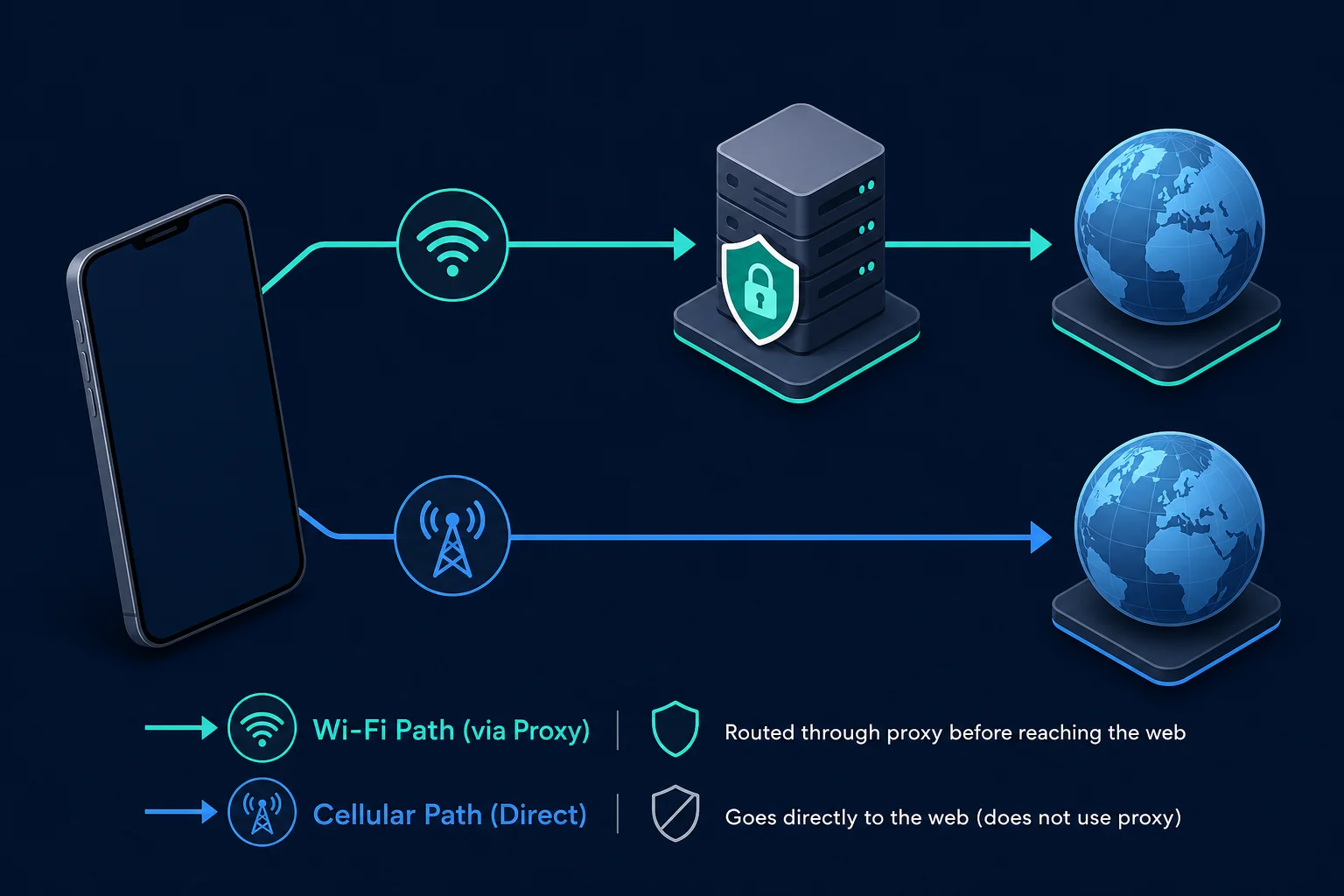
HTTP proxy on iPhone is a Wi-Fi setting that sends web traffic from Safari and other apps that respect it through a proxy server before it reaches a website. You find it at Settings > Wi-Fi > (i) next to the network > Configure Proxy.
Should HTTP proxy be on or off on iPhone? For most people, leave it Off. Turn it on only when:
- your school, employer, or network administrator tells you to use a proxy, or
- you have your own proxy (for example, from a proxy provider) and want Safari traffic on that Wi-Fi network to use it.
Key facts:
- The setting is saved per Wi-Fi network. Each network has its own proxy setting.
- It does not apply to cellular data.
- Some apps ignore it. It is not a VPN.
If you do not know why a proxy is set on your iPhone, set it to Off. A wrong proxy can stop web pages from loading or send your traffic through a server you did not choose.
To turn an HTTP proxy on or change it:
- Connect to the Wi-Fi network that should use the proxy.
- Open Settings > Wi-Fi and tap the (i) next to the network.
- Scroll to HTTP Proxy and tap Configure Proxy.
- Choose Manual and enter the server and port, or choose Automatic and enter a PAC URL. Switch on Authentication for a username and password.
- Tap Save, then load
https://ipv4.unknownproxies.com/ipin Safari to confirm the exit IP.
To turn it off, choose Off on the same screen and tap Save. Apple's own documentation covers only the managed Global HTTP Proxy for supervised devices. As of October 2026 we found no Apple help page for this per-network screen, so the path above follows Apple Community answers and the setup guides that match them.
What is HTTP proxy on iPhone?
An iPhone HTTP proxy is a web-traffic relay set for one Wi-Fi network. Safari, or another app that respects the setting, connects to the proxy instead of the website. The proxy then connects to the website for it.
Configure Proxy has three options:
| Option | What you enter | Use it when |
|---|---|---|
| Off | Nothing | The network does not need a proxy. This is the default and the right choice for most people |
| Manual | Server, port, and optional username and password | A proxy provider or administrator gave you one proxy endpoint |
| Automatic | A PAC file URL | An administrator gave you a proxy auto-configuration URL |
"HTTP" names the proxy type. It does not mean your HTTPS traffic becomes unencrypted. For an HTTPS site, the proxy usually relays a tunnel opened with the HTTP CONNECT method, and Safari still sets up TLS with the website inside that tunnel. The MDN guide to proxy servers and tunneling explains this in more detail.
Should HTTP proxy be on or off on iPhone?
| Your situation | Setting |
|---|---|
| Home Wi-Fi, café, hotel, or phone hotspot with no proxy instructions | Off |
| School or work network that asks you to set a proxy | Manual or Automatic, using the values they gave you |
| You bought a proxy and want Safari to use it on this Wi-Fi network | Manual |
| You see a server or URL you do not recognize | Off, then check who set it |
| Device managed by your employer or school (MDM) | Do not change it. Ask the administrator |
Turning the proxy off does not harm a normal network. If pages load after you set it to Off, the network did not need the proxy, or the proxy settings were wrong.
What the iPhone Wi-Fi proxy does and does not do
The manual setting is useful when you want Safari on one Wi-Fi network to use a known exit IP, test a website from an approved location, debug web requests, or use a proxy that a school or business network requires.
It has clear limits:
- It is saved per Wi-Fi network. Join a different network and that network has its own proxy setting.
- It does not apply to cellular data. When the iPhone leaves Wi-Fi, it also leaves the Wi-Fi proxy.
- It is not a VPN. A VPN captures more of the device's traffic and usually encrypts it to the VPN server. See proxy server vs VPN for the differences.
- Apps can ignore it. Apps that use the system web proxy follow it. Non-HTTP traffic and apps with their own networking may not.
- It is not a managed global proxy. Organizations can push Apple's Global HTTP Proxy setting to supervised devices. That applies across networks and only an administrator controls it.
Apple's deployment documentation says a managed Global HTTP Proxy can use a manual server or a PAC URL. Apple also notes in its content-filtering guidance that some apps use non-HTTP connections that an HTTP proxy cannot handle. So one good Safari test does not prove every connection on the iPhone uses the proxy.
Use an app when the Wi-Fi proxy is not enough
The built-in screen takes only an HTTP proxy or a PAC file, works on Wi-Fi only, and has no quick toggle. You reopen the network's settings every time you switch it on or off. A r/bugbounty thread that ranks for this search is built around that complaint.
Third-party proxy apps fill the gap. Shadowrocket is the one setup guides name most. It lets you add a SOCKS5 server with host, port, and login, and on first use iOS asks you to allow a VPN configuration, which is how the app captures device traffic. Because the app builds its own tunnel, behavior on cellular depends on the app, so test it there before relying on it. Check the app's privacy policy, since all of your traffic passes through it. For SOCKS5 itself, see SOCKS5 vs HTTP proxy and the Android SOCKS5 proxy guide, which covers the same limits on the other platform.
Before you configure the proxy
Get these values from your proxy provider or network administrator:
- Protocol: the endpoint must support HTTP proxy connections. A SOCKS5-only endpoint will not work in this screen.
- Server: a hostname such as
proxy.example.comor an IP address. - Port: the number assigned to the HTTP endpoint, such as
8080. - Username and password: needed when the endpoint uses username/password login.
- PAC URL: needed only for Automatic mode. It normally starts with
https://. - Session or location options: residential providers often put a country or sticky-session value inside the username.
Do not paste a full proxy URL into Server. If you received:
http://username:password@proxy.example.com:8080
enter proxy.example.com as the server and 8080 as the port, then put the username and password in their own fields. Leave out http://, slashes, and credentials from the server value. If your provider gives a list in host:port:user:pass format, the proxy formatter can split it into separate fields.
If you are not sure whether the endpoint is HTTP or SOCKS5, read SOCKS5 vs HTTP proxy first. Configure Proxy on iPhone accepts an HTTP proxy or a PAC file. It has no SOCKS5 option.
How to set up a manual HTTP proxy on iPhone
- Connect the iPhone to the Wi-Fi network that should use the proxy.
- Open Settings and tap Wi-Fi.
- Tap the (i) button next to the connected network.
- Scroll down to HTTP Proxy and tap Configure Proxy.
- Select Manual.
- Enter the proxy hostname in Server and the number in Port.
- If the proxy needs a login, turn on Authentication and enter the username and password exactly as supplied.
- Tap Save, then open a simple HTTPS page to test.
Change one thing at a time. If you change the proxy, Wi-Fi network, DNS, and browser together, a failure is hard to trace.
Anyone who can unlock the phone can see these settings. Use a unique proxy password, do not share screenshots of the fields, and remove the proxy from a borrowed or shared device when you finish.
How to use automatic proxy configuration
Automatic mode needs a PAC URL, not a proxy hostname. A PAC file contains JavaScript rules that pick a proxy or a direct connection for each URL.
- Go to Settings > Wi-Fi.
- Tap the (i) button next to the connected network.
- Tap Configure Proxy and select Automatic.
- Enter the full PAC URL from your administrator.
- Tap Save and test the sites the policy covers.
Use the URL exactly as given. Do not build a PAC address from a proxy hostname, and do not paste a provider dashboard page. If the iPhone cannot download the PAC file, or its rules point to a proxy that is down, pages fail to load even though Wi-Fi shows as connected.
PAC mode is most common on school and business networks. For a personal proxy with a username and password, Manual mode is clearer.
How to verify the iPhone HTTP proxy
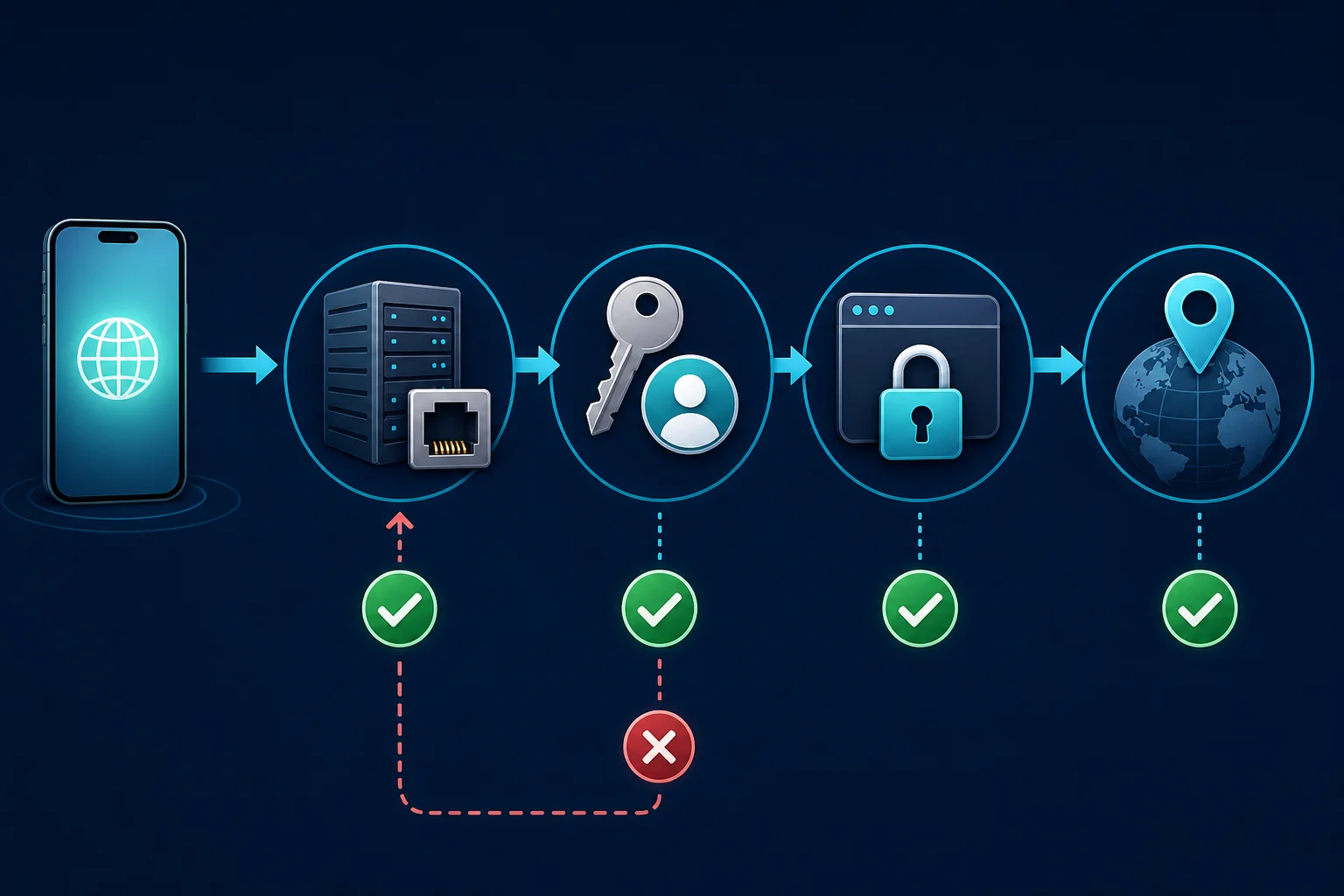
Test in layers so you can tell a proxy problem from a website problem:
- With the proxy Off, open
https://ipv4.unknownproxies.com/ipand note your public IPv4 address. - Set the proxy on the current Wi-Fi network.
- Reload the IP page in a new Safari tab. It should show the proxy's exit IP, not your Wi-Fi address.
- Open a different HTTPS site to confirm secure pages load.
- Repeat the IP test in each app that should use the proxy.
- Turn off Wi-Fi for a moment. On cellular, expect your carrier's IP, not the proxy.
An IP change in Safari proves that request used the proxy. It does not prove that every app, background service, DNS query, or non-HTTP connection did.
Check DNS and WebRTC leaks
For web requests that follow the proxy, Safari sends the hostname to the proxy in the CONNECT request, so the proxy resolves it. Other connections can still use your normal DNS. Run a DNS leak test page in Safari with the proxy on. Resolvers that belong to your home ISP mean some lookups left the proxy path.
Also open a WebRTC leak test. WebRTC uses UDP, which an HTTP proxy does not carry, so a page may still read your real public IP. If it does, treat the proxy as covering page requests only and use a VPN-style app for the rest, as described above. Retail and ticketing tests that compare what a site shows from one IP are the ones that go wrong when a second address leaks.
For a static ISP proxy or a sticky residential session, repeat the check after a few page loads and after you reopen Safari. The exit IP should stay the same for the session length. A rotating residential endpoint may change exits on purpose.
Troubleshooting iPhone proxy problems
| Symptom | Likely cause | What to check |
|---|---|---|
| Wi-Fi connects but no pages load | Wrong server, port, or protocol | Recopy the HTTP endpoint; remove http:// and paths from Server |
| Login prompt keeps coming back | Wrong credentials or unsupported login method | Re-enter the username and password; confirm the provider supports basic proxy authentication |
| IP address does not change | Proxy is Off, wrong Wi-Fi network, or the app ignores the proxy | Check Configure Proxy on the current network and retest in Safari |
| HTTP pages work but HTTPS fails | Tunnel or TLS inspection problem | Confirm the endpoint supports CONNECT; remove untrusted certificate profiles |
| Proxy works on one Wi-Fi network only | Expected: the setting is per network | Set the other network separately |
| Proxy stops on cellular | Expected: Wi-Fi only | Rejoin Wi-Fi; the Wi-Fi proxy does not cover mobile data |
| School or work site fails | PAC policy, certificate, or admin restriction | Ask the network administrator |
| Website returns 403 or 429 | The website's own policy or rate limit | Confirm the IP first, then look at the website's response |
Confirm the protocol and field format
A hostname and port do not show the protocol. HTTP and SOCKS5 endpoints both look like host:port but start connections differently. Confirm the protocol with your provider and use the HTTP port.
Check if the username includes session options. If you cut off a country or session suffix, login may fail or the route may change. Paste the full username into the Username field.
Sign in to hotel or café Wi-Fi first
Hotels, airports, and cafés often show a sign-in page before you get internet access. Complete that page with the proxy Off, then turn the proxy on and test again. A manual proxy can stop the sign-in page from appearing.
Do not experiment with unknown proxy services on public Wi-Fi. Use HTTPS, do not install certificates from a proxy operator you do not trust, and do not send sensitive traffic through a random open proxy.
Stop at certificate warnings
An HTTP proxy can relay HTTPS without decrypting it. If Safari reports an untrusted certificate after you set a proxy, do not bypass the warning or install an unknown root certificate.
TLS inspection belongs on managed devices in an organization you trust. With a normal commercial proxy, HTTPS sites keep valid certificates for their real hostnames.
Turn the proxy off
Go to Settings > Wi-Fi > (i) > Configure Proxy, select Off, and tap Save. Test the same page again.
If pages load right away, the problem is the proxy endpoint, login, PAC file, or compatibility. If pages still fail, fix the Wi-Fi connection before you change proxy settings again. Avoid Reset Network Settings unless you want to remove all saved Wi-Fi networks, VPN settings, and related network configuration.
When a proxy is the right fit on iPhone
An iPhone HTTP proxy makes sense when you need a web route on one Wi-Fi network: regional QA you are allowed to do, checking how a public page looks from a known IP, reproducing a proxy-specific issue, or a gateway your organization requires.
Pick the proxy type by session:
- A stable ISP proxy fits repeated browser tests, including retail and ticketing page checks, that should keep one exit IP.
- A sticky residential proxy fits regional tests that need a home-network route without changing IP mid-session.
- A rotating residential session fits independent page checks, not a login flow that expects one IP.
Follow each website's terms and access rules. A proxy does not grant permission or guarantee that a site accepts the request. For broader privacy on untrusted Wi-Fi, or for traffic beyond web browsing, use a reputable VPN instead.
FAQ
What is HTTP proxy on iPhone used for?
It sends web traffic on one Wi-Fi network through a proxy server. Schools and businesses use it to filter or route traffic. Individuals use it to browse through a proxy they bought or run themselves.
Should HTTP proxy be on or off on iPhone?
Off, unless a network administrator or your own proxy provider gave you settings to use. An unknown server or PAC URL can break browsing or route traffic through an operator you did not choose.
How do I turn off the proxy on my iPhone?
Open Settings > Wi-Fi, tap the (i) next to your network, tap Configure Proxy, choose Off, and tap Save. Other Wi-Fi networks keep their own proxy settings, so repeat this on each network that has one.
Does an iPhone HTTP proxy work on mobile data?
No. The setting lives under a Wi-Fi network and applies only to it. A managed Global HTTP Proxy or a third-party proxy app is a different setup with broader scope.
Can I enter a SOCKS5 proxy in the iPhone HTTP Proxy screen?
No. The screen accepts an HTTP proxy or a PAC URL, and the authentication switch is for a username and password. Use an HTTP endpoint from your provider, or an app that supports SOCKS5.
Is an HTTP proxy on iPhone safe?
It is as safe as the proxy operator. HTTPS still protects page content when the proxy tunnels it normally, but the proxy sees which sites you connect to. Avoid unknown free proxies, never ignore certificate warnings, and remove settings you no longer use.
Why does Safari use the proxy but another app does not?
Safari uses the system web proxy. Another app may use a non-HTTP protocol, its own proxy setting, or networking that skips the Wi-Fi proxy. Test each app separately.
Final thoughts
HTTP proxy on iPhone is a per-Wi-Fi web proxy, not a device-wide VPN. Leave it Off unless you have a reason to use it. When you do, use Manual for a known server, port, and login, or Automatic only with a real PAC URL from an administrator. Then check the public IP in Safari and test each app that matters.