Android's Wi-Fi proxy settings only take HTTP proxies, so an Android SOCKS5 proxy needs an app. Set SOCKS5 inside the app if it has the option. Otherwise run a VPN-service client that routes all or chosen apps without root, or use Firefox with a proxy add-on. The Wi-Fi form has no SOCKS5 choice and no username or password fields.
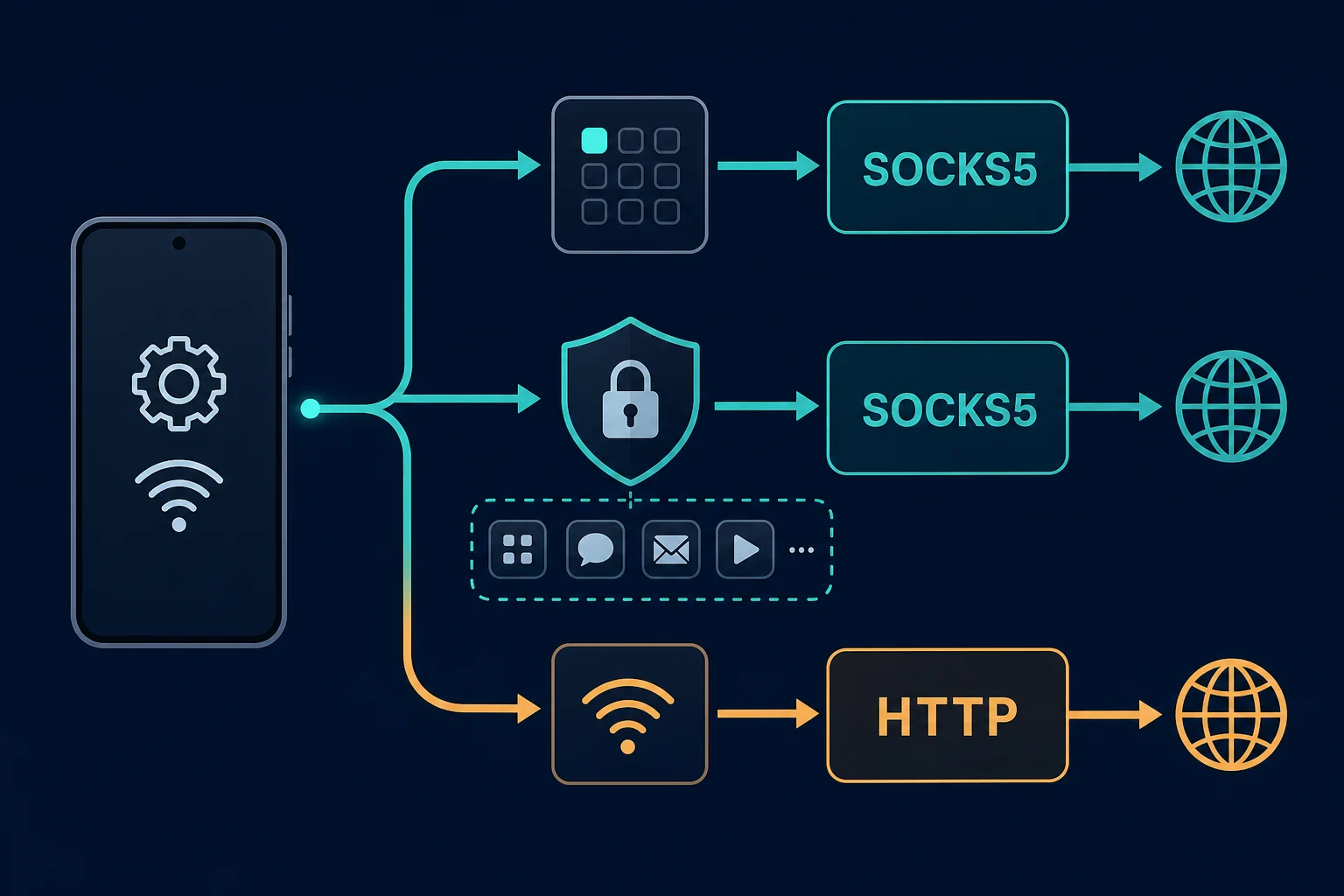
The three working paths, in the order most people should try them:
- The app's own SOCKS5 setting, if it has one. Only that app uses the proxy.
- A SOCKS5 client built on Android's VPN interface. It routes all apps, or the apps you pick, over Wi-Fi and mobile data. No root needed.
- Firefox for Android with a proxy add-on. Extensions can send SOCKS5 traffic with a username and password. Chrome for Android has no extensions and no proxy settings of its own.
If your provider also gives you an HTTP endpoint and you only need web traffic on one Wi-Fi network, the built-in Wi-Fi proxy is enough. This guide covers each method, which open-source client to pick (as of October 2026), authenticated endpoints, DNS and IPv6 leaks, and how to check the result. The same logic applies on Windows 11, where the system proxy page also lacks SOCKS5.
Android SOCKS5 proxy: quick setup
Choose the path that matches the traffic you need to route:
| Goal | Best setup | Important limit |
|---|---|---|
| Route one app that has a SOCKS setting | Configure SOCKS5 inside that app | Other apps keep their normal connection |
| Route selected or most Android apps | Use a trusted SOCKS5 client built on Android VpnService |
Android allows only one active VPN service per user or profile |
| Route web traffic on one Wi-Fi network | Use Android's manual proxy with an HTTP endpoint | The native Wi-Fi field is not a true SOCKS5 setting |
| Route only the browser through SOCKS5 | Use Firefox for Android with a SOCKS5 proxy add-on | Other apps stay direct |
| Test the endpoint from a terminal | Use cURL in an Android terminal app | Only that command uses the proxy |
Do not paste a SOCKS5 host and port into Android's manual Wi-Fi proxy screen and assume Android will detect the protocol. An HTTP client and a SOCKS5 server begin connections differently, so a protocol mismatch normally produces a timeout, reset, or immediate connection failure.
What you need before setup
Copy these values from your proxy provider before changing Android settings:
- Protocol: confirm the endpoint actually supports SOCKS5.
- Host: a hostname or IP address, without
socks5://when the app has a separate host field. - Port: the provider's SOCKS5 port, not an HTTP port from another plan or protocol.
- Username and password: required for authenticated proxies.
- Location or session options: these may be encoded in the username for a residential gateway.
- Session behavior: static, sticky, or rotating.
A client may ask for separate fields or a single URL. The common URL form is:
socks5://username:password@host:port
If the client supports socks5h://, the extra h tells it to send destination hostnames to the proxy for resolution instead of resolving them locally. The exact option name may be Proxy DNS, Remote DNS, Resolve through proxy, or something similar.
Do not assume a four-part string such as host:port:user:pass selects the protocol. That is only a field layout. Choose SOCKS5 in the client as well, or include the scheme when the client expects a URL. The proxy converter can rearrange a proxy list into the format your app accepts.
Method 1: Set up SOCKS5 inside an Android app
App-level configuration is the cleanest option when the target app already supports SOCKS5. It limits the proxy to that app and avoids changing traffic for email, updates, banking apps, and other unrelated services.
The labels differ by app, but the process is usually:
- Open the app's network, connection, or advanced settings.
- Find Proxy, SOCKS, or SOCKS5.
- Select SOCKS5 explicitly.
- Enter the host and port in separate fields, without a URL scheme.
- Enter the username and password if the app supports authenticated SOCKS5.
- Enable remote or proxy DNS when available.
- Save the profile, connect, and restart the app if it keeps old connections open.
- Test the proxy inside that same app.
If the app exposes only HTTP proxy, HTTPS proxy, PAC URL, or Android's system proxy, it does not necessarily support SOCKS5. Use an HTTP endpoint from your provider or the device-wide method below rather than forcing a SOCKS URL into an HTTP field.
Test SOCKS5 with curl on Android
If you have cURL in an Android terminal environment, test the endpoint independently of the browser or target app:
curl --proxy "socks5h://proxy.example.com:1080" \
  --proxy-user "username:password" \
  "https://ipv4.unknownproxies.com/ip"
socks5h:// makes cURL ask the proxy to resolve the destination hostname. With socks5://, cURL resolves it locally. Keeping credentials in --proxy-user also makes the host and port easier to inspect, although the command can still remain in shell history; do not share terminal screenshots containing secrets.
If this test returns a proxy exit IP, the endpoint, protocol, and authentication work from the phone. A failure in another app then points to that app's proxy support, field format, DNS mode, or connection reuse.
Method 2: Route all Android apps through a SOCKS5 client
For device-wide or per-app routing, use a reputable Android proxy client that supports all of the following:
- SOCKS5 with username and password authentication.
- Android's local VPN interface.
- Remote DNS through the proxy.
- Per-app inclusion or exclusion, if you do not want to route everything.
- A visible connection log with errors and the selected route.
- A current privacy policy, maintained releases, and a trustworthy distribution source.
Android's VpnService documentation explains why this method shows a system VPN permission prompt and key or VPN indicator. The app creates a local virtual interface, reads traffic routed to it, and forwards that traffic through its tunnel. Only one VPN service can be active for a user or work profile at a time, so starting the SOCKS5 client can stop an existing VPN.
Use this setup sequence:
- Install and open the trusted client.
- Add a new SOCKS5 profile.
- Enter the provider host, SOCKS5 port, username, and password.
- Turn on remote DNS or DNS through proxy if the client offers it.
- Choose whether to route all apps or only named apps.
- Connect and approve Android's VPN connection request.
- Confirm the VPN indicator remains visible.
- Test the exit IP in a browser and then test each app you intended to route.
These clients do not need root. Older tools such as ProxyDroid change the device's firewall rules and need a rooted phone, so most people should use a client built on VpnService instead.
The VPN key icon describes how Android hands traffic to the client. It does not mean you are using a VPN provider. The upstream hop is still your SOCKS5 proxy.
Per-app mode is usually safer. Select only the browser, QA app, scraper, terminal, or automation client that needs the proxy. This reduces surprise traffic, bandwidth use, and location conflicts in unrelated apps.
Which SOCKS5 client to pick
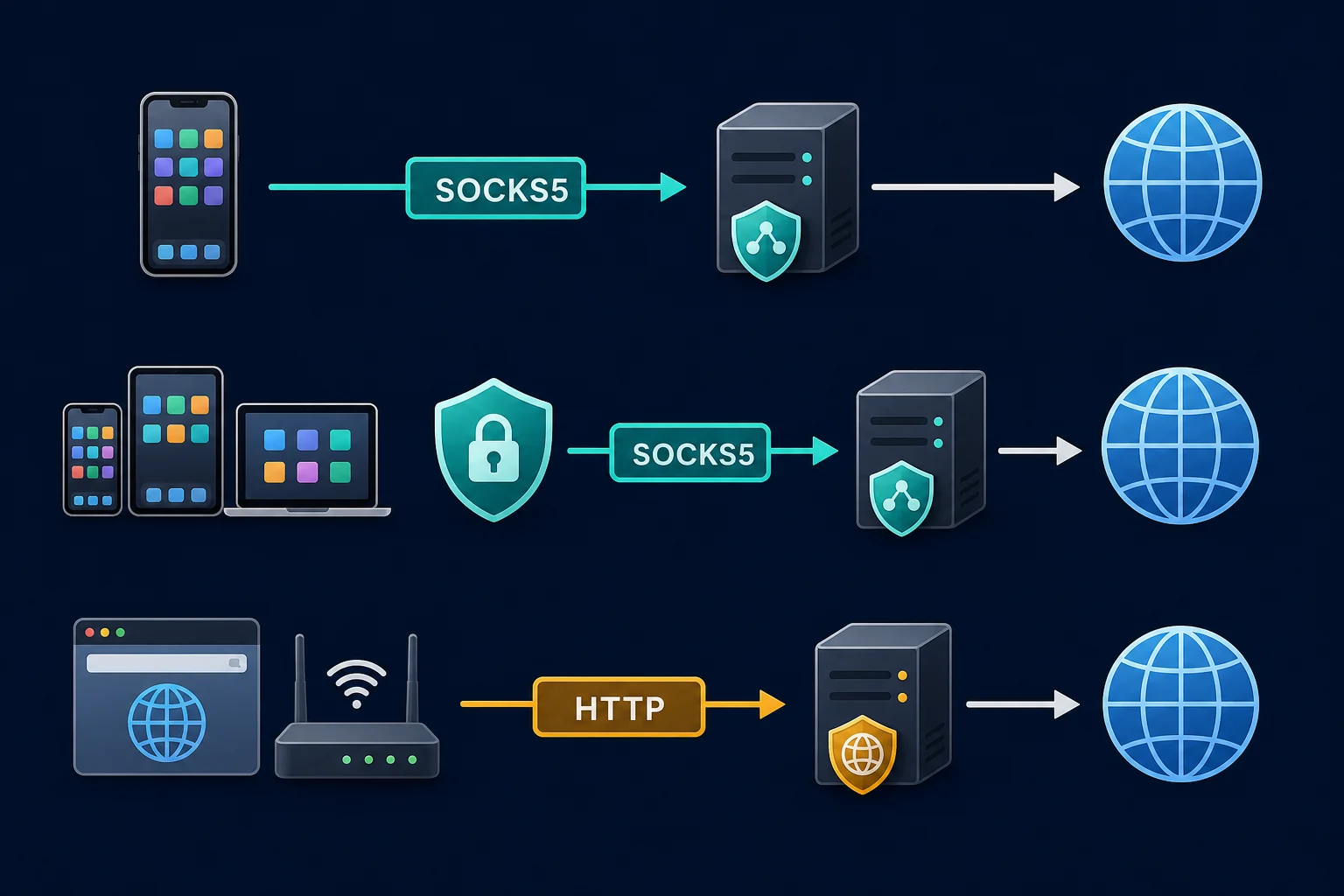
Search results for this topic are mostly app listings, and two of the top ones do very different things. Read what the app actually does before you enter provider credentials.
| App | What it does | Use it for a provider SOCKS5 endpoint? |
|---|---|---|
| SocksTun (open source, MIT) | Forwards device traffic to a SOCKS5 server through the VPN interface. Lists TCP and UDP, custom DNS, IPv4 and IPv6, username and password, and global or per-app modes. Available from GitHub and F-Droid. | Yes |
| Socks5 Proxy on F-Droid (version 3.0.2, July 2026) | Opens an SSH tunnel to a server you control, then exposes a local SOCKS5 proxy on 127.0.0.1:1080. Needs Android 7.0 or later. |
No. It tunnels to your own SSH server, not to a SOCKS5 provider. |
| Any client with the checklist above | Add the profile, pick apps, approve the VPN prompt. | Yes, if it passes the checklist |
The F-Droid listing says "Socks5 client", which is easy to misread. Its upstream is SSH, so a provider's host:port:user:pass will not work in it. For a provider endpoint, pick a tun2socks-style client such as SocksTun, then confirm UDP and DNS behavior with the tests below.
Stop traffic leaking when the tunnel drops
Android can start a VPN service at boot and keep it running. In Android's VPN documentation, always-on VPN needs Android 7.0 or higher, and the Block connections without VPN switch makes the system block any traffic that does not use the VPN. Find both under Settings > Network & internet > VPN, tap the gear beside your client, and turn them on if a leak would burn a session. Labels differ by maker.
Two caveats. A blocked tunnel means no internet until the client reconnects. And the F-Droid SSH app above captures IPv4 only, per its listing, so check IPv6 explicitly when you use any tunnel client.
Method 3: Firefox for Android with a SOCKS5 add-on
Chrome for Android follows the Wi-Fi proxy and cannot take a SOCKS5 proxy by itself. Firefox for Android is different, because it supports extensions that use the WebExtensions proxy.onRequest API. That API can return a SOCKS5 proxy with a username and password, according to MDN's proxy.ProxyInfo reference.
- Open Firefox for Android and tap the menu > Extensions (or Add-ons).
- Search for a proxy add-on that lists SOCKS5 and authentication support.
- Install it, open its settings, and add the SOCKS5 host, port, username, and password.
- Turn on remote DNS if the add-on offers it.
- Open
https://ipv4.unknownproxies.com/ipin Firefox and confirm the exit IP.
This covers Firefox traffic only. Other apps keep their normal connection. Check the add-on's permissions and update history before you give it your proxy password. The desktop details are in our Firefox SOCKS5 proxy guide.
Method 4: Use Android's built-in Wi-Fi proxy (HTTP only)
Android's native proxy setting is attached to a saved Wi-Fi network. It is useful when your provider supplies a compatible HTTP proxy, but it is not the place to configure a true authenticated SOCKS5 connection.
On stock Android, the path is typically:
- Open Settings.
- Go to Network & internet > Internet.
- Tap the settings icon beside the connected Wi-Fi network.
- Tap the edit control, then open Advanced options.
- Change Proxy from None to Manual. The other choice, Proxy Auto-Config, takes a PAC file URL.
- Enter the HTTP proxy hostname and port.
- Add bypass hosts only when necessary, then save.
Samsung and other manufacturers use different labels, so search Settings for proxy or check the manufacturer's instructions if that path is absent.
The platform's ProxyInfo API models a direct proxy with host, port, and optional exclusions, or a PAC URL. It does not provide a SOCKS5 selector or credential fields. In practice, that means:
- Use the provider's HTTP host and port in the Wi-Fi screen, not its SOCKS5-only port.
- Expect the setting to apply only while connected to that saved Wi-Fi network.
- Do not expect it to cover mobile data.
- Test each app because an app can ignore or bypass the system web proxy.
- Authentication behavior depends on the app; Android's Wi-Fi form cannot store a proxy username and password.
If you only have a SOCKS5 endpoint, return to the app-level, VPN-service, or Firefox method.
Mobile data has a similar limit. Some phones show Proxy and Port fields in the access point (APN) settings, but these are also HTTP-style fields, carriers can lock them, and many apps ignore them. Use a VPN-service client to send mobile data through SOCKS5.
Running a SOCKS5 server on the phone instead
Some searches for an Android SOCKS5 proxy mean the reverse: the phone is the proxy. Open-source servers such as heiher/socks5 run on Android and list IPv4 and IPv6 plus username and password support. Use this on a network you control, set a password, and do not expose the port to the internet. The phone's mobile IP then becomes the exit for whatever connects to it.
Verify the Android SOCKS5 proxy
Verify the route in layers instead of opening the final target first.
- With the proxy disconnected, note the phone's current public IP.
- Connect the proxy and open
https://ipv4.unknownproxies.com/ipin the routed app. - Confirm the result changes to the expected proxy exit IP.
- Open an HTTPS page to confirm normal TLS traffic works.
- Test a hostname that was not already cached.
- Repeat the IP check inside every app that should use the proxy.
- Switch from Wi-Fi to mobile data if the setup is supposed to work on both.
- Open an IPv6 test page. If it shows your carrier's address, IPv6 traffic bypasses the tunnel, so disable IPv6 in the client or pick a client that handles it.
An IP change in one browser proves only that browser's request used the proxy. It does not prove that every app, DNS lookup, background service, or UDP flow is routed. Check the proxy client's per-app list and connection log rather than inferring device-wide coverage from one result.
For sticky or static routes, repeat the test after several requests. A static ISP proxy should keep the assigned address. A rotating residential gateway may change exits unless you configured a sticky session. See sticky vs rotating proxies before using a login or other multi-step session. If you are choosing between plan types, ISP vs residential proxies lays out the trade-offs.
Common Android SOCKS5 proxy problems
| Symptom | Likely cause | Fix |
|---|---|---|
| Connection times out immediately | Wrong host, port, or protocol | Confirm the SOCKS5 endpoint and test it with cURL |
| Authentication fails | Reversed fields, stale password, or unsupported auth | Recopy credentials and confirm the client supports SOCKS5 username/password auth |
| Wi-Fi stops working after manual setup | SOCKS5 endpoint placed in Android's HTTP proxy field | Remove it or switch to the provider's HTTP endpoint |
| Browser IP changes but another app does not | Only the browser honors the proxy or per-app routing excludes the app | Add the app to the VPN client route and reconnect |
| Works on Wi-Fi but not mobile data | Native Wi-Fi proxy is network-specific | Use an app-level or VPN-service client for mobile data |
| IP changes but DNS stays local | Client-side DNS resolution | Enable remote DNS or use socks5h:// where supported |
| Connection drops when another VPN starts | Android replaced the active VPN service | Choose one VPN-service-based connection at a time |
| Some real-time features fail | Client or provider does not relay the required UDP traffic | Confirm UDP support; SOCKS5 support in name does not guarantee every command or traffic type |
If the proxy responds but a website returns 403 or 429, the Android setup is probably correct. The site is refusing or rate limiting the requests. Changing Android clients will not fix that.
For a protocol mismatch, compare SOCKS5 vs HTTP proxy. For credential failures in HTTP-proxy workflows, use the 407 Proxy Authentication Required guide.
Security and session tips
SOCKS5 is a routing protocol, not an encryption guarantee. The original SOCKS5 specification defines connection relay and authentication negotiation; it does not turn arbitrary application traffic into an encrypted VPN tunnel. Use HTTPS or another end-to-end encrypted protocol for sensitive traffic.
Treat a VPN-service-based proxy app as sensitive software because it can handle routed traffic. Install it from a source you trust, review its permissions and privacy practices, and avoid abandoned clients or random APK downloads. Never give a proxy app accessibility, device administrator, or certificate-installation access unless a clearly understood feature requires it.
Keep one proxy identity aligned with one account, browser profile, or test session. For Android account, ticketing, or retail workflows, use a stable ISP proxy or sticky residential session instead of rotating in the middle of a login, cart, or multi-step flow. Use rotating residential sessions for independent public-page checks where each request can stand alone.
Unknown Proxies residential and ISP plans support SOCKS connections with username and password authentication. Compare residential proxies for location coverage and rotating or sticky sessions, or ISP proxy pricing for stable dedicated IPs. Match the route to the app and follow the destination's terms, access rules, and applicable law.
FAQ
Can I set a SOCKS5 proxy in Android Wi-Fi settings?
Not as a native SOCKS5 connection. Android's manual Wi-Fi proxy form accepts a proxy hostname, port, and bypass list for web proxying, but it has no SOCKS5 selector or username and password fields. Use a provider HTTP endpoint there, or configure SOCKS5 in an app or a VPN-service client.
Do I need root to use a SOCKS5 proxy on Android?
No. Clients built on Android's VPN interface route traffic without root. The system shows a connection request the first time and a key icon while the tunnel is active. Older tools that rewrite firewall rules, such as ProxyDroid, do need root.
How do I use a SOCKS5 proxy on Android for all apps, not just the browser?
Use a SOCKS5 client built on Android's VPN interface. Add your SOCKS5 host, port, username, and password, choose all apps, and approve the VPN prompt. Then check the exit IP in a few different apps.
Can I use SOCKS5 in Chrome on Android?
Not directly. Chrome for Android has no proxy settings and no extensions. It follows the Wi-Fi proxy, which is HTTP only. Route Chrome through a VPN-service SOCKS5 client, or use Firefox for Android with a SOCKS5 add-on.
Does an Android SOCKS5 proxy work on mobile data?
An app-level SOCKS5 setting works wherever that app has connectivity. A VPN-service client can route selected traffic over Wi-Fi or mobile data. Android's built-in manual proxy is saved against one Wi-Fi network and does not cover cellular traffic.
Should I use socks5:// or socks5h://?
Use socks5h:// when the client supports it and you want the proxy to resolve destination hostnames. cURL documents socks5:// as local name resolution and socks5h:// as proxy-side name resolution in its SOCKS proxy guide.
Does SOCKS5 encrypt Android traffic?
No. SOCKS5 relays connections but does not encrypt application data. HTTPS, SSH, and other encrypted protocols still protect content between the app and the destination.
Final thoughts
Android has no SOCKS5 switch, so choose the layer first. Use an app's own SOCKS5 field when it exists, a tun2socks-style VPN-service client for chosen or all apps, and the Wi-Fi proxy only with an HTTP endpoint. Test the endpoint with cURL before blaming the app, turn on proxy-side DNS, and check IPv4 and IPv6 exits in every routed app. Keep one proxy per account or checkout session. For iPhone, see the iPhone HTTP proxy guide, and for a desktop browser, the Firefox SOCKS5 guide.