Windows 11 has no working SOCKS5 option in its system proxy settings. Settings > Network & internet > Proxy takes an HTTP proxy or a setup script, and the old Internet Options "Socks" field speaks SOCKS4 with no password. To use a Windows 11 SOCKS5 proxy, set it inside each app, in Firefox or a Chrome flag, or route chosen apps with Proxifier.
That is the whole problem in one paragraph. Several pages that rank for this search tell you to paste the SOCKS5 host into the Windows proxy page, and that is why so many readers end up with a dead connection and a login they could never type in. This guide shows each option that does work, what it costs you, and how to prove the route is live. Windows 10 behaves the same way.
Windows 11 SOCKS5 proxy: your real options
Pick by the traffic you need to move and whether the proxy needs a username and password.
| Option | What it routes | SOCKS5 username and password | Main limit |
|---|---|---|---|
| The app's own SOCKS5 setting | That app only | Usually yes | Other apps stay direct |
| Proxifier | Any app you add a rule for | Yes | Paid after a 31-day trial, TCP only |
| ProxiFyre | Chosen apps, TCP and UDP | Yes | Needs a packet filter driver |
| Firefox | Firefox only | No fields | Needs IP allowlisting or a local router |
Chrome or Edge --proxy-server |
One browser profile | No | Needs IP allowlisting or a local router |
Local router on 127.0.0.1 |
Anything you point at it | Yes, the router logs in | One more program holds your credentials |
| Windows Settings > Proxy | Apps that read the system proxy | Not SOCKS5 | HTTP proxy or PAC only |
If your provider gives you an HTTP endpoint as well and you only need browser traffic, the Windows proxy page with that HTTP endpoint is the simplest route. Compare SOCKS5 vs HTTP proxy before you add another program.
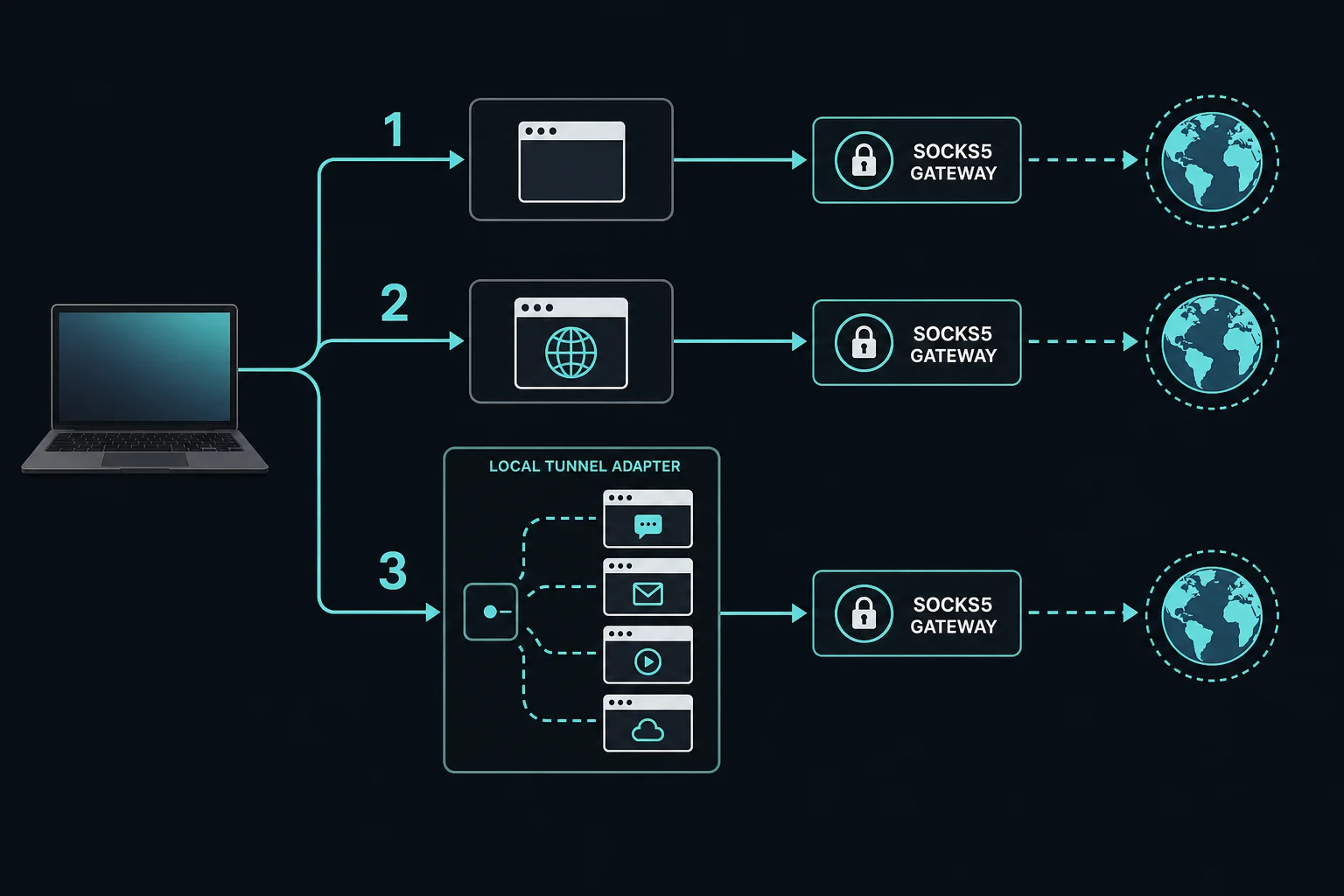
What Windows 11 can and cannot do with SOCKS5
Windows has three proxy settings, and none of them is a SOCKS5 tunnel for the whole machine.
| Windows setting | Where it is | What it does with SOCKS |
|---|---|---|
| Settings > Network & internet > Proxy | Settings app | Manual HTTP-style proxy or PAC script. No SOCKS choice. |
| Internet Options "Socks" field | inetcpl.cpl > Connections > LAN settings > Advanced |
WinINet SOCKS4 only. No username or password. |
| WinHTTP proxy | netsh winhttp |
HTTP and HTTPS proxies. No SOCKS. |
Microsoft's WinINet vs WinHTTP comparison lists SOCKS4 support for WinINet, no SOCKS4 for WinHTTP, and no SOCKS5 for either (page updated July 2026). The netsh winhttp documentation also notes that SOCKS5 is not supported by the advanced WinHTTP proxy setting.
The Internet Options Socks field is SOCKS4
The legacy dialog still has a Socks row next to HTTP and Secure. It looks like the answer, so people fill it in. Apps that use WinINet then speak SOCKS4 to your SOCKS5 port, and a Microsoft Q&A thread from 2024 shows exactly that in a packet capture: only SOCKS4 commands, with UDP failing.
SOCKS4 has no password exchange and no UDP. A provider endpoint that needs a username and password will reject it. Leave that field empty unless an administrator gave you a SOCKS4 server.
What goes wrong when you use the Windows proxy page
- A SOCKS5 port entered in Settings times out, because the client opens an HTTP proxy conversation with a SOCKS server.
- There is nowhere to type the proxy username and password.
- Apps with their own network stack ignore the setting. The Discord proxy guide shows one example and a launch-flag workaround.
- A browser works while a game, bot, terminal, or background service connects directly.
If Windows itself reports an automatic configuration warning, use the Windows proxy detection troubleshooting guide to separate the user proxy, WinHTTP, VPN, and adapter layers first.
What you need before setup
Copy these from the provider dashboard before you open any settings:
- The protocol. It should say SOCKS5, not SOCKS4, HTTP, or HTTPS.
- The host, as a hostname or IP address.
- The SOCKS5 port.
- The authentication method, either username and password or source-IP allowlisting.
- Any session, location, or duration values. Residential gateways often put these inside the username.
- Whether your app needs UDP, and whether the endpoint and client support it.
A client may ask for separate fields or one URL. The normal URL form is:
socks5://username:password@proxy.example.com:1080
When a tool supports socks5h://, the h asks the proxy to resolve destination hostnames:
socks5h://username:password@proxy.example.com:1080
A string such as host:port:user:pass is only a field layout. It does not tell the app which protocol to use, so select SOCKS5 in the app as well. The proxy converter rearranges a list into the format your app expects.
Before configuring anything, check that Windows can reach the proxy port:
Test-NetConnection proxy.example.com -Port 1080
TcpTestSucceeded: True proves a TCP connection reached the host and port. It does not prove the service speaks SOCKS5, accepts your credentials, or can reach the destination.
Method 1: Set SOCKS5 inside the app
App-level setup is the most predictable choice when one program needs the proxy. Windows Update, cloud sync, email, and banking stay on their normal route. Most ticketing and retail bots, torrent clients such as qBittorrent, and many chat and automation tools have a proxy screen with a SOCKS5 option. The proxy setup guide for bots and browsers covers the common field layouts.
The labels vary, but the usual setup is:
- Open the app's network, connection, or proxy settings.
- Choose SOCKS5. Do not leave it on HTTP or SOCKS4.
- Enter the host without
socks5://if there is a separate host field. - Enter the SOCKS5 port.
- Add the username and password if the app has fields for them.
- Turn on Remote DNS, Proxy DNS, or Resolve hostnames through proxy when available.
- Save, reconnect, and restart the app if it keeps old connections open.
- Check the public IP inside that same app.
If the only choices are HTTP, HTTPS, and PAC, the app has no SOCKS5 support. Use the provider's HTTP endpoint or one of the routing methods below. A SOCKS5 port in an HTTP field fails every time.
Test an authenticated SOCKS5 proxy with curl
Current Windows 10 and 11 installs include curl.exe. Call it by the full name in PowerShell so the shell does not treat curl as an alias:
curl.exe --proxy "socks5h://proxy.example.com:1080" `
  --proxy-user "username:password" `
  "https://ipv4.unknownproxies.com/ip"
The cURL proxy options separate --socks5, which resolves names locally, from --socks5-hostname or socks5h://, which lets the proxy resolve them. If this command prints the expected exit IP, the endpoint, port, credentials, and remote DNS all work from this PC. A failure in another app then points at that app.
Windows PowerShell 5.1's Invoke-WebRequest runs on .NET Framework, which has no SOCKS support, so use curl.exe for SOCKS5 tests there. Commands stay in PowerShell history. Use test credentials where you can, and never paste a real proxy password into a screenshot or support ticket.
Method 2: Route any app through SOCKS5 with Proxifier
Proxifier is the tool several top-ranking Windows guides recommend, and it earns that. It catches outgoing connections from the apps you choose, logs in to the SOCKS5 server with your username and password, and sends the traffic on. The app needs no proxy settings of its own.
Proxifier is paid software. As of October 2026 its download page lists Standard Edition 4.12 with a 31-day free trial. It handles TCP connections only, so apps that rely on UDP will not work properly through it.
Add the SOCKS5 server
- Open Profile > Proxy Servers and click Add.
- Enter the proxy Address and Port.
- Set Protocol to SOCKS Version 5.
- Turn on authentication and enter the username and password.
- Click Check to test the server, then OK.
Create a rule for each app
- Open Profile > Proxification Rules and click Add.
- Name the rule and list the executables in Applications, for example
chrome.exe; mybot.exe. Separate names with semicolons. - Leave Target hosts and Target ports blank to match every destination.
- Set Action to Proxy and select the SOCKS5 server you added.
- Leave the Default rule on Direct so everything else keeps the normal route.
Proxifier reads rules from top to bottom, and a connection must match the application, hosts, and ports fields to use a rule. If you point the Default rule at the proxy, every app on the PC goes through it. That is rarely what you want for a bot or browser profile.
Send DNS through the proxy
Open Profile > Name Resolution. By default Proxifier detects DNS settings automatically and only resolves through the proxy when local DNS fails. Turn off automatic detection and enable Resolve hostnames through proxy if you want every lookup for proxied apps to go through the SOCKS5 server. Proxifier's name resolution docs explain the trade-off with IP-based rules.
ProxiFyre: a free option with UDP
ProxiFyre is an open-source (AGPL-3.0) SOCKS5 proxifier for Windows. It routes TCP and UDP, including QUIC, from selected apps through one or more SOCKS5 proxies, and supports optional username and password authentication. It needs the Windows Packet Filter driver and .NET Framework 4.7.2 or later on x86 and x64.
Its settings live in app-config.json next to ProxiFyre.exe. The project's minimal example:
{
  "logLevel": "Info",
  "bypassLan": true,
  "proxies": [
    {
      "appNames": ["chrome", "firefox"],
      "socks5ProxyEndpoint": "proxy.example.com:1080",
      "socks5Transport": "TCP",
      "supportedProtocols": ["TCP", "UDP"],
      "supportedAddressFamilies": ["IPv4", "IPv6"]
    }
  ],
  "excludes": []
}
The installer registers ProxiFyreService and leaves it stopped until the config is valid. Add credentials through its GUI or as the README describes. The README also notes they are stored in plain text in that file, so lock down who can read it.
Choosing any routing client
Proxifier and ProxiFyre are two of several tools that do this job. Whatever you install, check for:
- SOCKS5 username and password authentication.
- Proxy-side DNS.
- Per-app include and exclude rules.
- Connection logs that show handshake, authentication, and DNS errors.
- Maintained releases from a source you trust.
Start with one browser or test tool, verify it, then add other apps on purpose. Keep banking, password manager, update, and backup apps direct unless they need the proxy. A routing client sees the traffic it handles, so trust matters more here than with a browser setting.
Method 3: Use SOCKS5 in Firefox, Chrome, or Edge
Browser-level setup is enough when only web traffic matters. Both browsers have the same weakness: no way to send a SOCKS5 username and password.
Firefox
Firefox has its own connection settings:
- Open Settings and search for
proxy. - Click Settings under Network Settings.
- Choose Manual proxy configuration.
- Enter the host and port in SOCKS Host and select SOCKS v5.
- Check Proxy DNS when using SOCKS v5.
- Leave the HTTP proxy fields empty, click OK, and check the exit IP.
Mozilla documents these modes in its Firefox connection settings guide. The SOCKS form has no username or password fields, so use IP allowlisting or a local router. The Firefox SOCKS5 proxy guide covers both Settings layouts and this limit in more detail.
Chrome and Edge
Chrome takes a SOCKS5 proxy through a launch flag. Run a separate profile from Command Prompt:
"C:\Program Files\Google\Chrome\Application\chrome.exe" ^
  --user-data-dir="%TEMP%\chrome-socks5-test" ^
  --proxy-server="socks5://proxy.example.com:1080"
The separate --user-data-dir stops an already-running Chrome from absorbing the launch and ignoring the flag. It also keeps test cookies out of your normal profile. Edge accepts the same flag through msedge.exe.
Chromium's proxy documentation says Chrome supports no SOCKS5 authentication methods, and that it always resolves hostnames on the proxy side for SOCKS5. Do not put username:password in the flag. Use this for an allowlisted endpoint, an SSH tunnel, or a local router. The Chrome SOCKS5 proxy guide covers extensions and DNS rules.
Method 4: Run a local SOCKS5 router
A local router is a small program on your own PC. Browsers and apps connect to it at 127.0.0.1:1080 with no password, and it logs in to the real SOCKS5 proxy for them. This is how you use an authenticated SOCKS5 proxy with Chrome, Edge, or Firefox.
The open-source tool gost does it in one line. Download the Windows build from its releases page. Its docs show credentials going in the -F upstream URL:
gost -L socks5://127.0.0.1:1080 -F socks5://username:password@proxy.example.com:1080
Leave that window open, then point the browser at socks5://127.0.0.1:1080. If the password has symbols that break the URL, gost also accepts base64 credentials through an auth parameter.
Bind the listener to 127.0.0.1, not 0.0.0.0. A no-password proxy open to your local network lets anyone on it use your plan. Stop the router when you are done.
Use SSH as a local SOCKS5 proxy
Some searches for a "Windows SOCKS5 server" mean a local endpoint backed by a server you control. The OpenSSH client in Windows 10 and 11 can create one. If ssh is missing, add OpenSSH Client under Settings > System > Optional features.
ssh -D 1080 -N user@your-server.example.com
-D 1080 opens a SOCKS proxy on 127.0.0.1:1080, and -N keeps the session open without a remote shell. Traffic exits from your server's IP. This does not add credentials to a commercial proxy, because the exit is your own server.
Verify the Windows 11 SOCKS5 proxy
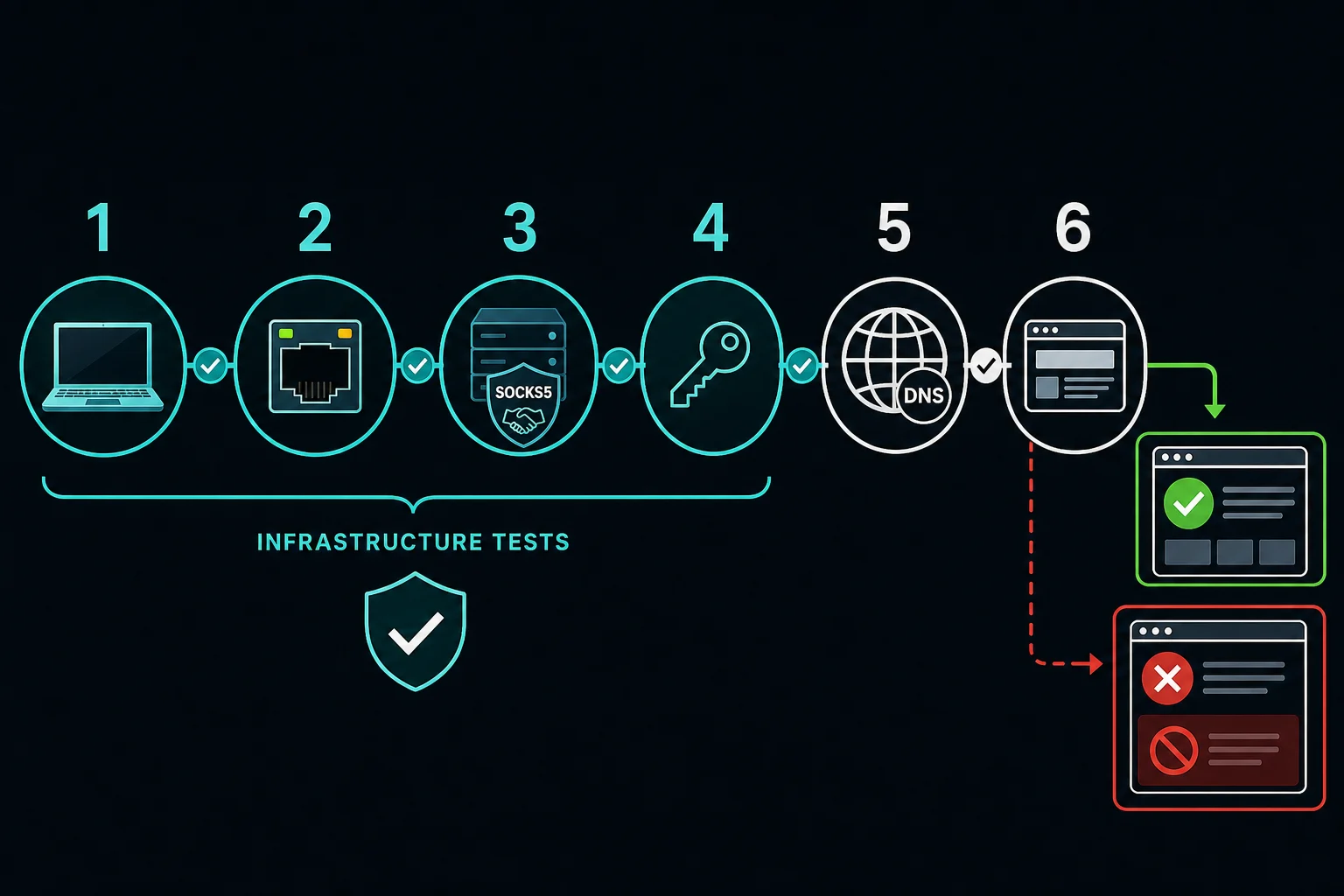
Test the route in layers:
- Disconnect the proxy and note your normal public IP.
- Connect one known endpoint.
- Open
https://ipv4.unknownproxies.com/ipin the proxied app. - Confirm the address matches the expected proxy exit.
- Open a separate HTTPS site and check that its certificate is valid.
- Repeat the IP check in every app in your routing rules.
- Check an excluded app and confirm it still goes direct.
- Reconnect once to confirm the endpoint is static, sticky, or rotating as expected.
An IP change proves only that the tested request used the proxy. It does not prove that every process, DNS lookup, IPv6 connection, or UDP flow took the same path.
For a stable account or checkout session, keep the same proxy, profile, cookies, and region together. For independent public-page checks, a rotating session can fit. The sticky vs rotating proxies guide explains where each one belongs.
Troubleshooting a Windows 11 SOCKS5 proxy
Work from the proxy outward. Changing the client, endpoint, and DNS setting at once hides the real failure.
| Symptom | Likely cause | First check |
|---|---|---|
TcpTestSucceeded: False |
Wrong host or port, firewall, offline endpoint | Recopy the endpoint and test from another network |
| Connection closes at once | HTTP or SOCKS4 client talking to a SOCKS5 port | Select SOCKS5 explicitly and clear the Internet Options Socks field |
| Authentication fails | Wrong credentials, expired plan, or a client with no SOCKS5 auth | Test with curl.exe --proxy-user |
| Hostnames fail but IP addresses work | DNS resolving locally or blocked | Enable proxy DNS or use socks5h:// |
| cURL works but the browser fails | Browser has no SOCKS5 auth, or reused profile | Use a local router or allowlisted endpoint, and a fresh profile. See ERR_PROXY_CONNECTION_FAILED |
| Browser IP changes but another app does not | App outside your routing rules | Add the app's executable to the rule and reconnect |
| Game or voice app fails through Proxifier | The app needs UDP | Use a client with UDP support and confirm the endpoint relays UDP |
| Proxy works but a site returns 403 or 429 | Site policy, reputation, or request rate | Stop changing proxy fields and debug the HTTP response |
Separate reachability from authentication
Start with Test-NetConnection. If the TCP test fails, credentials and DNS are not the problem yet. Check for a copied space, the wrong port, a local firewall rule, security software, or a network that blocks that outbound port.
If the port is reachable but cURL reports a SOCKS handshake or authentication error, recheck the protocol and credentials. Provider usernames can carry country, region, or session segments, so copy the whole string.
Fix DNS failures and leaks
Use socks5h:// in cURL and turn on remote DNS in apps that offer it. If IP destinations work while hostnames fail, the proxy path is healthy and name resolution is the broken layer.
One DNS-leak test page is not full proof. Apps may use DNS over HTTPS, cached answers, their own resolver, or IPv6. Check the routing client's connection log and test the apps that matter.
Check for conflicting proxy and VPN settings
A Windows web proxy, a browser extension, an app's own proxy, a VPN, and a routing client can all be active at once. That causes loops and surprise direct connections. For a clean test, disconnect unrelated VPNs, disable proxy extensions, turn off the Windows manual proxy if it is not part of the plan, then add layers back one at a time.
Do not reset Windows networking as a first step. It removes saved adapters, VPN profiles, and DNS settings and adds more variables. A working proxy with a 403 response is a site decision, so read the 403 Forbidden guide rather than rotating endpoints blindly.
Remove the SOCKS5 route safely
Undo the method you used:
- In an app, set the proxy mode back to No proxy or Use system settings.
- In Firefox, return to Connection Settings and pick your normal mode.
- In Chrome or Edge, close the test profile and launch without
--proxy-server. - In Proxifier, set your rules to Direct or exit the program, and remove it from startup if you added it.
- For ProxiFyre or a local router, stop the service or close the window.
- In Internet Options, clear the Socks field if you filled it in.
Then repeat the IP check. If traffic still goes through the proxy, look at browser extensions, environment variables such as ALL_PROXY, background routing clients, and active VPN adapters before touching the registry.
Choosing a proxy for Windows workflows
Match the proxy to the session:
- A static ISP proxy fits ticketing, retail checkout, account work, and repeated QA that should keep one exit IP. See ISP vs residential proxies for the trade-offs.
- A sticky residential proxy fits regional testing that needs a consumer-network route for a bounded session.
- A rotating residential route fits independent public-page requests where the identity can change between tasks.
Unknown Proxies residential and ISP plans support SOCKS connections. ISP proxies also support IP-based authentication, so Chrome and Firefox can use the SOCKS5 endpoint with no username and password once your IP is allowlisted. Use HTTP(S) when that is the cleaner path for your software, and stay within the destination's rules and applicable law.
Avoid free public SOCKS lists for account or sensitive traffic. You cannot know who runs the endpoint, what it logs, or whether it changes unencrypted data.
FAQ
Can I put a SOCKS5 proxy in Windows 11 proxy settings?
No. The Settings proxy page takes an HTTP proxy or a PAC script, and WinHTTP has no SOCKS support. Set SOCKS5 inside an app that supports it, or route apps with Proxifier, ProxiFyre, or a local router.
Does the Socks field in Internet Options use SOCKS5?
No. That field belongs to WinINet, which Microsoft documents as SOCKS4 only, with no SOCKS5. It also has no username or password fields, so it fails with an authenticated SOCKS5 proxy.
What is the best SOCKS5 client for Windows 11?
For apps with no proxy settings, Proxifier is the common choice. It supports SOCKS5 with a username and password and per-app rules, but it is paid and TCP only. ProxiFyre is a free, open-source option that also routes UDP.
How do I use an authenticated SOCKS5 proxy in Chrome on Windows 11?
Chrome supports no SOCKS5 authentication. Run a local router such as gost on 127.0.0.1 that logs in for Chrome, allowlist your IP with the provider, or use the provider's HTTP endpoint. Do not put credentials in --proxy-server.
Should I use socks5:// or socks5h:// on Windows?
Use socks5h:// when the client supports it and you want the proxy to resolve hostnames. Use socks5:// when local DNS is intentional. GUI apps often call the same choice Remote DNS or Proxy DNS.
Does this work on Windows 10?
Yes. Windows 10 has the same proxy settings page and the same limits. Firefox, the Chrome flag, curl, Proxifier, ProxiFyre, and local routers work the same way.
Does SOCKS5 encrypt my Windows traffic?
Not by itself. RFC 1928 defines SOCKS5 as a relay with authentication negotiation. HTTPS and other end-to-end protocols encrypt content, and some routing clients add encryption on the hop to their own gateway.
Final thoughts
Stop looking for a SOCKS5 switch in Windows 11. There isn't one. Test the endpoint with curl.exe and socks5h:// first, so you know the proxy works before you blame the app. Then use the app's own SOCKS5 field where it exists, Proxifier or ProxiFyre for apps without one, and a local router when a browser needs an authenticated endpoint. Check the exit IP in every app you route, and keep one proxy per account or checkout session.