To set a Chrome SOCKS5 proxy, install a proxy extension and enter the SOCKS5 host and port, or launch Chrome with --proxy-server="socks5://host:port". Chrome has no SOCKS5 form in chrome://settings, and it cannot send a SOCKS5 username and password. A proxy that needs a login must be allowlisted by IP, wrapped in a local router, or used over HTTP.
The fastest path for a SOCKS5 proxy that needs no password:
- Install a proxy extension that supports SOCKS5, such as ZeroOmega or Socks5 Configurator.
- Create a profile, choose SOCKS5, and enter the host and the SOCKS5 port.
- Activate the profile in a new tab.
- Open
https://ipv4.unknownproxies.com/ipand confirm the exit IP changed. - Run a DNS and WebRTC leak test (see the leak section below).
One limit decides most setups. No extension adds SOCKS5 authentication, because extensions use the same Chrome proxy engine. If your SOCKS5 proxy needs a login, you have three working options:
- Allowlist your own IP address with the provider and use the proxy without a password.
- Run a local proxy router on your computer. It logs in to the upstream SOCKS5 proxy, and Chrome connects to it on
127.0.0.1without a password. - Use the provider's HTTP proxy endpoint instead. Chrome supports usernames and passwords for HTTP proxies.
Quick answer: which Chrome SOCKS5 method to use
| Goal | Method | Limit |
|---|---|---|
| Switch SOCKS5 on and off in one Chrome profile | Proxy extension (a "SOCKS5 configurator") | Cannot add SOCKS5 authentication |
| Run a clean, temporary test | --proxy-server with a separate --user-data-dir |
Needs a new Chrome process and a no-password SOCKS5 route |
| Use a SOCKS5 proxy that needs a username and password | Local proxy router on 127.0.0.1 |
Adds one more program that sees your traffic and holds the credentials |
| Route Chrome and other desktop apps | System SOCKS setting or a routing client | Each app decides if it follows the setting |
| Use a username/password proxy directly in Chrome | HTTP(S) endpoint from the provider | Not SOCKS5, but Chrome handles the login prompt |
If your provider gives you both HTTP and SOCKS5 endpoints and you only browse websites, the HTTP endpoint is usually the simpler choice in Chrome. Our SOCKS5 vs HTTP proxy comparison explains when SOCKS5 is worth the extra setup.
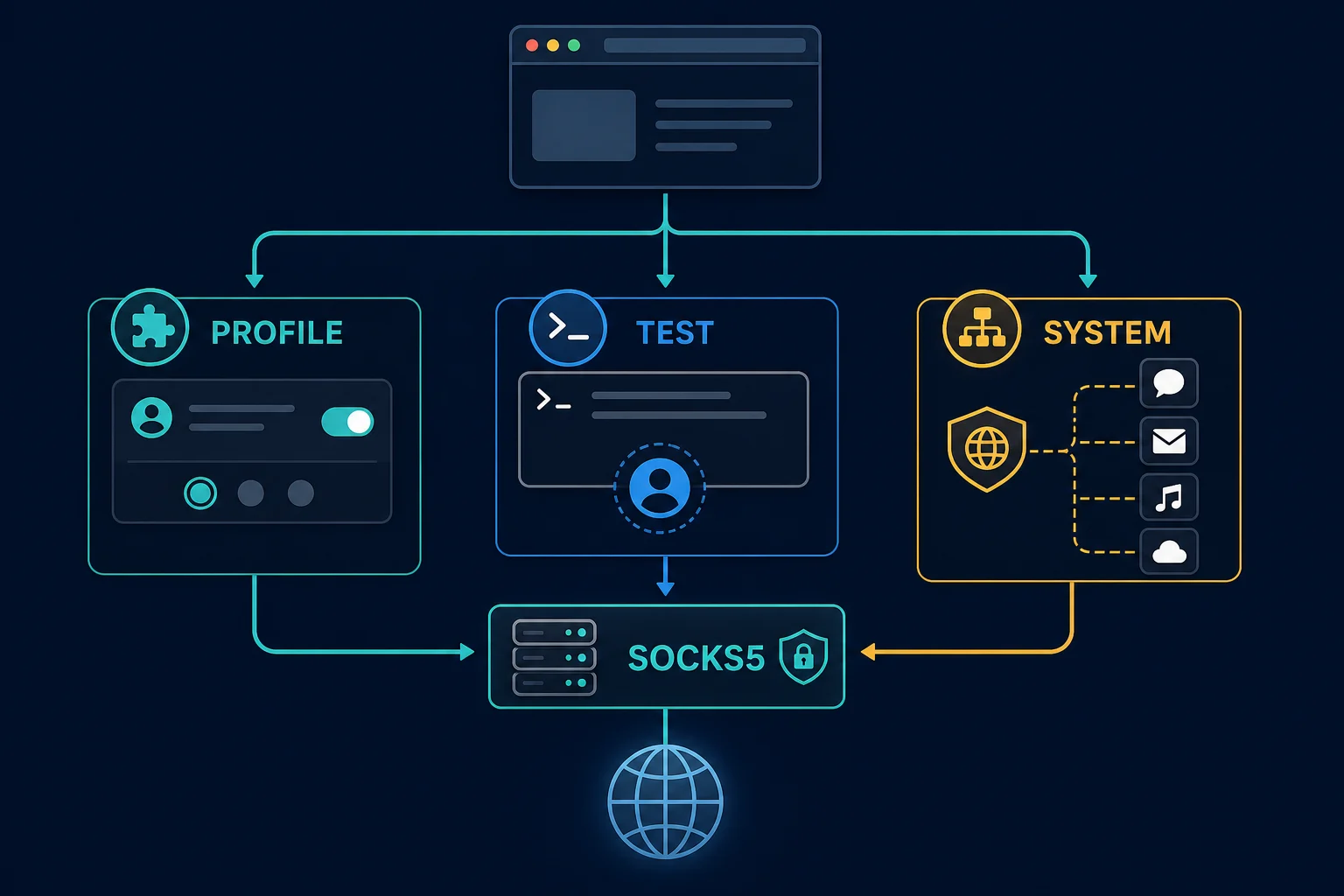
How Chrome handles SOCKS5
In Chrome, Settings > System > Open your computer's proxy settings opens the operating system's proxy page. Chrome reads the system proxy by default. Extensions, enterprise policy, PAC scripts, and launch flags can also set the proxy Chrome uses, and they override the system setting.
Chromium's proxy support documentation lists socks5://host:port as a supported proxy. The default SOCKS port is 1080. Three facts from that page matter here:
- Chrome always sends destination hostnames to the SOCKS5 proxy for resolution. There is no separate
socks5h://scheme in Chrome. - The proxy carries TCP-based URL requests. It does not carry arbitrary UDP traffic.
- "No authentication methods are supported for SOCKSv5 in Chrome."
Chrome also ignores credentials written into proxy settings. This string does not work:
socks5://username:password@proxy.example.com:1080
Do not remove the username to make it fit, either. Many providers put location or session options inside the username, so dropping it changes or breaks the route.
Before you start, get the protocol, host, SOCKS5 port, login method, and expected exit location from your provider. The layout host:port:user:pass does not tell you the protocol. The proxy converter can rearrange those fields, but it cannot turn an HTTP endpoint into SOCKS5.
Method 1: use a Chrome SOCKS5 proxy extension
A proxy extension is the easiest way to switch one Chrome profile between a SOCKS5 proxy and a direct connection. Extensions sold as "SOCKS5 configurator" or "proxy switcher" tools all work the same way underneath.
Two examples that people search for by name. Socks5 Configurator in the Chrome Web Store is a minimal tool that sets a SOCKS5 host, port, and a bypass domain list. ZeroOmega (also called Proxy SwitchyOmega 3) is the maintained successor to SwitchyOmega, with named profiles and rule-based switching. As of October 2026, check the publisher and the extension ID on the store page before you install either, because look-alike forks of proxy extensions exist.
What a SOCKS5 configuration extension can and cannot do
Extensions set the proxy through Chrome's chrome.proxy API. That API accepts a scheme (http, https, quic, socks4, or socks5), a host, and a port. It has no field for a username or password.
Some extensions also fill in proxy logins with the webRequest.onAuthRequired event. That event fires on an HTTP Proxy-Authenticate challenge, which is the HTTP 407 flow. A SOCKS5 proxy does not send that challenge, so the event cannot log in to it.
So an extension can:
- Point Chrome at a SOCKS5 host and port.
- Keep several saved proxy profiles and switch between them.
- Apply bypass rules or PAC rules per site.
- Fill in usernames and passwords for HTTP proxies.
It cannot make Chrome send SOCKS5 credentials. If an extension says it supports authenticated SOCKS5, find out how. It usually depends on a companion desktop app, its own gateway server, or a local forwarder. Those are separate programs, not a hidden Chrome feature.
Choose an extension carefully
An extension with the proxy permission can change where your profile sends traffic. Before you install one, check:
- That it supports SOCKS5, not only HTTP proxy lists.
- Who publishes it, when it was last updated, and what its privacy policy says.
- That it asks only for proxy and authentication permissions.
- Where it stores your configuration: locally, in Chrome sync, or on a vendor server.
- If it needs a companion desktop app.
Avoid extensions that come bundled with free public proxy lists. Keep using HTTPS, because SOCKS5 relays traffic but does not encrypt it.
Configure the extension
Labels vary, but the steps are the same:
- Create a new proxy profile in the extension.
- Select SOCKS5.
- Enter the hostname without
socks5://if the scheme has its own field. - Enter the SOCKS5 port.
- Add bypass rules only for hosts that must stay direct, such as a local development server.
- Activate the profile.
- Open a new tab and check your public IP before you visit the target site.
Do not enter a SOCKS5 endpoint in an HTTP field. The two protocols start connections differently, so a mismatch usually gives ERR_PROXY_CONNECTION_FAILED, a reset, or a timeout.
Extensions do not run in Incognito unless you allow them on the extension's details page. Test regular and Incognito windows separately.
Method 2: launch Chrome with --proxy-server
The launch flag is the cleanest Chrome-only method for a no-password SOCKS5 endpoint, an SSH tunnel, or a local proxy router. Always use a separate --user-data-dir. If Chrome is already running with the same profile, the new window joins that process and ignores the flag.
On Windows, with a local proxy router on port 1080:
"C:\Program Files\Google\Chrome\Application\chrome.exe" ^
  --user-data-dir="%TEMP%\chrome-socks5-test" ^
  --proxy-server="socks5://127.0.0.1:1080" ^
  --host-resolver-rules="MAP * ~NOTFOUND , EXCLUDE 127.0.0.1"
On macOS:
open -na "Google Chrome" --args \
  --user-data-dir=/tmp/chrome-socks5-test \
  --proxy-server="socks5://127.0.0.1:1080" \
  --host-resolver-rules="MAP * ~NOTFOUND , EXCLUDE 127.0.0.1"
On Linux, the executable may be google-chrome, google-chrome-stable, or chromium:
google-chrome \
  --user-data-dir=/tmp/chrome-socks5-test \
  --proxy-server="socks5://127.0.0.1:1080" \
  --host-resolver-rules="MAP * ~NOTFOUND , EXCLUDE 127.0.0.1"
For a remote SOCKS5 endpoint with IP allowlisting, replace 127.0.0.1:1080 with its host and port, and put that hostname after EXCLUDE.
Why add --host-resolver-rules
--proxy-server applies to URL loads. Chromium's SOCKS proxy notes say other parts of Chrome, such as the DNS prefetcher, can still resolve names directly. The rule MAP * ~NOTFOUND makes every local DNS lookup fail. EXCLUDE lets Chrome resolve the proxy's own address. Use it when you do not want any DNS queries to leave the computer outside the proxy.
To send some hosts direct, add --proxy-bypass-list="localhost;*.internal.example". Separate entries with semicolons.
Why localhost skips the proxy
Since Chrome 72, requests to localhost, 127.0.0.1, and link-local addresses go direct when you set a manual proxy. That is why a tool on your own machine may ignore the proxy you set. Chromium's proxy documentation lists --proxy-bypass-list="<-loopback>" as the way to remove these implicit rules. Extensions such as ZeroOmega accept the same <-loopback> entry in their bypass lists. Chromium notes there is no way to disable the implicit rules from a PAC script.
Do not put a real password in the command. Chrome will not use it for SOCKS5, and the command can stay in shell history and the process list. When you finish, close that Chrome window and start Chrome normally.
For Puppeteer or other automation, set the proxy where the framework launches Chrome. The Puppeteer proxy launch guide covers launch arguments and authentication for automated browsers.
Local proxy router for Chrome: use SOCKS5 with a username and password
A "local proxy router" is a small program that runs on your own computer. Chrome connects to it at an address such as 127.0.0.1:1080 with no password. The program then connects to the real upstream proxy and sends the username and password for you.
Chrome -> 127.0.0.1:1080 (local router, no auth) -> proxy.example.com:1080 (SOCKS5 with username/password) -> website
This is the standard fix for Chrome SOCKS5 proxy authentication. You can point Chrome at the local port with an extension, the --proxy-server flag, or the system proxy setting. If you can switch browsers, Firefox extensions can pass SOCKS5 credentials directly, as shown in the Firefox SOCKS5 proxy guide.
Common ways to run one:
- A SOCKS5 forwarder. For example, the open-source tool gost can listen locally and forward to an authenticated upstream proxy:
gost -L socks5://127.0.0.1:1080 -F socks5://username:password@proxy.example.com:1080. Other forwarders and routing clients do the same thing with a config file. - An SSH dynamic tunnel.
ssh -D 1080 -N user@server.example.comopens a SOCKS5 listener on127.0.0.1:1080and sends traffic out from that SSH server. This uses your own server, not a commercial proxy. - A desktop routing client. These can also route other apps and handle proxy DNS.
Follow these rules:
- Bind the listener to
127.0.0.1, not0.0.0.0. An open, no-password proxy on your local network is a risk. - Keep credentials in the tool's config file, not in a command you type often.
- Check how the tool handles DNS. Some resolve locally unless you enable remote DNS.
- Stop the router when you no longer need it.
Method 3: use system proxy settings
Use a system setting only when more than one app should follow the same route. It is also the least isolated option. Updaters, terminals, and other apps may follow it too. The proxy server setup guide compares these settings across operating systems.
Windows
Do not put a SOCKS5 endpoint under Settings > Network & internet > Proxy. That page sets a web proxy, not a SOCKS5 route. Microsoft's netsh winhttp documentation also states that SOCKS5 is not supported for its proxy setting.
Use the launch flag for Chrome-only tests, or a local routing client when several Windows apps need SOCKS5. The Windows 11 SOCKS5 proxy guide covers both paths.
macOS
macOS has a SOCKS proxy option under System Settings > Network > [network service] > Details > Proxies. See Apple's Mac proxy settings guide or our Mac proxy settings walkthrough.
Chrome reads this setting by default. A password saved in macOS does not help, because Chrome still cannot send SOCKS5 credentials. Use a local proxy router or the provider's HTTP endpoint if the SOCKS5 proxy needs a login.
Linux
Linux has no single desktop proxy setting. GNOME's network proxy guide includes a manual SOCKS host and port. Other desktops use other settings. For a repeatable Chrome test, use the launch flag.
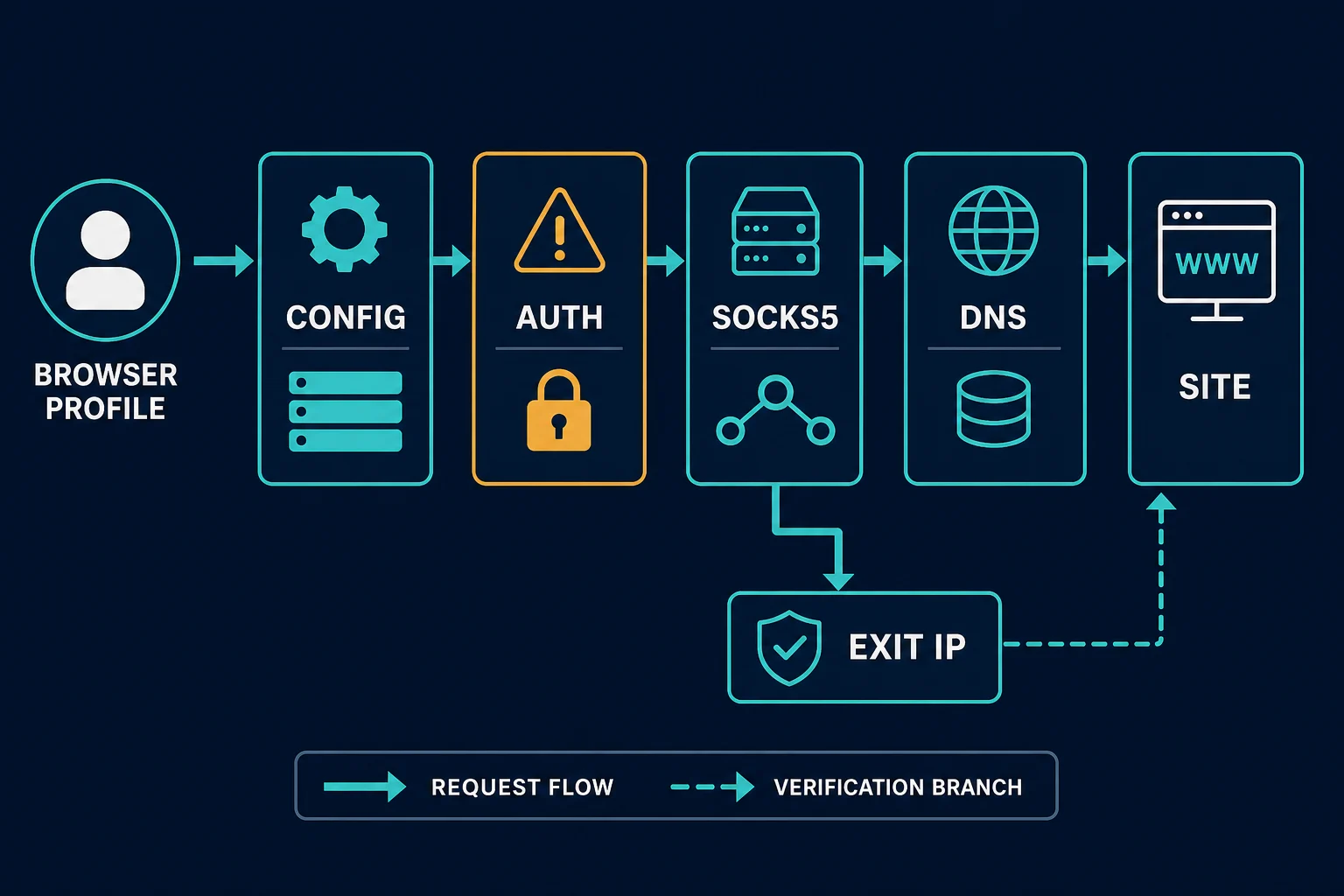
Verify the Chrome SOCKS5 proxy
Check the route, not only that a page loaded.
- Before you enable the proxy, note your normal public IP.
- Enable one proxy method only.
- Open
https://ipv4.unknownproxies.com/ipin the proxied Chrome profile. - Confirm the address matches the expected proxy exit.
- Open a second HTTPS site and confirm its certificate is valid.
- Open
chrome://net-internals/#proxyto see the proxy settings Chrome actually applies. - Check another profile or app that should stay direct.
- Turn the proxy off and confirm your normal IP returns.
An IP change proves that the tested request used the proxy. It does not prove that every app, extension request, or UDP flow did.
If the IP changes but hostnames fail to load, check the DNS setting of your local router or routing client first. Chrome itself sends hostnames to the SOCKS5 proxy.
Check for DNS and WebRTC leaks in Chrome
An IP check covers one HTTPS request. Two other paths can still show your real network: DNS lookups made outside the proxy, and WebRTC.
DNS leaks
For URL requests, Chrome hands the hostname to the SOCKS5 proxy, so the proxy does the lookup. The gap is everything else in the browser, such as the DNS prefetcher. The --host-resolver-rules line in Method 2 closes it. With a system-wide SOCKS setting or a routing client, the tool decides, so check its remote DNS option.
To test, open a DNS leak test page while the proxy is on and read the resolver list. Resolvers that belong to your home or office ISP mean a lookup left the proxy path. Resolvers in the proxy's region mean it did not.
WebRTC leaks
WebRTC can open UDP connections and expose local and public addresses to a page. A SOCKS5 proxy in Chrome carries TCP only, so that traffic does not follow the proxy. Chrome exposes a webRTCIPHandlingPolicy setting through the chrome.privacy extension API. Its disable_non_proxied_udp value stops WebRTC from using UDP outside a configured proxy. Google's WebRTC Network Limiter extension and similar tools apply it for you.
Test with a WebRTC leak page before and after. If the page lists your real public IP while the proxy is on, apply the setting and test again. Checkout, ticketing, and account flows that depend on one consistent IP are the ones that break when a second address shows up.
Troubleshoot Chrome SOCKS5 proxy errors
Change one thing at a time.
| Symptom | Likely cause | First check |
|---|---|---|
ERR_PROXY_CONNECTION_FAILED |
Wrong host or port, proxy offline, protocol mismatch, or local router not running | Recopy the SOCKS5 endpoint and confirm the port is reachable |
ERR_SOCKS_CONNECTION_FAILED |
SOCKS handshake or destination connection failed | Confirm the endpoint is SOCKS5 and that it does not require a login Chrome cannot send |
| Extension says connected but IP is unchanged | Wrong active profile, bypass rule, policy, or another proxy extension | Disable other proxy extensions and check chrome://net-internals/#proxy |
| Login prompt never appears for a SOCKS5 proxy | Expected: Chrome has no SOCKS5 authentication | Use IP allowlisting, a local proxy router, or an HTTP endpoint |
| Hostnames fail while IP addresses work | DNS handling in a local router or routing client | Enable remote DNS in that tool and reconnect |
All sites fail with --host-resolver-rules |
The EXCLUDE host does not match the proxy host |
Put the exact proxy hostname after EXCLUDE |
| Flag appears to do nothing | Chrome reused an already running profile | Close Chrome and relaunch with a unique --user-data-dir |
| Neutral sites work but one target returns 403 or 429 | The website's own policy or rate limit | Stop changing proxy settings and debug the HTTP response |
Check for configuration conflicts
Only one proxy configuration wins in Chrome. A system proxy, PAC script, enterprise policy, extension, VPN, launch flag, and routing client can all overlap.
For a clean test, disable other proxy extensions, disconnect VPNs, use a fresh test profile, and enable one route. On a managed browser, open chrome://policy to see if an administrator controls the proxy.
Separate a proxy failure from a website block
If the IP check and a neutral HTTPS site both load through the expected exit, the proxy works. A 403 or 429 from one target is that website's response, not a SOCKS problem. The 407 Proxy Authentication Required guide covers HTTP proxy login errors, which are a different problem from Chrome's missing SOCKS5 authentication.
Choose the right proxy and session
Match the proxy to the browser task:
- A stable ISP proxy plan fits repeated sessions that should keep one exit IP.
- A sticky residential proxy fits regional checks that need the same IP for a set time.
- A rotating session fits independent page loads where cookies and logins do not need to persist.
For retail and ticketing sessions, a static ISP IP kept in one Chrome profile avoids the extra verification that a changing address can trigger. Keep one Chrome profile, its cookies, and one proxy session together. Changing exit IPs mid-session can cause logouts or extra verification. The sticky vs rotating proxies guide explains the tradeoff.
Unknown Proxies residential and ISP plans support SOCKS connections. ISP proxies also support IP-based authentication, so an allowlisted ISP endpoint works in Chrome over SOCKS5 with no password. For residential proxies, which use a username and password, use the HTTP(S) endpoint in Chrome or a local proxy router.
FAQ
Does Chrome support SOCKS5 proxies?
Yes. Chrome supports socks5://host:port, sends hostnames to the proxy for resolution, and uses it for TCP-based URL requests. It does not support SOCKS5 authentication or UDP relay.
Can a Chrome SOCKS5 proxy extension use a username and password?
Not with Chrome's own SOCKS5 connection. The chrome.proxy API has no credential fields, and webRequest.onAuthRequired answers only HTTP proxy challenges. Extensions that claim SOCKS5 login support use a companion app, gateway, or local forwarder.
Can Chrome leak my real IP through WebRTC when a SOCKS5 proxy is on?
Yes. WebRTC can use UDP, and Chrome's SOCKS5 support covers TCP only. Set the WebRTC IP handling policy to disable_non_proxied_udp with an extension that uses the chrome.privacy API, then retest with a WebRTC leak page.
Why does Chrome ignore my proxy for localhost?
Since Chrome 72, manual proxy settings skip localhost and loopback addresses by default. Add <-loopback> to the bypass list, or launch with --proxy-bypass-list="<-loopback>", to send them through the proxy.
What does chrome.exe --proxy-server="socks5://127.0.0.1:1080" do?
It starts Chrome with all URL requests sent to a SOCKS5 proxy on your own computer at port 1080. That port is usually a local proxy router or SSH tunnel. Add --user-data-dir so Chrome starts a new process that applies the flag.
Does Chrome use remote DNS with SOCKS5?
Yes, for URL requests. Chromium documents that Chrome resolves destination hostnames through a SOCKS5 proxy. Add --host-resolver-rules="MAP * ~NOTFOUND , EXCLUDE proxyhost" to stop other components, such as the DNS prefetcher, from resolving names locally.
How do I disable a proxy in Chrome?
Switch the extension to Direct or System, close the Chrome window started with --proxy-server, or turn off the OS setting you enabled. Then check that your normal public IP returns.
Final thoughts
A Chrome SOCKS5 proxy is simple when the endpoint needs no password: use an extension or the launch flag and verify the exit IP. When the endpoint needs a username and password, do not wait for a login prompt that Chrome will never show. Run a local proxy router on 127.0.0.1, or use the provider's HTTP endpoint instead.