"Windows could not automatically detect this network's proxy settings" is a result from Windows Network Diagnostics. It means Windows looked for an automatic proxy configuration on your network and did not find one that works. On most home networks there is no proxy at all, so the real cause is usually a leftover proxy setting, a VPN, a broken network stack, or the network adapter driver.
If your internet works, you can ignore the message. If it does not, open the proxy page (press Win + R, type ms-settings:network-proxy, and press Enter) and turn off any proxy or setup script you did not set. The fixes below work on Windows 10 and Windows 11. Stop when your connection works.
Quick fix
Run the network troubleshooter, then restart the PC and the router. In Windows 11, the troubleshooter is under Settings > System > Troubleshoot > Other troubleshooters > Network and Internet. If every device on the network fails, the router or ISP is the cause, not Windows.
Check the proxy page. Open Settings > Network & internet > Proxy. On a home network, turn off Use setup script and Use a proxy server. Leave Automatically detect settings on.
Disconnect any VPN or proxy app and test again.
Reset the network stack. Open Command Prompt as administrator and run:
netsh winsock reset
netsh int ip reset
ipconfig /release
ipconfig /renew
ipconfig /flushdns
Then restart the PC.
Reset the WinHTTP proxy on a personal PC:
netsh winhttp reset proxy.Update or roll back the network adapter driver in Device Manager.
Run DISM and SFC to repair system files, and scan for malware if the proxy setting keeps changing back.
Use Network reset as the last step.
On a work or school PC, do not remove a setup script or proxy address. Your IT team may require it. Ask them first.
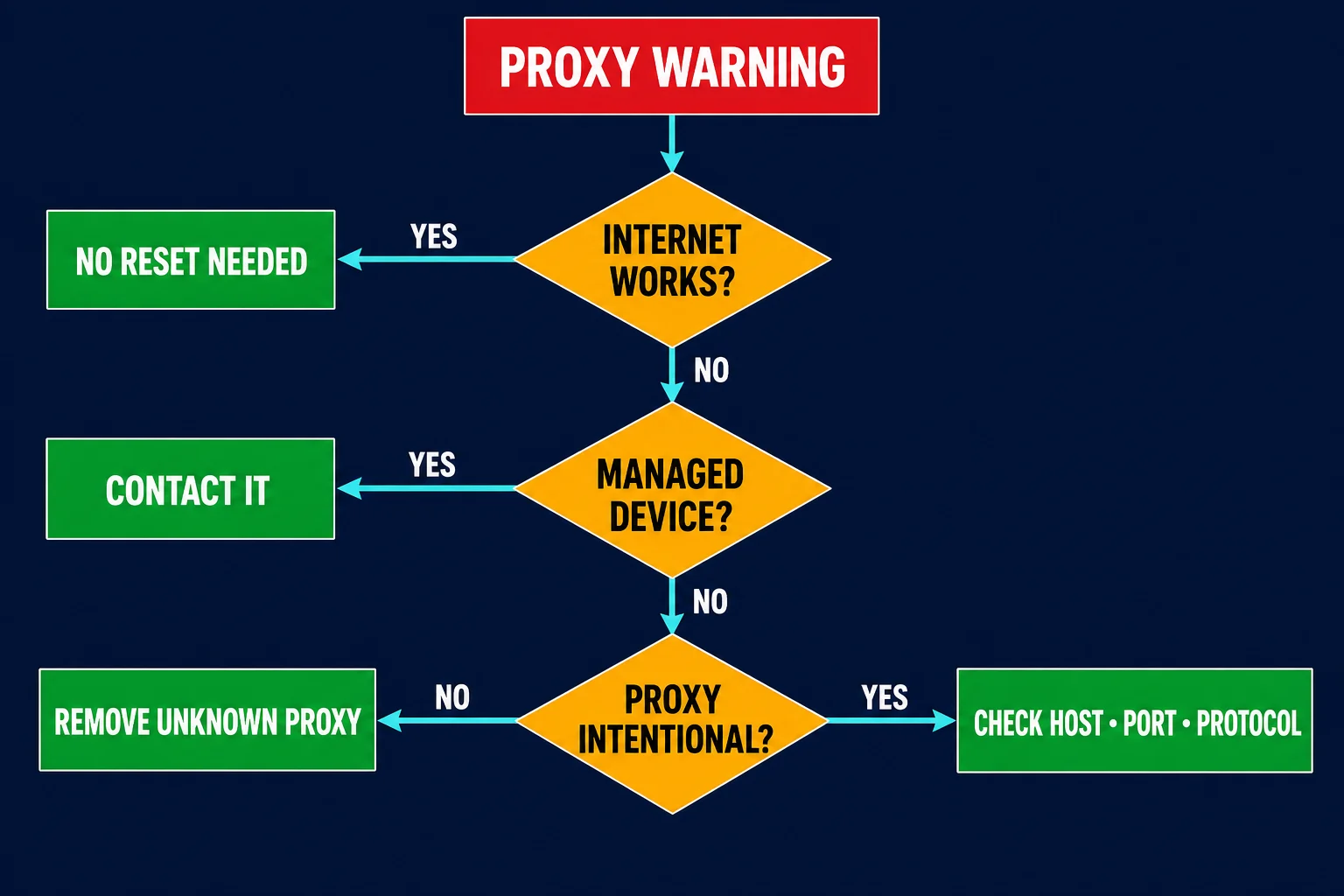
What "Windows could not automatically detect this network's proxy settings" means
Windows can get a web proxy in three ways, as Microsoft's Windows proxy settings page describes:
- Automatically detect settings. Windows asks the network for a proxy configuration. This uses the Web Proxy Auto-Discovery (WPAD) protocol.
- Use setup script. Windows downloads proxy rules from a PAC (proxy auto-config) file address.
- Use a proxy server. Windows sends web traffic to a host and port that you type in.
Network Diagnostics shows this message when automatic detection does not finish or when a configured proxy does not respond. A home network that connects directly does not need a proxy, so a missing configuration is normal there. The message matters when it appears together with real symptoms: browsers do not load, Microsoft Store or Windows Update fails, or a work proxy stops loading.
You may also see these related messages in the same diagnostic run: "Checking the proxy and the firewall" and "Running Windows Network Diagnostics". If Chrome shows those lines on an error page, our guide to Chrome's "Checking the proxy and the firewall" message explains each ERR_ code.
Should "Automatically detect settings" be on or off?
Leave it on in most cases. It is on by default in Windows 10 and 11, and Microsoft's standard setup tells you to turn it on. With it on, Windows uses a proxy only if the network offers one. On a home network that offers nothing, Windows connects directly.
Turn it off for a test when:
- Network Diagnostics keeps showing this error on a simple home network, and pages are slow to start loading.
- You use a manual proxy and do not want Windows to look for another one.
- A guide from your proxy provider or IT team tells you to turn it off.
Turn it back on before you join a work or school network that supplies its proxy automatically.
Fix 1: Check proxy settings in Windows 11
- Press Win + I to open Settings.
- Select Network & internet > Proxy.
- Under Automatic proxy setup, check that Automatically detect settings is On.
- Next to Use setup script, select Set up. If it is on and you do not know the script address, turn it Off and select Save.
- Under Manual proxy setup, next to Use a proxy server, select Set up (or Edit). If it is on and you did not set it, turn it Off and select Save.
- Disconnect from Wi-Fi or Ethernet, reconnect, and test a website.
Fix 1 on Windows 10
- Open Settings > Network & Internet > Proxy.
- Turn Automatically detect settings on.
- Turn Use setup script off if it has an address you do not recognize, then select Save.
- Turn Use a proxy server off if you did not set it up, then select Save.
- Reconnect to the network and test again.
Older Windows 10 builds show the toggles directly on the page. Newer builds use Set up buttons like Windows 11.
The classic Internet Options path (Windows 7, 10, and 11)
Some guides say "open LAN settings and deselect Automatically detect settings". That refers to the older Internet Options dialog, which controls the same per-user settings:
- Press Win + R, type
inetcpl.cpl, and press Enter. - Open the Connections tab and select LAN settings.
- Check or clear Automatically detect settings.
- Clear Use automatic configuration script and Use a proxy server for your LAN if you do not need them.
- Select OK twice.
On Windows 7, this dialog is the main place to change the proxy.
Fix 2: Remove VPN and app conflicts
VPN clients, ad blockers, antivirus web shields, debugging proxies, and proxy tools can change Windows proxy settings. If they crash, they can leave a proxy address behind that no longer answers. Browsers then show errors like ERR_PROXY_CONNECTION_FAILED.
- Quit the VPN or proxy app. Check Task Manager to make sure it does not still run in the background.
- Go back to Settings > Network & internet > Proxy and check that the app did not leave a manual proxy or script on.
- Test the connection.
- If it works, start each tool again one at a time to find the one that breaks it. Update or reinstall that tool.
A VPN connection can also have its own proxy. In Windows 11, open Settings > Network & internet > VPN, select the VPN, then Advanced options to see it.
Fix 3: Reset Winsock, TCP/IP, and DNS
These commands repair the general network stack. They do not change a proxy setting, but a broken stack can stop proxy detection and normal browsing at the same time.
- Select Start, type
cmd, right-click Command Prompt, and select Run as administrator. - Run each command and wait for it to finish:
netsh winsock reset
netsh int ip reset
ipconfig /release
ipconfig /renew
ipconfig /flushdns
- Restart the PC.
What each command does:
| Command | What it does |
|---|---|
netsh winsock reset |
Resets the Winsock catalog. This removes broken network hooks that VPNs and security tools can leave. |
netsh int ip reset |
Resets TCP/IP settings to defaults. Static IP settings may be lost, so note them first. |
ipconfig /release |
Releases the current IP address from DHCP. The PC disconnects for a moment. |
ipconfig /renew |
Requests a new IP address from the router. |
ipconfig /flushdns |
Clears the DNS cache. |
netsh winsock reset and netsh int ip reset both ask for a restart. You can run them on Windows 7, 10, and 11.
Set IP and DNS to automatic
A fixed DNS server that no longer answers causes the same symptoms. Open Settings > Network & internet, select Wi-Fi or Ethernet, open the properties of your connection, and check IP assignment and DNS server assignment. Set both to Automatic (DHCP) unless you set a static address on purpose. Menu names differ a little between Windows 10 and 11.
Fix 4: Check and reset the WinHTTP proxy
Windows has a second proxy setting called WinHTTP. Windows services and some apps use it instead of the Settings page. To view it, run this in an administrator Command Prompt:
netsh winhttp show proxy
If you see this output, WinHTTP is already direct and is not the cause:
Current WinHTTP proxy settings:

    Direct access (no proxy server).
If it shows a proxy server you do not know on a personal PC, reset it:
netsh winhttp reset proxy
Microsoft's netsh winhttp reference confirms that reset proxy sets WinHTTP back to direct access. Do not run it on a managed PC without IT approval, because some company services need that proxy.
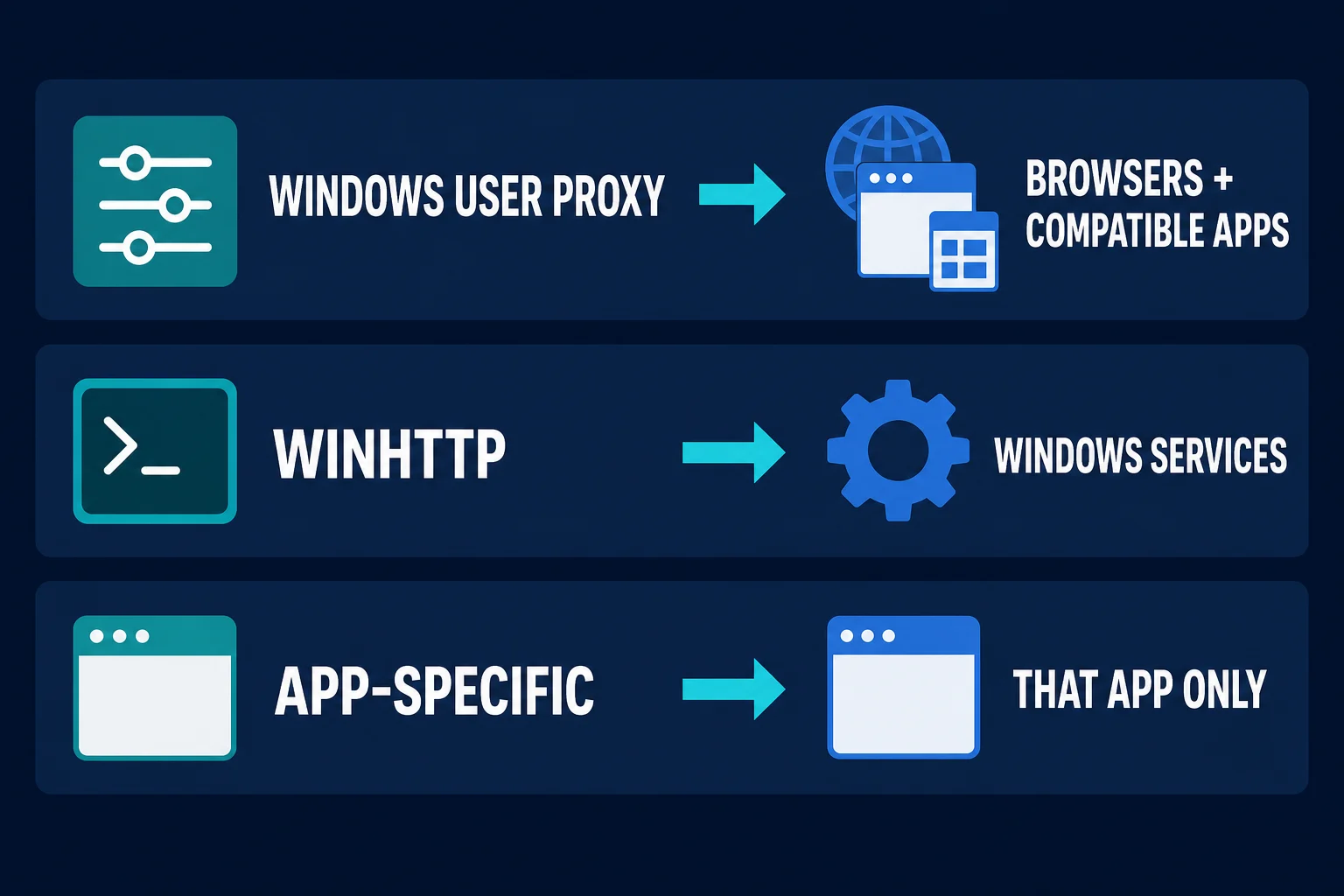
The three proxy layers are separate:
| Layer | Where you check it | What it affects |
|---|---|---|
| Windows user proxy | Settings > Network & internet > Proxy or inetcpl.cpl |
Browsers and apps that use the Windows proxy |
| WinHTTP proxy | netsh winhttp show proxy |
Windows services and apps built on WinHTTP |
| App proxy | Browser extension, VPN client, bot, or app settings | Only that app |
Fix 5: Check the WinHTTP Web Proxy Auto-Discovery service
Automatic detection runs through the WinHTTP Web Proxy Auto-Discovery Service (WinHttpAutoProxySvc). In Task Manager, you may see its helper as HTTP Auto Proxy Detection Worker Process (pacjsworker.exe). That process is a normal part of Windows. It runs PAC scripts.
- Press Win + R, type
services.msc, and press Enter. - Find WinHTTP Web Proxy Auto-Discovery Service.
- Check that its status is Running or that it starts when needed. On current Windows 10 and 11 builds, the startup type is usually greyed out, so you cannot change it here.
Do not disable this service with registry or policy tricks. Since Windows 10 version 1709, manual proxy settings also depend on it, and some apps fail without it. If you want to stop WPAD lookups, turn off Automatically detect settings instead.
Fix 6: Update, roll back, or reinstall the network driver
If the error started after a Windows update, a driver update, or a VPN install, the adapter driver may be the cause.
- Right-click Start and select Device Manager.
- Expand Network adapters and find your Wi-Fi or Ethernet adapter.
- Right-click it and select Properties > Driver.
- Select Roll Back Driver if the problem started after a driver update. Otherwise select Update Driver.
- If neither helps, select Uninstall device, then restart. Windows reinstalls the adapter.
If Windows has no newer driver, download one from your PC or motherboard maker's support site. Do this on another network or device first if your PC has no internet.
You can also disable and re-enable the adapter. In Windows 11, open Settings > Network & internet > Advanced network settings. In Windows 10, open Control Panel > Network and Sharing Center > Change adapter settings.
Fix 7: Repair system files and scan for malware
Corrupted system files and malware can both change proxy and network settings. Open Command Prompt as administrator and run the two Microsoft-documented repair commands in this order (Microsoft's System File Checker guide):
DISM.exe /Online /Cleanup-image /Restorehealth
sfc /scannow
Leave the window open until SFC reaches 100%. SFC writes its results to %windir%\Logs\CBS\CBS.log.
If the proxy toggles keep switching back after you turn them off, something is writing them. Run a full Microsoft Defender scan, then check whether a VPN, security tool, or company policy manages the setting. On a work PC, a policy re-applies the proxy on every sign-in, so ask IT instead of fighting it.
Fix 8: Use Network reset last
Network reset removes and reinstalls every network adapter and sets network components back to defaults.
- Windows 11: Settings > Network & internet > Advanced network settings > Network reset > Reset now.
- Windows 10: Settings > Network & Internet > Status > Network reset > Reset now.
The PC restarts after five minutes. You may need to reinstall VPN clients and virtual switches, and re-enter Wi-Fi passwords. Before you reset, save:
- Proxy or PAC details your network needs.
- VPN settings and installers.
- Static IP, DNS, or VLAN settings.
- Wi-Fi passwords.
Common causes
| Cause | Typical sign | Fix |
|---|---|---|
| Leftover manual proxy or setup script | Browsers fail, other devices work | Fix 1 |
| VPN or security app conflict | Started after installing or removing a VPN | Fix 2 |
| Broken Winsock or TCP/IP stack | Many apps fail, "no internet" icon | Fix 3 |
| Stale WinHTTP proxy | Windows Update or Store fails, browsing works | Fix 4 |
| Adapter driver problem | Started after a Windows or driver update | Fix 6 |
| Corrupted system files or malware | Proxy toggles switch back on their own | Fix 7 |
| Router or ISP problem | Every device on the network fails | Restart the router, contact the ISP |
| Work network without its PAC file | Only fails on the company network | Contact IT |
Before you change settings, test another device on the same network and the PC on a phone hotspot. If every device fails, look at the router. If only one PC fails everywhere, look at Windows. If you meant to use a proxy and only that proxy fails, the proxy vs firewall guide shows how to test the endpoint, port, and authentication.
If you use a proxy on purpose
The Windows manual proxy field takes an HTTP proxy host and port. It is not a general SOCKS5 client. For SOCKS routing, follow the Windows 11 SOCKS5 proxy guide.
Check these before you blame Windows:
- The host, port, and protocol match what your provider gave you.
- Your username and password, or your allowlisted IP, are correct. A repeated password prompt points to a 407 Proxy Authentication Required error.
- The proxy works in another client, such as
curl -x http://host:port -U user:pass https://api.ipify.org.
If the proxy works in another client, set it in the app that needs it instead of system-wide. The proxy server setup guide covers formats and testing.
FAQ
Why does Windows say it cannot detect proxy settings when I do not use a proxy?
Network Diagnostics tried automatic proxy detection and found nothing usable. Most home networks have no proxy. If your internet works, you can ignore the message. If it does not, the cause is usually a leftover proxy, a VPN, the network stack, or the driver.
Should automatically detect proxy settings be on or off?
On, for most people. It is the Windows default and it does nothing harmful on a network without a proxy. Turn it off only for a test or when you use a manual proxy.
Does netsh winsock reset remove proxy settings?
No. It resets the Winsock catalog. To clear the WinHTTP proxy, run netsh winhttp reset proxy. To clear the Windows user proxy, turn off the toggles in Settings.
What does "Current WinHTTP proxy settings: Direct access (no proxy server)" mean?
It means WinHTTP does not use a proxy. That is the normal state on a home PC, so WinHTTP is not causing the error.
What is HTTP Auto Proxy Detection Worker Process?
It is pacjsworker.exe, a Microsoft process that runs PAC scripts for automatic proxy detection. The real file is in C:\Windows\System32 and is signed by Microsoft. Do not delete it.
How do I fix this on Windows 7?
Use inetcpl.cpl > Connections > LAN settings to check the proxy options, then run the netsh and ipconfig commands from Fix 3 as administrator. Update the adapter driver if the error stays.
Why does "Automatically detect settings" keep turning itself off or on?
Something is rewriting the setting. Common causes are a VPN or security tool, a company policy that applies at sign-in, or malware. Quit the VPN, scan with Microsoft Defender, and ask IT if the PC is managed.
Final thoughts
Most cases come down to a proxy toggle, a VPN leftover, or the network stack. Check Settings > Network & internet > Proxy, leave Automatically detect settings on, and run the five reset commands. Reset WinHTTP on a personal PC, repair system files if the setting keeps changing, and update the driver. Use Network reset only if nothing else works, and leave work proxy settings to your IT team.