Checking the proxy and the firewall is a generic suggestion Chrome shows on its "This site can't be reached" page. It does not mean a proxy or firewall is broken. Read the ERR_ code at the bottom of the page, load the same URL on another network, and remove only proxy settings you did not set yourself.
A typical page looks like this:
This site can't be reached
example.com took too long to respond.
Try:
  Checking the connection
  Checking the proxy and the firewall
  Running Windows Network Diagnostics
ERR_CONNECTION_TIMED_OUT
The suggestions are the same for many different failures. The useful clue is the ERR_ code at the bottom of the page, plus whether one site or every site fails. For DNS errors, Chrome shows "Checking the proxy, firewall, and DNS configuration" instead, or "Checking the proxy, firewall, and Secure DNS configuration" when Secure DNS is on. On a Mac, the last line reads "Running Network Diagnostics".
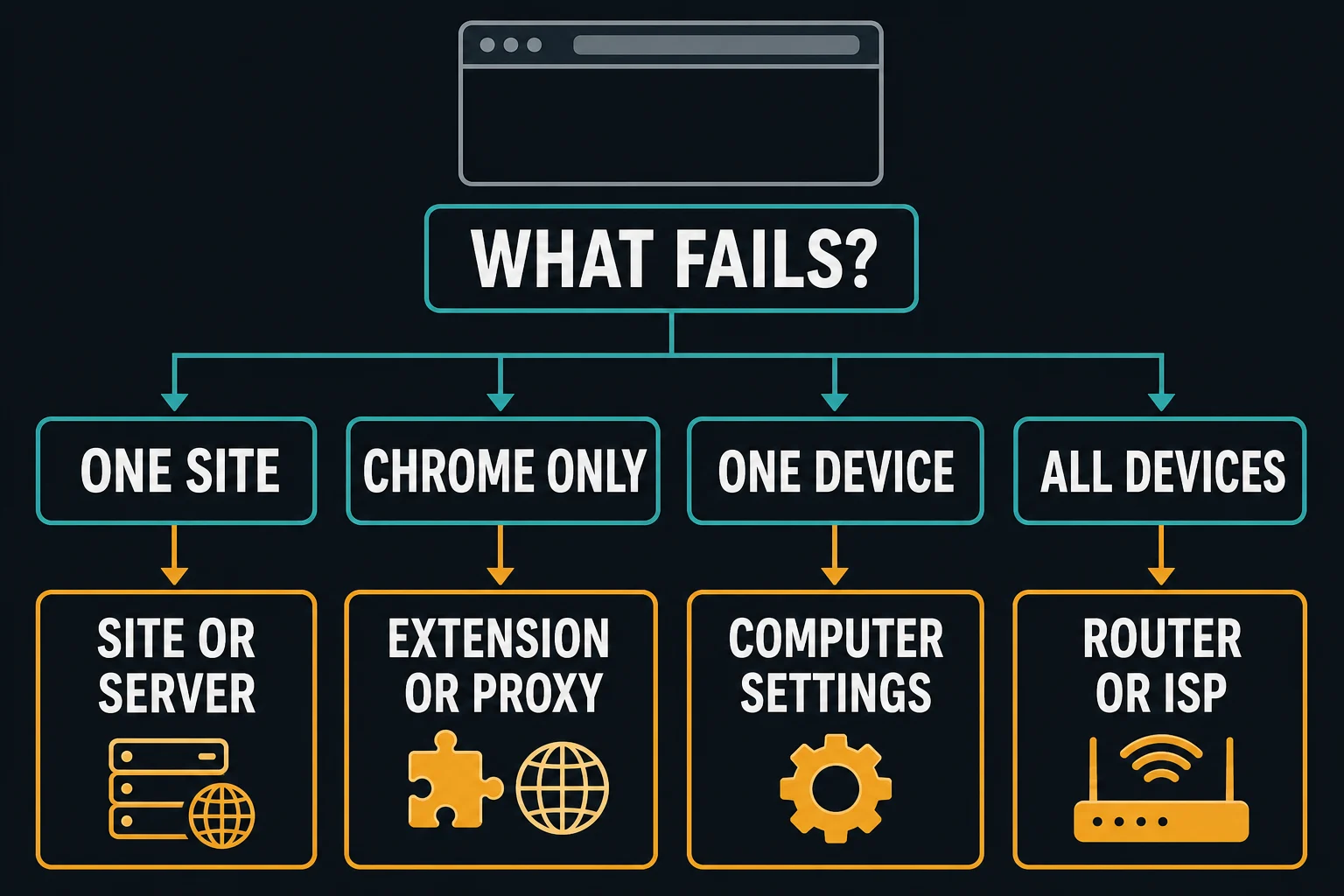
Start with a scope test: open two unrelated websites, try the same URL in another browser, and test another device on the same network. If only one site fails, the site or its route may be unavailable. If Chrome alone fails, inspect its extensions, VPN, and system proxy path. If every app and device fails, check the network before changing Chrome.
Do not begin by turning off the firewall, opening a port, or buying a different proxy. Identify the failing layer first, then make one reversible change at a time.
Quick fix
Follow this order and stop when the page loads:
- Record the exact Chrome error code, such as
ERR_CONNECTION_REFUSED,ERR_CONNECTION_TIMED_OUT, orERR_PROXY_CONNECTION_FAILED. - Open another website and the same URL in another browser.
- Restart Chrome, then restart the computer if the error affects several sites.
- Disconnect a VPN or pause a proxy extension for one controlled test.
- If you do not intentionally use a proxy, remove only unknown manual proxy or setup-script values from the operating system settings.
- If you do use a proxy, verify its host, port, protocol, authentication, and availability outside Chrome.
- Check whether security software has a specific rule or event for Chrome; do not leave the firewall disabled.
| Code at the bottom of the page | Most likely fix |
|---|---|
ERR_CONNECTION_TIMED_OUT |
The site is slow or down, or a firewall drops the traffic. Test another network. |
ERR_CONNECTION_REFUSED |
The site or port rejects you, or a security rule blocks it. Test another browser and device. |
ERR_PROXY_CONNECTION_FAILED |
Chrome cannot reach its proxy. Turn off a stale proxy or fix the proxy details. |
ERR_NAME_NOT_RESOLVED |
DNS failed. Check the URL, then your DNS or VPN DNS. |
ERR_INTERNET_DISCONNECTED |
The device has no connection. Fix Wi-Fi or Ethernet first. |
What "checking the proxy and the firewall" means
Chrome places suggestions such as "Checking the connection", "Checking the proxy and the firewall", and "Running Windows Network Diagnostics" beside several connection failures. Those lines are possible next checks, not a diagnosis.
Use the code printed below the message:
| Chrome code | What failed | First place to look |
|---|---|---|
ERR_CONNECTION_REFUSED |
A connection was actively rejected or blocked | One-site test, destination service, port, local server, or security rule |
ERR_CONNECTION_TIMED_OUT |
Chrome received no response before its deadline | Site availability, network path, proxy reachability, or silent filtering |
ERR_CONNECTION_RESET |
An established connection was interrupted | Unstable network, VPN, proxy, security inspection, or remote server |
ERR_PROXY_CONNECTION_FAILED |
Chrome could not establish the configured proxy path | Proxy host, port, protocol, extension, client, or provider status |
ERR_TUNNEL_CONNECTION_FAILED |
An HTTPS tunnel through a proxy could not be created | Proxy protocol, authentication, policy, or upstream route |
ERR_NAME_NOT_RESOLVED |
The hostname did not resolve | URL, DNS, VPN DNS, or proxy-side DNS behavior |
Chromium's canonical network error list defines a refused connection, connection timeout, failed proxy tunnel, and unresolved hostname as different failures. That is why clearing cookies is rarely the first useful response to this message: the failure usually happens before a page or cookie session is available.
You can also enter chrome://network-errors/ in Chrome to view its built-in list of network error codes. Do not paste credentials or private URLs into public forums when researching the code.
Diagnose the scope before changing settings
Run four quick comparisons:
- One site versus several sites: open two unrelated HTTPS sites.
- Chrome versus another browser: test the same URL in another browser on the same computer.
- One device versus the network: test the URL from another device on the same Wi-Fi or Ethernet network.
- Current network versus another trusted network: if policy allows, try a phone hotspot or another known network.
The pattern points to the likely owner:
| Result | Likely area | Next action |
|---|---|---|
| Only one site fails everywhere | Website, hosting route, or destination firewall | Wait, check the site's status, or contact its owner |
| Only Chrome fails | Extension, Chrome profile, app-level proxy, or browser policy | Test Incognito and inspect extensions or policies |
| One computer fails in every browser | OS proxy, VPN, security software, DNS, or adapter | Inspect the system connection path |
| Every device fails on one network | Router, modem, ISP, DNS, or managed network | Restart network equipment or contact the administrator |
| Direct access works but the proxy fails | Proxy endpoint, protocol, authentication, or route | Test the endpoint independently |
| Proxy works for other sites only | Destination policy, IP reputation, or site-side block | Stop retries and review allowed access |
Running Windows Network Diagnostics
The third suggestion on a Windows PC is a link. Select it on the error page and Chrome starts the built-in network troubleshooter. You can also open it yourself. It checks the adapter, IP address, DNS, and proxy detection, and it can fix simple problems such as a disabled adapter.
- Windows 11: Settings > System > Troubleshoot > Other troubleshooters > Network and Internet > Run. Recent builds open this troubleshooter in the Get Help app.
- Windows 10: Settings > Update & Security > Troubleshoot > Additional troubleshooters > Internet Connections > Run the troubleshooter.
- Either version: right-click the network icon in the taskbar and select Diagnose network problems or Troubleshoot problems, where shown.
If the troubleshooter reports "Windows could not automatically detect this network's proxy settings", follow our guide to that Windows proxy detection error. If it finds nothing and only one site fails, the problem is probably the site, not your PC.
Reset DNS and the network stack on Windows
If the scope test shows one computer failing in every browser and the proxy settings look clean, reset the cached network state. Open Command Prompt or Windows Terminal as administrator and run:
ipconfig /flushdns
netsh winhttp show proxy
netsh winsock reset
netsh int ip reset
ipconfig /flushdns clears the DNS resolver cache. netsh winhttp show proxy prints the proxy that Windows services use, which can differ from the proxy in Settings. If it shows an old proxy you do not need, netsh winhttp reset proxy sets it back to direct access, as Microsoft's netsh winhttp reference describes.
The last two commands reset the Winsock catalog and the TCP/IP stack. Restart the computer afterward. They can remove custom network settings, so note any static IP configuration first. They will not fix a dead proxy server, an offline website, or an ISP outage.
If the error line mentions DNS or ERR_NAME_NOT_RESOLVED, also open Chrome's Settings > Privacy and security > Security and toggle Use secure DNS off for one test. If the page loads, your DNS provider or VPN DNS is the problem, not the proxy.
Fix an unwanted proxy setting in Chrome
Chrome normally relies on the computer's proxy configuration, though an extension, managed browser policy, VPN, or routing client can add another layer. In Chrome, open Settings > System > Open your computer's proxy settings. You can also enter chrome://settings/system in the address bar.
Before changing anything, decide whether the device is personal or managed. A work or school proxy, proxy auto-configuration (PAC) script, security filter, or browser policy may be required. If the setting is managed, record the error and ask the administrator rather than deleting it.
Windows 11 or Windows 10
Open Settings > Network & internet > Proxy. Microsoft's Windows proxy documentation separates automatic detection, setup scripts, and manual proxy configuration.
On a personal computer that should connect directly:
- Turn off Use setup script if it contains an unknown or obsolete PAC URL.
- Turn off Use a proxy server if it contains an unknown or obsolete endpoint.
- Leave organization-supplied values alone on a managed device.
- Close and reopen Chrome after saving the change.
Do not assume Automatically detect settings must always be off. Some managed networks use automatic discovery, while many home networks connect directly. Use the configuration intended for the network.
macOS
Open System Settings > Network, select the active network service, choose Details, and open Proxies. Apple's Mac proxy-settings reference lists automatic discovery, PAC, HTTP, HTTPS, and SOCKS options separately. Our Mac proxy settings guide also shows how to check them from Terminal.
On a personal Mac with no intentional proxy, clear only unknown enabled proxy modes or obsolete server details. On a managed Mac, profiles may control these fields; contact the administrator instead of trying to override the profile.
Fix a proxy you intend to use
If the proxy is deliberate, disabling it only hides the real problem. Copy the endpoint details from the provider or administrator and verify each field:
- Hostname or IP address.
- Port.
- HTTP, HTTPS, SOCKS4, or SOCKS5 protocol.
- Username and password, or source-IP allowlisting.
- Subscription, traffic allowance, and endpoint status.
- PAC bypass rules or extension scope.
The text layout does not identify the protocol. A value such as host:port:user:pass can still represent either an HTTP or SOCKS endpoint. If the pieces are confusing, review what a proxy address contains and use the proxy converter to rearrange fields without editing a list by hand.
On Windows, test whether the proxy port is reachable before debugging Chrome:
Test-NetConnection proxy.example.com -Port 12345
Then test an HTTP proxy against a harmless public endpoint from the same computer:
curl.exe -I --proxy http://proxy.example.com:12345 https://example.com
Use the real protocol and endpoint, but avoid putting a password directly into shared screenshots, terminal transcripts, or support tickets. If the port test fails, investigate the hostname, port, provider status, local egress rules, and network policy. If the port succeeds but the proxy request returns 407, follow the 407 Proxy Authentication Required guide.
For SOCKS5, Chrome does not support username/password authentication, even when cURL accepts the same credentials. Use a supported HTTP proxy or another compatible authentication method; see the Chrome SOCKS5 guide.
If the proxy works in cURL but not Chrome, focus on the browser path: proxy extension state, profile, bypass list, authentication prompt, managed policy, or a conflicting VPN. The broader proxy setup guide covers browser formats and controlled endpoint testing.
Chromium's proxy configuration documentation notes that requests can fail with ERR_PROXY_CONNECTION_FAILED when a configured proxy is unreachable. That code is a stronger reason to inspect the proxy path than Chrome's generic firewall suggestion alone. Use the ERR_PROXY_CONNECTION_FAILED guide for that specific error.
Check VPNs and Chrome extensions
Incognito mode is a useful comparison because extensions do not run there unless explicitly allowed. Open an Incognito window and retry the same URL. If it works, inspect chrome://extensions/ and disable network-related extensions one at a time.
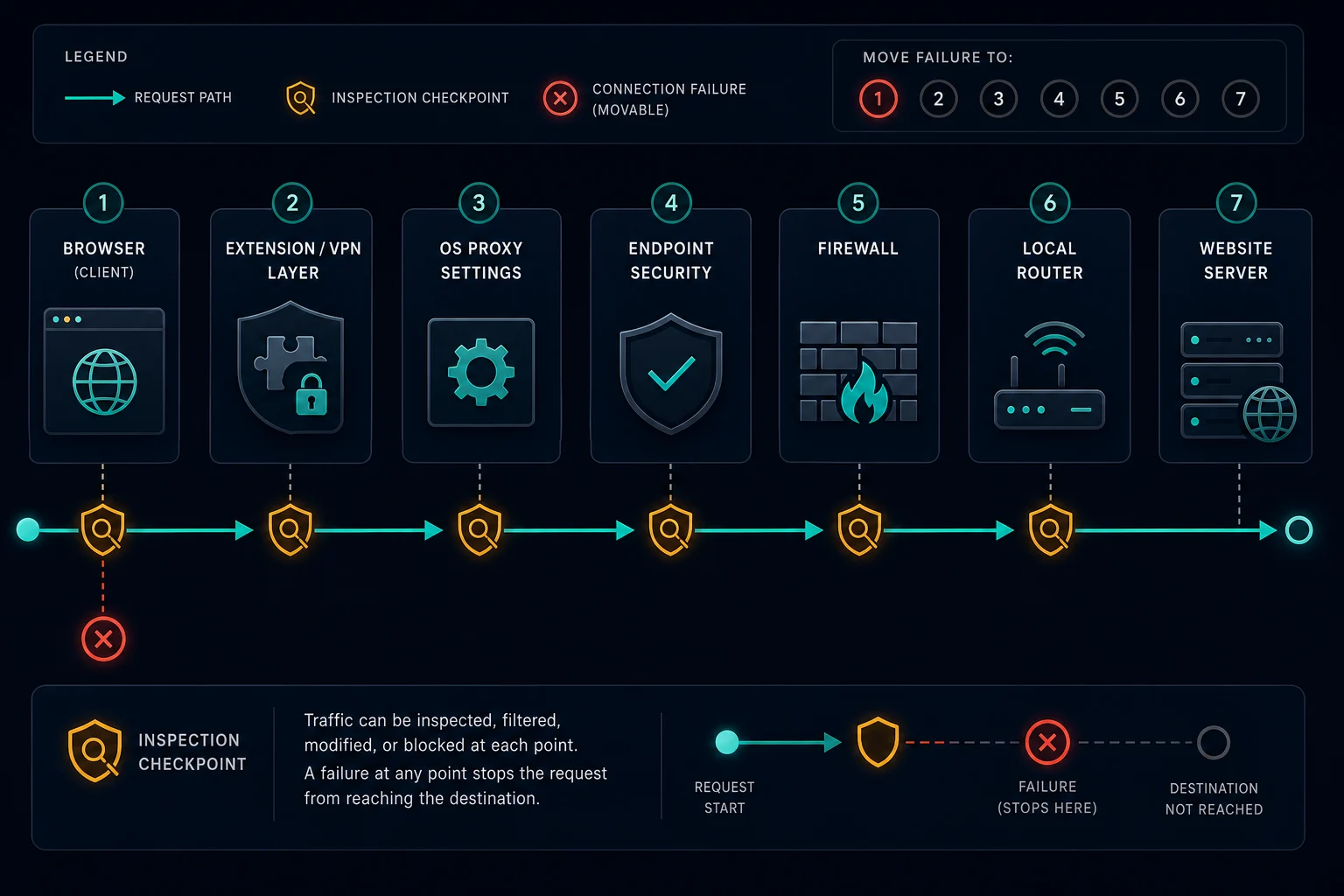
Also quit, rather than merely hide, any VPN, local debugging proxy, traffic-capture tool, antivirus web shield, or proxy-routing client for one permitted test. Reopen one component at a time. If the failure returns with a specific component, update or repair that component and check its route, certificate, or policy configuration. If you are unsure whether a VPN or a proxy belongs in your setup, proxy server vs VPN explains what each one changes.
An organization may enforce extensions or Chrome policies. chrome://policy/ can show that the browser is managed, but it is not a reason to remove policy files. Send the policy name and sanitized error details to the administrator.
Resetting Chrome is a later step, not the first one. Open Settings > Reset settings > Restore settings to their original defaults only after recording the current configuration and testing extensions individually. A browser reset cannot repair an offline proxy server, router outage, blocked destination port, or website failure.
Check the firewall without disabling protection
The phrase "Checking the proxy and the firewall" often leads to unsafe advice to switch the firewall off. Do not leave Windows Defender Firewall, the macOS firewall, or endpoint security disabled just to make a browser work.
On Windows, open Windows Security > Firewall & network protection and check the items below. To see which apps have a rule, select Allow an app through firewall and look for Google Chrome in the list.
- Whether the expected network profile is active.
- Whether Chrome or a required proxy/VPN client has a specific block rule.
- Whether third-party security software logged a blocked connection at the same time.
- Whether an organization policy controls the rule.
Avoid opening an inbound port for ordinary browsing. Microsoft explains that allowing a known app is less risky than opening a port, and that exceptions should be limited to apps you recognize and actually need. A browser normally makes outbound connections; a random inbound rule does not fix a dead proxy or remote website.
If a security product uses HTTPS inspection, a certificate error such as NET::ERR_CERT_AUTHORITY_INVALID needs a different investigation from ERR_CONNECTION_REFUSED. On a managed device, ask IT to repair the inspection certificate or policy. Do not click through certificate warnings or install an unverified certificate.
When the website or local server is the problem
If one website fails in every browser and on other devices, changing the local proxy may accomplish nothing. The website can be down, the listening service can be stopped, its firewall can reject the route, or the port can be closed. Check an official status page or contact the site owner.
For a local development URL such as http://localhost:3000, ERR_CONNECTION_REFUSED usually means no process is listening on that address and port. Confirm that the development server is running, that you used the printed port, and that a container or virtual machine exposed the port to the host. A proxy should normally bypass localhost; do not send private development traffic through a public proxy.
Website owners should check the service process, listening address, reverse proxy, firewall events, and deploy logs. A server bound only to 127.0.0.1 will not accept remote traffic, while a service listening on the wrong port can look like a browser or firewall problem from the client.
When changing proxies helps
Changing the endpoint can help when an intentional proxy is offline, the wrong protocol was selected, its port is blocked on the current network, or the destination rejects that proxy route. Test a single replacement endpoint before changing a full browser profile or automation fleet. If you need a replacement, ISP plans give you a dedicated static IP that is easy to verify in Chrome before you scale up. For other proxy failures, proxy error meanings and fixes lists the common codes.
A different proxy will not fix:
- A website that is down for every visitor.
- A local server that is not running.
- A malformed URL or misspelled hostname.
- An extension that keeps overwriting the system route.
- A firewall rule blocking every proxy endpoint.
- Missing authorization or a workflow prohibited by the site.
For legitimate automation, respect site terms, access controls, and rate limits. Do not rotate repeatedly against a refusal without identifying whether the destination permits the workflow. If Chromium automation shows the same message, isolate the proxy outside the framework first; the Puppeteer proxy server errors guide applies the same endpoint-before-browser test order.
FAQ
Does "checking the proxy and the firewall" mean I have a proxy?
No. It is a generic Chrome troubleshooting suggestion. Check the ERR_* code and your system, extension, VPN, and managed-policy settings to learn whether a proxy is actually in the path.
How do I check the proxy and firewall in Chrome?
Open chrome://settings/system and select Open your computer's proxy settings. Turn off any proxy you did not set. Then open Windows Security > Firewall & network protection > Allow an app through firewall and check that Chrome is allowed. On a Mac, check System Settings > Network > Details > Proxies and System Settings > Network > Firewall.
How do I fix "Checking the proxy and the firewall" with ERR_CONNECTION_TIMED_OUT?
Test the same site on another device and network. If it fails everywhere, the site is down or slow. If it fails only on your PC, disconnect any VPN, turn off unknown proxy settings, and run Windows Network Diagnostics.
Why does Chrome fail while other browsers work?
A Chrome extension, profile, cached browser policy, or app-specific proxy can create a Chrome-only failure. Test Incognito mode, inspect extensions, and check whether chrome://policy/ reports managed network settings.
Should I turn off the firewall to fix Chrome?
No. Inspect rules and security events instead. If a controlled test identifies a block, allow only the known app or destination required by your policy, then restore protection. Do not open a random inbound port.
Will flushing DNS or resetting Winsock fix it?
Only if cached DNS or the Windows network stack is the problem. Run ipconfig /flushdns, netsh winsock reset, and netsh int ip reset from an administrator terminal, then restart. These resets do not fix a dead proxy, an offline site, or a blocked port.
How do I know whether my proxy is working?
Test its host and port, then send one request through it from a simple client such as cURL. If that works but Chrome fails, inspect Chrome's extension, profile, authentication, and policy layers. If every client fails, verify the endpoint with the provider or administrator.
Summary
When Chrome suggests checking the proxy and the firewall, treat it as a map of possible layers, not proof of one cause. Record the error code, compare one site with several, compare Chrome with another browser, and compare direct access with the intended proxy.
Remove stale proxy values only on an unmanaged device that should connect directly. If a proxy is intentional, test its endpoint, protocol, and authentication independently. Keep the firewall enabled, inspect specific rules and events, and escalate managed settings to the administrator. That sequence fixes the failing layer without creating a broader security or network problem.