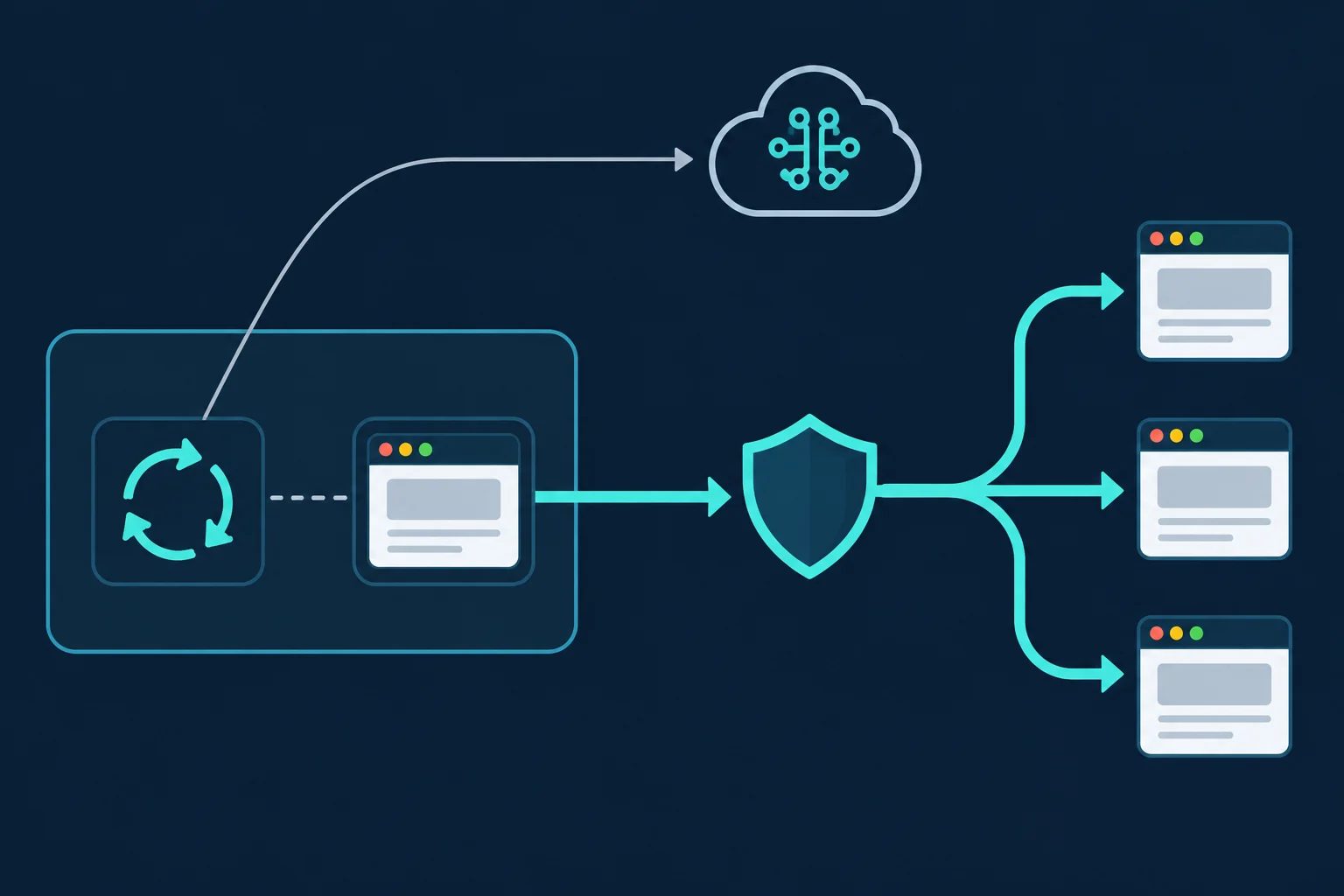
A Browser Use agent drives a real Chromium browser, so the proxy has to be attached to that browser, not to your Python process. In Browser Use 0.13, you pass a ProxySettings object to Browser(proxy=...). Browser Use turns server into Chromium's --proxy-server launch flag and answers the proxy's authentication challenge with your username and password over the Chrome DevTools Protocol.
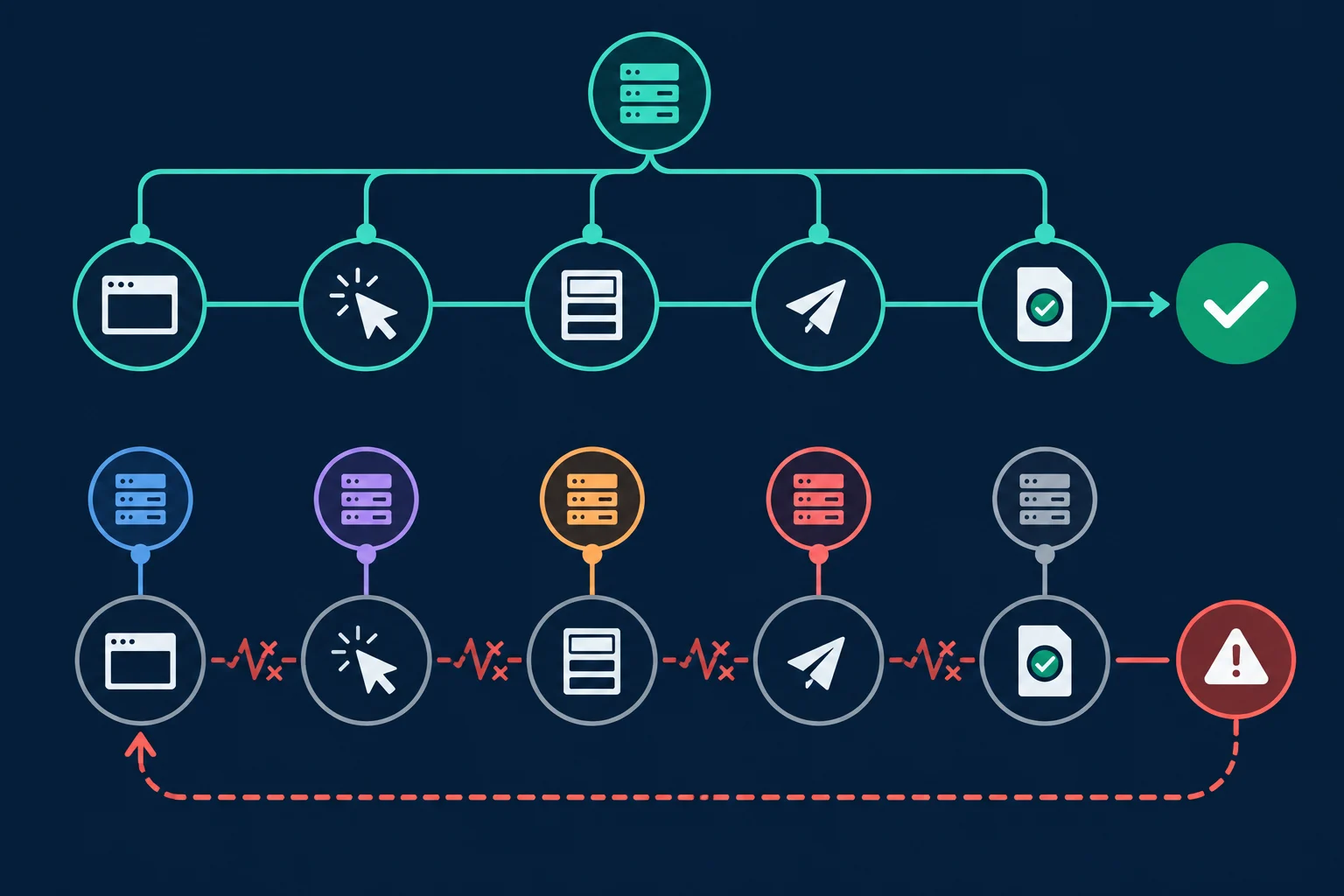
The harder decision is which IP the agent should sit behind. An agent that logs in, fills forms, or works through a multi-page flow needs one stable identity for the whole run: a sticky residential session or a dedicated ISP proxy. Per-request rotation, the default in many scraping setups, splits a single page load across several exit IPs and tends to break exactly the sessions an agent depends on.
This guide covers the setup code, how to choose residential or ISP proxies for browser use agent workloads, how to run several agents in parallel without mixing identities, and how to debug the failures that show up most often. The examples were checked against browser-use 0.13.10.
Browser Use Agent Proxy: Quick Setup
Install the library and its Chromium build first:
uv add browser-use
uv run browser-use install
browser-use install wraps playwright install chromium, so it only needs to run once per machine or container image.
Then create a Browser with a proxy and hand it to the agent:
import asyncio
import os

from browser_use import Agent, Browser, ChatOpenAI
from browser_use.browser import ProxySettings


async def main():
    browser = Browser(
        proxy=ProxySettings(
            server="http://proxy.example.com:8080",
            username=os.environ["PROXY_USERNAME"],
            password=os.environ["PROXY_PASSWORD"],
            bypass="localhost,127.0.0.1",
        ),
    )

    agent = Agent(
        task="Open https://api.ipify.org and report the IP address shown on the page",
        llm=ChatOpenAI(model="gpt-5.5"),
        browser=browser,
    )
    history = await agent.run(max_steps=10)
    print(history.final_result())


if __name__ == "__main__":
    asyncio.run(main())
ChatOpenAI reads OPENAI_API_KEY from the environment. Any chat model Browser Use supports works here; the proxy setup does not depend on the LLM.
What each field does:
| Field | Becomes | Notes |
|---|---|---|
server |
--proxy-server=... |
Include the scheme: http://host:port or socks5://host:port |
username / password |
CDP Fetch.authRequired responses |
Only proxy challenges are answered; site logins are left alone |
bypass |
--proxy-bypass-list=... |
Comma-separated hosts that should connect directly |
If the final result prints the proxy's exit IP rather than your own, the browser is routed correctly. Run this check before giving the agent a real task. Debugging a bad proxy through an LLM loop costs tokens and produces confusing step logs, because the agent will try to "fix" a connection error by clicking around.
Test the proxy outside the agent first:
curl -x "http://$PROXY_USERNAME:$PROXY_PASSWORD@proxy.example.com:8080" https://api.ipify.org
If curl fails, Browser Use will fail too. If your provider hands out lines like host:port:username:password, split them into server, username, and password. The proxy converter can reformat a whole list when a tool expects a different layout.
What Goes Through the Proxy and What Does Not
A browser use agent has two separate network paths, and only one of them uses ProxySettings:
- Chromium traffic. Page HTML, scripts, images, fonts, XHR and fetch calls, and WebSockets all leave through the proxy. This is the traffic target sites see.
- LLM API calls. Each agent step sends the task, a DOM summary, and often a screenshot from your Python process to the model provider. These requests go directly from your machine and never touch the browser's proxy.
The browser's CDP connection is local as well. When Browser Use launches Chromium on your machine it talks to it over localhost. If you do export HTTP_PROXY or HTTPS_PROXY, also set NO_PROXY=localhost,127.0.0.1 so that local DevTools traffic is not sent to the proxy.
The common mistake is exporting HTTPS_PROXY to "make the agent use the proxy." The OpenAI and Anthropic Python SDKs are built on httpx, which honors HTTP_PROXY, HTTPS_PROXY, and ALL_PROXY by default. With a residential proxy in those variables, every model call, screenshots included, travels through a plan billed per GB. Set the proxy on the browser and keep the process environment clean unless you have a specific reason to route API traffic.
Residential vs ISP Proxies for a Browser Use Agent
Both proxy types work with Browser Use. The choice depends on whether the agent needs one long-lived identity or many short independent ones.
| Agent workload | Better fit | Session pattern |
|---|---|---|
| Operating accounts you own (dashboards, seller portals, CRMs) | ISP | Same IP and same browser profile every run |
| Multi-step forms, checkout tests, onboarding flows | ISP or sticky residential | One IP for the entire run |
| Research across many public sites | Sticky residential | New sticky session per task |
| Localized QA by country or state | Residential | Sticky session in the target location |
| Thousands of independent page fetches | Probably not an agent job | Use an HTTP client or Playwright with rotating contexts |
ISP proxies are static IPs announced by internet service providers and hosted on fast infrastructure. You keep the same IP for the life of the plan, which is what an agent operating a logged-in account needs: the site sees the same address, the same cookies, and the same browser profile day after day. They are also priced per IP rather than per GB, which matters for agents because full browser sessions are bandwidth-heavy. For the deeper tradeoffs, see ISP proxies vs residential.
Residential proxies give you consumer IP space and broad geographic coverage. Use them in sticky mode for agents. Unknown Proxies sticky residential sessions keep the same exit IP for up to 2 hours, which covers most agent runs with room to spare. Rotating residential endpoints change the IP on every request, which suits stateless HTTP scraping and almost never suits an agent.
Why rotating proxies break agents
A browser does not make one request per page. Loading a typical page opens many connections for the document, scripts, API calls, and assets. With per-request rotation, the HTML can arrive from one IP, the login POST from a second, and the session check from a third.
Sites that bind a session to an IP or a risk score react predictably: logouts, repeated challenges, "session expired" banners, or a 403 Forbidden on the step that matters. The agent does not know the network changed under it. It sees a login page again, tries to log in again, and burns steps in a loop. The sticky vs rotating proxies guide covers the session mechanics in more detail.
One Identity per Agent: Sticky Sessions and Profiles
The rule that prevents most problems: one agent, one Browser, one proxy identity, one profile directory.
By default Browser Use creates a fresh temporary profile for each browser session. That is right for independent tasks, since nothing leaks between runs. For an account the agent should stay logged into, point user_data_dir at a persistent directory and always pair that directory with the same ISP IP. Cookies issued to one IP and replayed from another look like a stolen session to many risk systems.
Here is a pattern for running several agents in parallel, each pinned to its own proxy line and profile:
import asyncio
from pathlib import Path

from browser_use import Agent, Browser, ChatOpenAI
from browser_use.browser import ProxySettings

# One proxy per line: host:port:username:password
PROXY_LINES = [
    line.strip()
    for line in Path("proxies.txt").read_text().splitlines()
    if line.strip()
]

TASKS = [
    "Log in to the vendor portal and download this month's invoice list as CSV",
    "Check the order status page and report any orders marked delayed",
    "Open the pricing page and report the listed price for the Pro plan",
]


def make_browser(proxy_line: str, profile: str) -> Browser:
    host, port, username, password = proxy_line.split(":", 3)
    return Browser(
        proxy=ProxySettings(
            server=f"http://{host}:{port}",
            username=username,
            password=password,
        ),
        user_data_dir=f"~/.browser-use-profiles/{profile}",
        headless=True,
    )


async def run_agent(task: str, proxy_line: str, profile: str, limit: asyncio.Semaphore):
    async with limit:
        agent = Agent(
            task=task,
            llm=ChatOpenAI(model="gpt-5.5"),
            browser=make_browser(proxy_line, profile),
        )
        history = await agent.run(max_steps=30)
        return profile, history.final_result()


async def main():
    limit = asyncio.Semaphore(3)
    jobs = [
        run_agent(task, proxy_line, f"agent-{i}", limit)
        for i, (task, proxy_line) in enumerate(zip(TASKS, PROXY_LINES))
    ]
    for profile, result in await asyncio.gather(*jobs):
        print(profile, result)


asyncio.run(main())
A few details that matter in production:
split(":", 3)keeps any colons inside the password intact.- The semaphore caps concurrent Chromium instances. Each one uses several hundred MB of RAM, so size it to the machine, not to the proxy count.
agent-{i}maps index to profile. In a real deployment, key profiles by account or IP so a restart cannot pair a profile with the wrong proxy.- For sticky residential lines, generate a new session per task rather than reusing yesterday's session ID with a persistent profile.
Authentication and Protocol Details
HTTP proxies with a username and password are the default path. When credentials are set, Browser Use enables the CDP Fetch domain and replies to authRequired events whose source is the proxy. You do not need a browser extension or a login dialog handler.
SOCKS5 with credentials does not work in Chromium. The Chromium proxy documentation states that no authentication methods are supported for SOCKSv5. Browser Use can pass socks5://host:port to Chromium, but the username and password will never be used. Use your provider's HTTP endpoint, or an unauthenticated SOCKS5 endpoint with IP allowlisting. The SOCKS5 vs HTTP proxy guide explains the protocol differences.
IP allowlist authentication means leaving username and password out. The machine running Chromium must be on the allowlist, which is easy to forget in CI runners and autoscaled containers whose egress IP changes between deploys.
Credentials belong in environment variables or a secrets manager. Pass them as separate fields rather than embedding user:pass@ in the server URL, because the auth handler reads the dedicated fields.
Browser Use Cloud vs Bringing Your Own Proxy
ProxySettings configures the Chromium that Browser Use launches locally. Browser Use Cloud is a different setup: Browser(use_cloud=True) runs the browser remotely, and cloud_proxy_country_code="de" selects the cloud's built-in proxy country. Per the library source, the cloud applies a US proxy when you pass nothing, and cloud_proxy_country_code=None turns the proxy off.
If the cloud's built-in proxy covers your needs, you do not need a separate provider. Bring your own proxies when you run Chromium yourself (locally, in Docker, on your own servers), when an account must stay pinned to one static IP across months, when you need state or city targeting, or when you need ISP IPs specifically.
One trap: if you attach Browser Use to an already-running Chrome through cdp_url, launch flags such as --proxy-server are not applied, because Browser Use did not start that browser. Launch that Chrome with the proxy flag yourself, or let Browser Use launch it.
Browser Use CAPTCHA Behavior Behind Your Own Proxy
Browser Use 0.13 has a captcha_solver setting on Browser, and it defaults to True. It is not a local solver. It is a watchdog that listens for CAPTCHA events emitted by Browser Use's cloud browser infrastructure and pauses the agent's steps while the cloud handles the challenge. A local Chromium behind your own proxy never emits those events, so the setting has no effect there. When a CAPTCHA appears, the agent sees it as part of the page and may stall, retry, or give up.
What you control locally is how often challenges appear. On most sites that comes down to three signals:
- IP reputation. Datacenter and cloud-provider egress IPs draw more challenges than residential or ISP addresses. Agents running on a cloud VM with no proxy are a common source of constant CAPTCHAs.
- Identity changes mid-session. A rotating exit IP makes each step look like a new visitor and discards whatever trust the session had built.
- Pace.
wait_between_actions(default 0.1 seconds) adds a pause between actions the agent batches within one step; it does not slow the gap between steps. Back-to-back clicks and navigations across many parallel agents do not look like a person using a site.
One sticky residential session or ISP IP per agent, plus slower pacing such as Browser(wait_between_actions=1.0) and lower concurrency per IP, reduces false-positive challenges on sites you are allowed to automate. It does not guarantee a challenge-free run. If a site challenges every run, treat that as the site's decision about automated access: use its official API, ask for permission, or drop the target rather than trying to push through.
Bandwidth: Agents Are Expensive Browsers
An agent loads full pages at every step: images, fonts, scripts, and tracking calls included. The HTTP Archive measured the median desktop page at 2,652 KB in 2024. A 25-step task that visits 10 pages can move 25 to 40 MB through the proxy once redirects, API calls, and repeat loads are counted. At 1,000 runs a day, that is 25 GB or more.
That math is why the proxy type affects cost as much as success rate:
- On residential plans billed per GB, estimate before you scale. The data usage calculator helps size a plan from page weight and run volume.
- On ISP plans priced per IP, the constraint is how many agents share each IP, not bytes transferred.
- Use
allowed_domainson theBrowserto keep the agent from wandering onto unrelated sites. It saves bandwidth and limits what an agent can do when a prompt goes wrong. - Set
max_stepson everyagent.run()so a confused agent stops instead of looping through paid bandwidth.
Debugging a Browser Use Agent Proxy
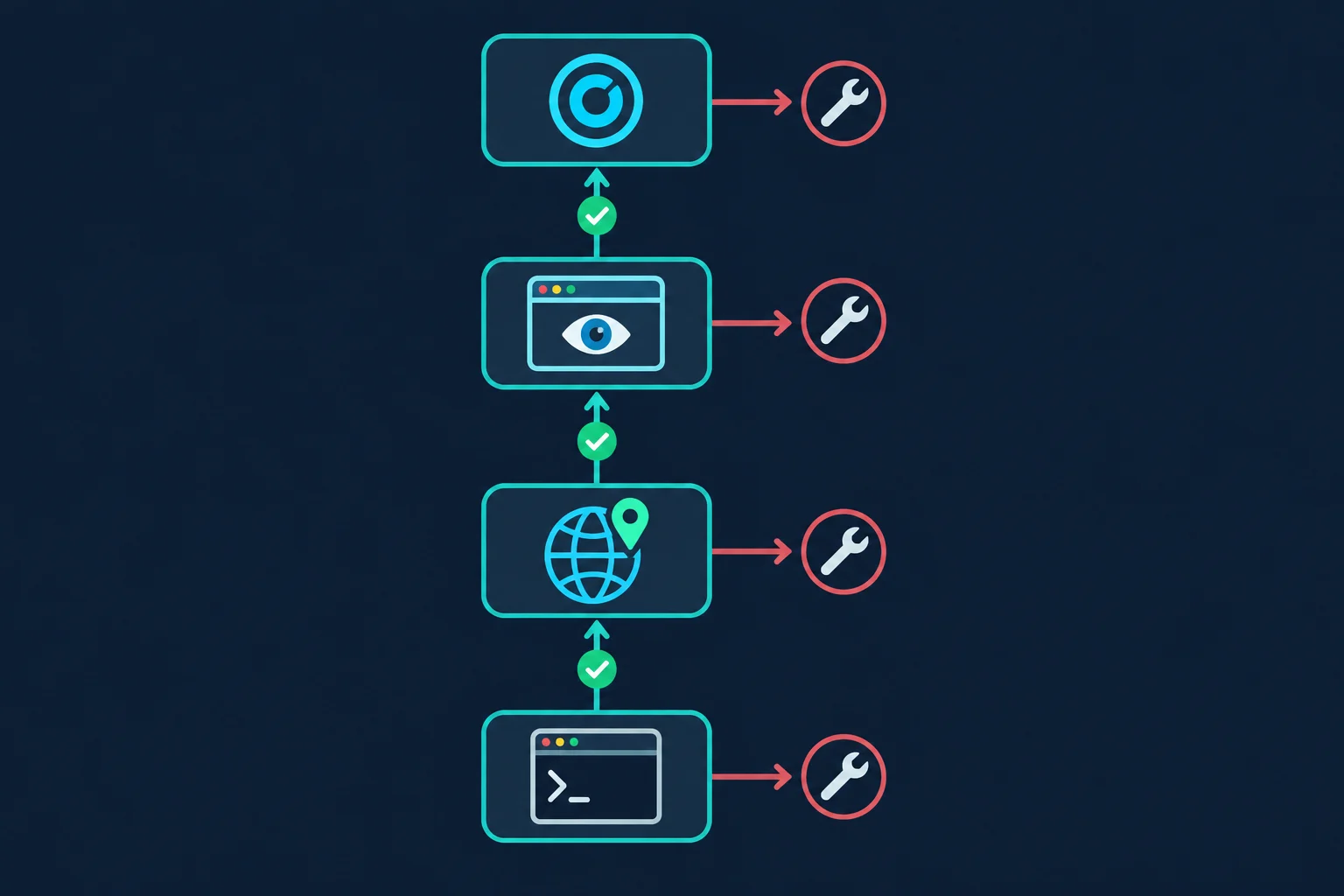
Test one layer at a time and do not move up until the current layer works:
curlthrough the proxy to confirm host, port, scheme, and credentials.- Run the IP-check task from the quick setup to confirm Chromium is routed.
- Run headed with
headless=Falseand watch the first real page load. - Point the agent at the real target with a low
max_steps.
| Symptom | Likely cause | First fix |
|---|---|---|
ERR_PROXY_CONNECTION_FAILED or ERR_TUNNEL_CONNECTION_FAILED |
Wrong host, port, or scheme, or the proxy is unreachable | Repeat the curl test; see ERR_PROXY_CONNECTION_FAILED |
| 407 or repeated auth failures | Wrong credentials | Re-check username and password; see 407 Proxy Authentication Required |
ERR_SOCKS_CONNECTION_FAILED with credentials set |
SOCKS5 endpoint requires auth that Chromium cannot send | Switch to the HTTP endpoint or IP allowlisting |
| IP check shows your real IP | Proxy not applied: cdp_url attach or proxy passed to the wrong object |
Pass proxy= to the Browser the agent actually uses |
| IP check shows a US or cloud IP | use_cloud=True: ProxySettings is not used |
Set cloud_proxy_country_code or run Chromium locally |
| Agent loops on login or "session expired" | IP changing mid-run | Use a sticky session or ISP IP for the whole run |
| 403, 429, or challenge pages | Proxy works; the site is rejecting the traffic pattern | Reduce concurrency and step pace; see 429 Too Many Requests |
| Local app or internal tool unreachable | Localhost traffic is being proxied | Add hosts to bypass |
| Navigation times out, or the agent acts on half-loaded pages | Slow proxy route or heavy page hitting the 30-second navigation limit | Raise the timeouts below after confirming the proxy responds quickly |
A 403 or 429 is useful information: the request reached the site. At that point, rotating IPs harder usually makes things worse. Slow the agent down, lower concurrency per IP, and check whether the site expects this kind of automated access at all.
Fixing timeouts behind a proxy
Residential routes add latency, and heavy pages take longer to settle. Browser Use 0.13 has two tunable limits worth knowing, and one that is not tunable:
- Navigation timeout: 30 seconds by default, read from the
TIMEOUT_NavigateToUrlEventenvironment variable. - Page settle time: not tunable in 0.13. After navigation the agent waits up to 3 seconds (same domain) or 8 seconds (new domain) for the load event, then reads the page anyway.
wait_for_network_idle_page_load_timeandminimum_wait_page_load_timeappear in the parameter reference but are not read by the standardAgentin 0.13.10. - Step timeout:
Agent(step_timeout=...)defaults to 180 seconds and covers the whole step, including the LLM call.
export TIMEOUT_NavigateToUrlEvent=60
With the same imports as the quick setup:
browser = Browser(
    proxy=ProxySettings(
        server="http://proxy.example.com:8080",
        username=os.environ["PROXY_USERNAME"],
        password=os.environ["PROXY_PASSWORD"],
    ),
)

agent = Agent(
    task="Open https://example.com and summarize the page",
    llm=ChatOpenAI(model="gpt-5.5"),
    browser=browser,
    step_timeout=300,
)
Raise these only after the curl test returns in a second or two. If the proxy itself takes 10 seconds to answer, a longer timeout hides a bad route instead of fixing it. Switch to a closer location or an ISP IP instead.
Use Agents Within Site Rules
Agents act on websites with your credentials and your intent, so the usual boundaries apply with more force. Automate accounts you own or are authorized to operate, follow each site's terms and rate limits, and do not use proxies to get around bans or access controls. A proxy gives the agent a stable, well-located network identity; it does not make unauthorized automation acceptable. For scraping-specific boundaries, see is data scraping legal.
FAQ
How do I add a proxy to a Browser Use agent?
Create Browser(proxy=ProxySettings(server="http://host:port", username=..., password=...)) and pass it to Agent(browser=...). Import ProxySettings from browser_use.browser.
Does Browser Use support SOCKS5 proxies?
Yes, as socks5://host:port, but Chromium does not support SOCKS5 username and password authentication. Use an HTTP endpoint for authenticated proxies, or IP allowlisting for SOCKS5.
Should a browser use agent use rotating proxies?
Rarely. Per-request rotation changes the exit IP between steps and even between requests within one page load, which breaks logins and multi-step flows. Use a sticky residential session per task or a static ISP IP.
Are residential or ISP proxies better for Browser Use?
ISP proxies fit agents that operate the same accounts repeatedly, because the IP never changes and pricing is per IP. Residential proxies fit agents that need many locations or fresh identities per task, used in sticky mode.
Does the proxy slow the agent down?
Somewhat, but the LLM call at each step usually dominates run time. ISP proxies add the least latency. On slower residential routes, raise TIMEOUT_NavigateToUrlEvent (30 seconds by default) and step_timeout on Agent (180 seconds by default) instead of relying on local-network defaults.
Does Browser Use solve CAPTCHAs when you run your own proxy?
No. The captcha_solver setting only reacts to events from Browser Use cloud browsers. With a local Chromium behind your own proxy, you can lower how often challenges appear with one stable IP per agent and slower pacing, but nothing solves them for you.
Final Thoughts
A browser use agent needs its proxy set on the browser, not the process: Browser(proxy=ProxySettings(...)), with HTTP credentials in separate fields and a quick IP check before any real task. Give each agent one identity for the full run, pair persistent profiles with fixed IPs, and keep LLM traffic off your proxy plan.
For agents that manage the same accounts every day, compare ISP proxy plans. For agents that need geographic coverage or fresh sticky sessions per task, start with residential proxies. If you also run conventional browser automation next to your agents, the Playwright proxy guide covers context-level rotation.
Technical references: Browser Use browser parameters, Browser Use on GitHub, Chromium proxy support, and the Chrome DevTools Protocol Fetch domain.