A computer use agent is an AI model that operates a computer the way a person does. It looks at a screenshot, decides where to click or what to type, and sends mouse and keyboard actions to a desktop. A small program on your side carries out each action and returns a fresh screenshot. The loop repeats until the task is done.
When a computer use agent browses the web, it isn't calling a special API. It is clicking around a normal browser running on a virtual desktop, usually a container or VM you provide. Websites see that browser's traffic, coming from whatever network the sandbox sits on. In practice that usually means a cloud server's IP address. That is why IPs matter: the site never sees the model, only the network and browser you gave it.
This guide explains how computer use agents browse, what a website can observe about them, and how to put a proxy in the right place in the sandbox. Done right, the browser gets a deliberate network identity without leaking credentials to the model or sending your screenshots through a metered proxy.
What Is a Computer Use Agent?
The model APIs that power computer use agents work the same way at the core. Anthropic's computer use tool, OpenAI's computer use tool in the Responses API, and Google's Gemini computer use all take screenshots in and send UI actions out. In all three, you supply the environment: the display, the browser, and the code that turns "click at (412, 230)" into a real input event.
That separates computer use agents from the other ways an AI touches the web:
| Computer use agent | DOM-based browser agent | Fetch or search tool | |
|---|---|---|---|
| What the model sees | Screenshots | DOM or accessibility tree, sometimes plus screenshots | Page text or HTML |
| What it sends back | Clicks and keystrokes at pixel coordinates | Actions on element references | A URL to fetch |
| What it can control | Anything on the screen: browser, PDFs, desktop apps | One browser | Nothing interactive |
| Typical harness | Virtual display (Xvfb) driven by xdotool, or a browser driven by Playwright | Playwright or the Chrome DevTools Protocol | An HTTP client |
| Where the proxy goes | The sandbox's browser or network | The browser launch or context options | The HTTP client |
Pixel-level control is slower and costs more per step than reading the DOM, but it works on canvas apps, embedded PDFs, and native desktop software that DOM agents can't reach. Developers often combine the two by giving a single agent both a computer tool and DOM or shell tools.
Consumer products such as the cloud browser in ChatGPT Work run the same kind of loop on the vendor's own cloud machines. You can't change their network, so this guide focuses on agents you run yourself.
How Computer Use Agents Browse the Web
Anthropic's reference implementation is a good concrete example because most self-hosted setups look like it. It is a Docker image with Ubuntu, an Xvfb virtual display, the Mutter window manager, Firefox ESR, and xdotool. The agent loop is a Python app that runs inside the same container. When the model asks for a click, the loop runs xdotool mousemove and click against the virtual display. When the model asks for a screenshot, the loop captures the display and sends the image back to the API.
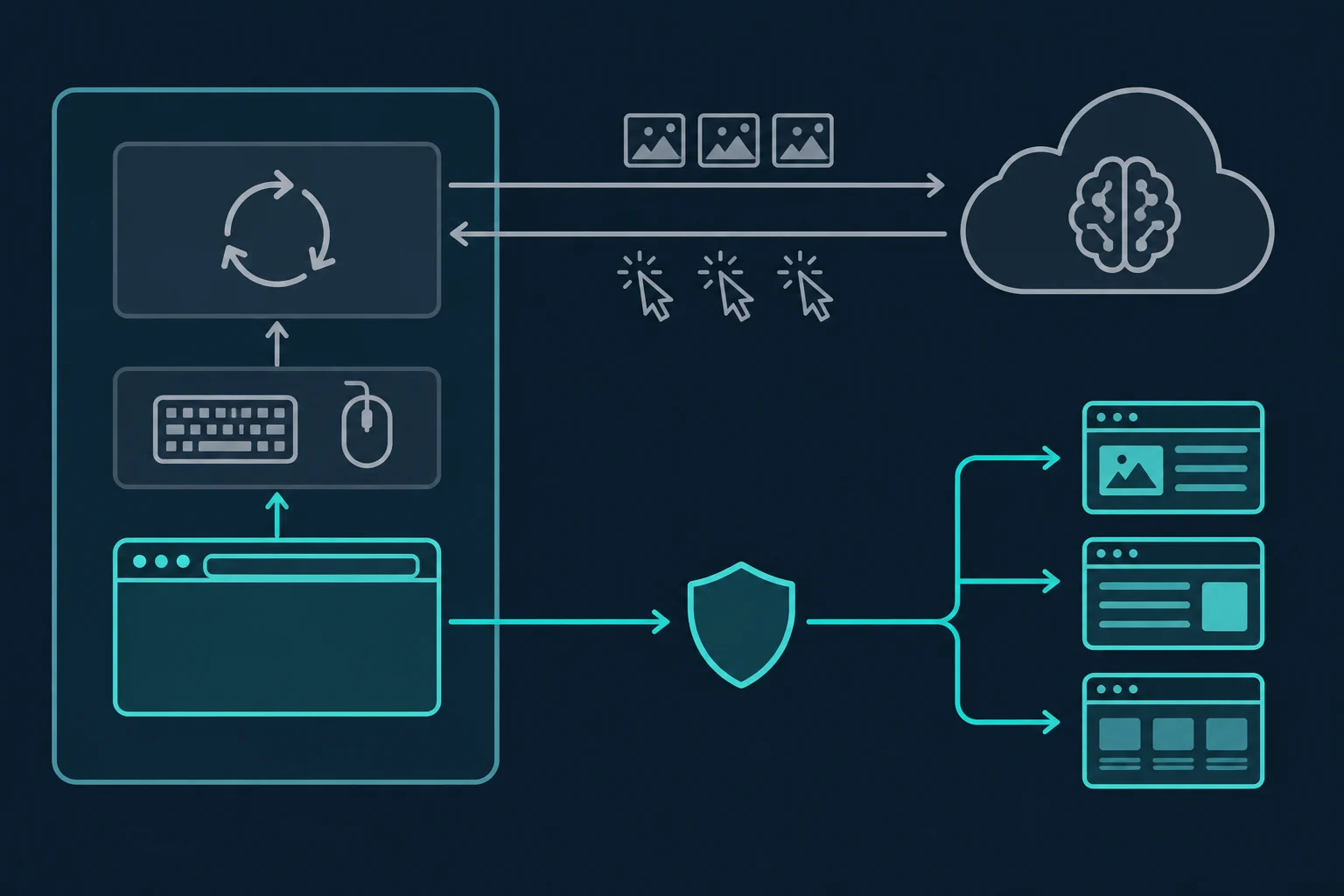
That gives a computer use agent two network paths that are easy to mix up:
- The model path. The agent loop sends screenshots to the model API and receives actions back. Websites never see this traffic.
- The browsing path. The browser on the virtual desktop loads pages, scripts, images, and API calls from the sites the agent visits. This is the only traffic a website sees.
The proxy belongs on the browsing path only. If you send the model path through a residential proxy, every screenshot upload counts against your proxy bandwidth and adds latency to each step. Nothing improves on the website side.
Two other properties shape how these agents look from the outside:
- Every step is a full round trip. Each action waits for a screenshot, a model call, and the input to run. That usually takes a few seconds, so a 60-step task can run for several minutes. Sessions last much longer than a scripted scrape of the same pages.
- The screen is the model's input. Anything visible on the virtual desktop ends up in a screenshot, and screenshots are stored in the conversation history and often in your logs too. That includes proxy settings dialogs and any password typed into one.
What a Website Sees From a Computer Use Agent
A site has three kinds of evidence: the network connection, the browser, and the behavior. Computer use agents look unusual in a different mix from other agents.
The network. The connection comes from the sandbox host. On AWS, Google Cloud, Azure, or a hosted sandbox provider, that is a hosting ASN. Many bot management rules score hosting ranges as high-risk because so little human browsing comes from them. This is the signal that most often decides whether the agent gets a page or a 403 Forbidden on its first request.
The browser. This depends on the harness. In a desktop-style setup like Anthropic's demo, Firefox is a normal, headed browser with no WebDriver or DevTools session attached, because input arrives as X11 events from xdotool. We loaded a test page in the reference image's Firefox ESR 140, and navigator.webdriver reported false. Harnesses that drive the browser through Playwright or a DevTools connection, which is how many browser-only computer use examples work, usually report true and carry the usual automation tells.
Even the desktop-style browser has quirks. It runs at a small virtual screen size (Anthropic's demo defaults to 1024×768), and renders without a GPU. Its timezone and language default to whatever the container has, usually UTC and US English.
The behavior. The pointer jumps straight to its target instead of moving across the screen, because xdotool mousemove teleports it. Actions come in bursts separated by multi-second pauses while the model thinks. When something fails, an agent may click the same button again right away.
Put together, a desktop-style computer use agent often has a cleaner browser fingerprint than a headless scraper and a worse network identity than a home user. That makes the IP address the signal you most directly control.
Why IPs Matter for Computer Use Agents
Cloud IP reputation. An agent that works from your laptop and fails as soon as it runs in the cloud is usually hitting an IP problem. The sandbox moved from a residential connection to a hosting range. For the background on that gap, see datacenter vs residential proxies.
Geo and locale. A computer use agent reads the rendered page and reports what it sees. If the exit IP is in Virginia but the task is about German prices, the agent will confidently report the wrong currency, stock, or search results. The proxy country, the browser's Accept-Language, and the timezone should all agree.
Session length. Because every step takes seconds, computer use sessions are long. A task with a login, a search, and a few pages of results can take 10 minutes or more. If the exit IP changes partway through, the site sees an authenticated session move between networks. That often means a logout or a new challenge. Use one stable exit per task, not per-request rotation. The sticky vs rotating proxies guide covers session design. Unknown Proxies sticky residential sessions can hold an IP for up to 2 hours, which covers most agent tasks.
Parallel sandboxes. Ten containers on one VM share one public IP unless you give each its own exit. To the target, that looks like one very busy visitor. Plan for one sandbox, one exit IP.
How to Route a Computer Use Agent Through a Proxy
There are three places to set a proxy in a computer use sandbox. They differ in what they cover and what the agent can undo.
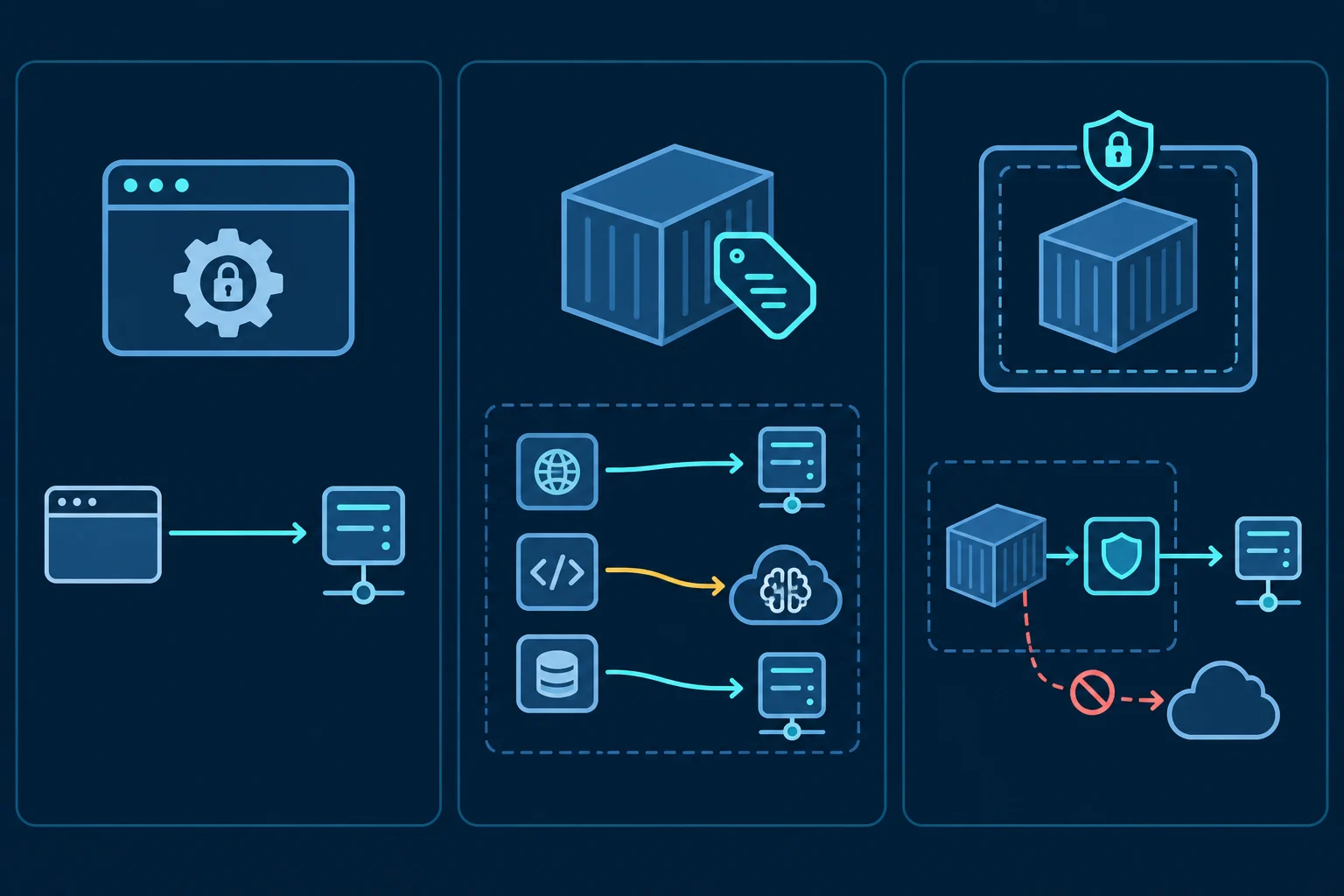
| Placement | Covers | Agent can bypass it? | Use it when |
|---|---|---|---|
| Browser policy (locked) | The sandbox browser only | Not from the browser UI, but yes through a shell tool | The agent only uses the browser |
HTTP_PROXY / HTTPS_PROXY in the container |
CLI tools and HTTP libraries that read them | Yes, it can unset them | You also need curl or scripts in the sandbox proxied |
| Isolated network with an egress gateway | Everything in the sandbox | No | The agent has shell access or you need fail-closed routing |
For the common case, the browser policy plus a credential-holding forwarder is the right default. The walkthrough below uses Anthropic's reference image, but the same approach works for any Firefox-based sandbox.
Step 1: Run a local forwarder that holds the credentials
Don't put proxy credentials anywhere the agent can see them. A password typed into a Firefox prompt ends up in a screenshot. An environment variable in the sandbox can be printed by a shell tool. Instead, run a small forwarder in its own container. It authenticates to the upstream proxy and exposes an unauthenticated listener on a private Docker network.
This example uses GOST, a single-binary proxy tunnel:
docker network create cua-net

docker run -d --name egress --network cua-net gogost/gost:3 \
  -L "http://:3128" \
  -F "http://${PROXY_USER}:${PROXY_PASS}@${PROXY_HOST}:${PROXY_PORT}"
The listener on egress:3128 needs no password, so don't publish that port to the host or the internet. Only containers on cua-net can reach it. If your proxy plan supports source-IP allowlisting, you can allowlist the sandbox host's IP and skip the forwarder.
Step 2: Point the sandbox browser at it with a locked policy
Firefox reads enterprise policies from /etc/firefox/policies/policies.json on Linux. Save this as policies.json on the host:
{
  "policies": {
    "Proxy": {
      "Mode": "manual",
      "Locked": true,
      "HTTPProxy": "egress:3128",
      "UseHTTPProxyForAllProtocols": true,
      "Passthrough": "localhost, 127.0.0.1"
    },
    "Preferences": {
      "intl.accept_languages": { "Value": "de-DE, de, en", "Status": "locked" }
    },
    "DisableTelemetry": true,
    "DisableAppUpdate": true
  }
}
Locked: true greys out the connection settings, so the agent can't switch the proxy off from Firefox's settings page. That matters because a computer use agent has full access to the desktop UI, and a prompt-injected page could tell it to do exactly that. The Preferences block sets Accept-Language to match a German exit. DisableTelemetry cuts Firefox's telemetry pings so they don't use your proxy bandwidth. DisableAppUpdate is harmless here (the packaged ESR build doesn't self-update) and keeps the policy portable to Mozilla's own builds.
Step 3: Start the sandbox on the private network
docker run -d --name cua --network cua-net \
  -e ANTHROPIC_API_KEY="$ANTHROPIC_API_KEY" \
  -e TZ=Europe/Berlin \
  -v "$PWD/policies.json:/etc/firefox/policies/policies.json:ro" \
  -v "$HOME/.anthropic:/home/computeruse/.anthropic" \
  -p 127.0.0.1:5900:5900 -p 127.0.0.1:8501:8501 \
  -p 127.0.0.1:6080:6080 -p 127.0.0.1:8080:8080 \
  ghcr.io/anthropics/anthropic-quickstarts:computer-use-demo-latest
Bind the published ports to 127.0.0.1. The demo's VNC server has no password, so an open port gives anyone who finds it the agent's desktop and its chat UI, which spends your API key and browses through your proxy. On a remote host, reach the demo through an SSH tunnel such as ssh -L 8080:localhost:8080 -L 6080:localhost:6080 -L 8501:localhost:8501 user@host, never an open port.
Mount the policy read-only. The demo user has passwordless sudo, so a writable file could be edited by the agent's shell tool. TZ sets the timezone Firefox reports to pages. Change it, the Accept-Language value, and the proxy country together.
We tested the forwarder and this policy with the reference image's Firefox ESR 140. Page loads went through the forwarder to an authenticated upstream proxy. A test page reported Europe/Berlin as the timezone, de-DE,de,en as navigator.languages, and navigator.webdriver as false.
The model path stays direct. The agent loop's API calls leave the container normally and never touch the proxy, because the proxy is set only in Firefox. If you add HTTPS_PROXY to the container for command-line tools, also set NO_PROXY to the model API host, such as api.anthropic.com. Otherwise most Python HTTP clients will send API calls and screenshots through the proxy too.
Step 4: Verify the exit before the agent starts
Check from the forwarder's side first. The curl image's entrypoint passes any arguments that start with - straight to curl:
docker run --rm --network cua-net curlimages/curl -s -x http://egress:3128 https://api.ipify.org
Then open the demo's combined interface at http://localhost:8080 (or the desktop-only view at http://localhost:6080/vnc.html), load https://api.ipify.org in the sandbox Firefox, and confirm it shows the same address. Visiting about:policies shows whether Firefox picked up the policy file. If the forwarder prints an IP but Firefox shows the host's IP, the policy didn't load. If the forwarder check fails, test the upstream proxy directly with curl -x "http://$PROXY_USER:$PROXY_PASS@$PROXY_HOST:$PROXY_PORT" https://api.ipify.org. A 407 Proxy Authentication Required there means the credentials are wrong.
When the agent has a shell, isolate the network
A browser policy only controls the browser. Anthropic's reference agent also has a bash tool, and anything the agent runs there, such as curl or pip, uses the container's direct route. If the sandbox must never reach the internet except through the proxy, take away the direct route.
Attach the desktop container only to a Docker network created with docker network create --internal, and connect the forwarder to both that network and a normal one. Run the agent loop in its own container with outside access so it can still reach the model API. This takes more work than the reference demo, because the loop then has to control the desktop over the network. The payoff is that any connection that skips the proxy fails instead of leaking your host IP.
Anthropic's own guidance points the same way. It recommends a dedicated VM or container with minimal privileges and limiting internet access to an allowlist of domains. GOST can enforce that allowlist at the forwarder with a whitelist bypass rule, marked by the ~ prefix. Put it on the listener, not the upstream hop:
docker run -d --name egress --network cua-net gogost/gost:3 \
  -L "http://:3128?bypass=~example.com,.example.com" \
  -F "http://${PROXY_USER}:${PROXY_PASS}@${PROXY_HOST}:${PROXY_PORT}"
On the listener, a request for a host outside the list is refused, and the browser gets a 403 on CONNECT. On the -F hop, the same rule means "skip this hop," so non-matching traffic leaves directly from the forwarder's own IP. We tested both. With the rule on the hop, an off-list request succeeded without ever reaching the upstream proxy.
Choosing the Exit IP for a Computer Use Agent
Pick the proxy type by the shape of the task. The ISP vs residential proxies guide covers the tradeoffs in depth.
- Recurring work in one account, such as a back-office portal the agent checks every day: use a dedicated static ISP proxy. The account sees the same IP on every run, and on plans that support IP allowlisting you can authorize the sandbox host by IP instead of a password.
- One-off research tasks across several sites: use a sticky residential proxy session per task, in the country the task is about.
- Many parallel sandboxes: give each sandbox its own sticky session or ISP IP. Don't share one exit across all of them.
Budget for bandwidth. A computer use agent loads full pages with images, fonts, and scripts, and it often revisits pages while reasoning. Measure one real task through the forwarder, then size a plan with the data usage calculator.
What a Better IP Won't Fix
A clean exit IP removes the hosting-range penalty. It doesn't change the rest of the picture:
- Firewall blocks. If a site returns a Cloudflare 1020 or a 403 from a deliberate rule, the agent should stop, not retry from another IP. Build that rule into the harness so it doesn't depend on the model's judgment.
- Rate limits. A 429 Too Many Requests means slow down. Long pauses between agent steps don't help if ten sandboxes hit the same domain at once.
- CAPTCHAs and consequential actions. Google's computer use documentation tells developers to route CAPTCHAs and sensitive actions to a human for confirmation. Anthropic recommends a human check before purchases, accepting terms, and similar steps. Keep those gates in place.
- Site rules. An agent acting for you is still bound by the site's terms and
robots.txt. See is data scraping legal for the legal background.
FAQ
What is a computer use agent?
A computer use agent is an AI model that controls a computer through screenshots and mouse and keyboard actions. It works on whatever is on the screen, including browsers, documents, and desktop apps, inside an environment the developer provides.
What is the difference between a computer use agent and a browser agent?
A browser agent reads the page's DOM or accessibility tree and acts on elements, so it only works inside a browser. A computer use agent works from pixels, so it can operate any application. It is usually slower and costs more per step.
Does a computer use agent have its own IP address?
No. It uses the IP of the machine or container its browser runs on. For a self-hosted sandbox on a cloud server, that is the server's datacenter IP unless you route the browser through a proxy. Vendor-hosted agents use the vendor's network.
Can websites detect computer use agents?
Sometimes. A desktop-style agent driving a normal Firefox through OS input doesn't set navigator.webdriver, so the browser looks fairly ordinary. Sites can still see a cloud IP, a small virtual screen, software rendering, and machine-like timing. Agents built on Playwright also expose the standard automation flags.
Should I set the proxy in Docker or in the browser?
Set it in the browser when only the browser needs it. That keeps model API traffic and screenshots off the proxy. Add container environment variables only for command-line tools, with NO_PROXY set for the model API host. Use network isolation when the agent has shell access and must never go direct.
Do computer use agents need residential or ISP proxies?
Only when the default network is the problem, such as a cloud IP being blocked, the wrong country, or several sandboxes sharing one address. Use ISP proxies for recurring logged-in work and sticky residential sessions for one-off tasks in a specific country.
Conclusion
A computer use agent browses the web through a real browser on a virtual desktop, so websites judge it by that browser's network, fingerprint, and behavior. The model never touches the site. Of those three, the IP is the one you control most directly, and on a cloud sandbox it is usually the weakest.
Put the proxy on the browsing path only: a locked browser policy pointing at a forwarder that keeps the credentials off the screen. Verify the exit before each task, keep one exit per sandbox, and isolate the network when the agent has a shell. When you're ready to give your sandboxes a deliberate network identity, compare residential proxies for country-targeted sticky sessions or ISP plans for dedicated static IPs.