Skyvern is an open-source browser agent that sends screenshots and an element tree to an LLM and acts on a Playwright-managed Chromium. Skyvern proxy setup depends on where Skyvern runs. On Skyvern Cloud, you pass proxy_location with each task, workflow run, or browser session, and Skyvern sends the browser through its own managed residential network. On a self-hosted Skyvern server, the same proxy_location field routes nothing at all. Skyvern's docs say proxy routing is only available in Skyvern Cloud, and in the open-source code the region values only set the browser's timezone.
For self-hosted runs, you add the proxy at the Chromium level. Pass --proxy-server through BROWSER_ADDITIONAL_ARGS and point it at a small local forwarder that holds your proxy credentials. You need the forwarder because Chromium's flag won't accept a username and password. We tested that: http://user:pass@host:port in the flag fails every navigation with net::ERR_NO_SUPPORTED_PROXIES.
This guide covers both paths, plus the parts that are specific to a vision-based agent like Skyvern: which traffic actually crosses the proxy, how to keep the timezone consistent with the exit IP, and how to stop WebRTC from exposing your server's address.
Skyvern Proxy Setup: Cloud vs Self-Hosted
| Deployment | Where the proxy is set | What proxy_location does |
|---|---|---|
| Skyvern Cloud | proxy_location on the task, workflow, or browser session |
Picks the residential country, US state or city, or a static ISP IP |
Self-hosted (Docker Compose or skyvern run server) |
BROWSER_ADDITIONAL_ARGS plus a forwarder you run |
Region values set the browser timezone only. No values change routing |
Embedded SDK (Skyvern.local() with launch_local_browser) |
The args you pass when launching the browser |
Not used for that browser |
Your own Chrome over CDP (cdp-connect) |
The flags you start Chrome with | Not used for that browser |
The versions referenced here are Skyvern 1.0.55 on PyPI and the Skyvern GitHub repository as of early October 2026. The browser factory code that builds Chromium's launch options has no proxy option. Cloud routing is added outside the open-source code.
Skyvern Cloud: proxy_location Values
On Cloud, the proxy is a per-run setting. The default is RESIDENTIAL, a random US residential IP, so tasks use a proxy even when you don't ask for one.
import asyncio
from skyvern import Skyvern

async def main():
    client = Skyvern(api_key="YOUR_SKYVERN_API_KEY")
    run = await client.run_task(
        prompt="Open the pricing page and return the monthly price of the Pro plan",
        url="https://example.com",
        proxy_location="RESIDENTIAL_GB",
        max_steps=15,
        wait_for_completion=True,
    )
    print(run.status, run.output)

asyncio.run(main())
The values you will use most:
RESIDENTIAL: US residential. Country variants follow theRESIDENTIAL_XXpattern, such asRESIDENTIAL_DE,RESIDENTIAL_JP, orRESIDENTIAL_BR, covering 20 other countries.RESIDENTIAL_ISP: a static ISP address. Use this when the site tracks IP changes across a login.- A
GeoTargetobject, such as{"country": "US", "subdivision": "CA", "city": "San Francisco"}, for state and city targeting. NONE: no proxy. Use it for internal tools, staging sites, or anything behind your own allowlist, so you don't pay residential bandwidth for traffic that doesn't need it.
For multi-step jobs, create a browser session with the proxy_location set once. Every task in that session then shares one IP, which keeps cookies and IP together through a login. Browser profiles don't keep the proxy unless you pin one, so a saved login can come back from a different IP on the next run.
Cloud is the simplest choice when its country list covers your targets and its proxy pricing fits your volume. The rest of this guide covers self-hosting, where you need your own residential or ISP IPs.
What proxy_location Does on Self-Hosted Skyvern
Self-hosted Skyvern accepts every proxy_location value without complaint. That makes it easy to assume the setting works. Here is what the open-source browser factory actually does with it:
- If the value is a
ProxyLocationenum, it looks up a timezone for that region and sets it as the browser'stimezone_id. - It adds nothing to Chromium's launch options for routing. Traffic leaves from your server's IP.
When a request omits proxy_location, the task API fills in RESIDENTIAL, which maps to America/New_York. When the field is sent as null, which is what the Python SDK sends if you don't set it, no timezone is applied and Chromium uses the container's clock, usually UTC. Either way, the clock doesn't follow your exit. Route through a German proxy and the site sees a German IP with a New York or UTC clock.
You can turn this into a feature. Once your proxy is in place, pass the proxy_location that matches your exit country, and Skyvern sets the matching timezone:
run = await client.run_task(
    prompt="Check whether the product page shows a price in euros",
    url="https://example.de/product/123",
    proxy_location="RESIDENTIAL_DE",  # self-hosted: sets Europe/Berlin, routes nothing
)
Skyvern's API reference also documents a custom form for self-hosted deployments, {"url": "http://user:password@host:port"}. In the open-source code we read, Skyvern accepts and stores that value, but the browser launch path never passes it to Chromium. A community pull request that would wire it in is still open. Don't rely on the custom URL until a test task to https://api.ipify.org returns your proxy's IP. The Chromium flag below works either way.
Two catches with the timezone mapping. A GeoTarget object doesn't set a timezone at all on self-hosted, so the browser falls back to the container's clock, usually UTC. And config.py has a BROWSER_TIMEZONE setting, but nothing in the current source reads it, so changing it has no effect. Set BROWSER_LOCALE (for example de-DE) to match Accept-Language and navigator.language to the same country.
Self-Hosted Skyvern Proxy With a Credential Forwarder
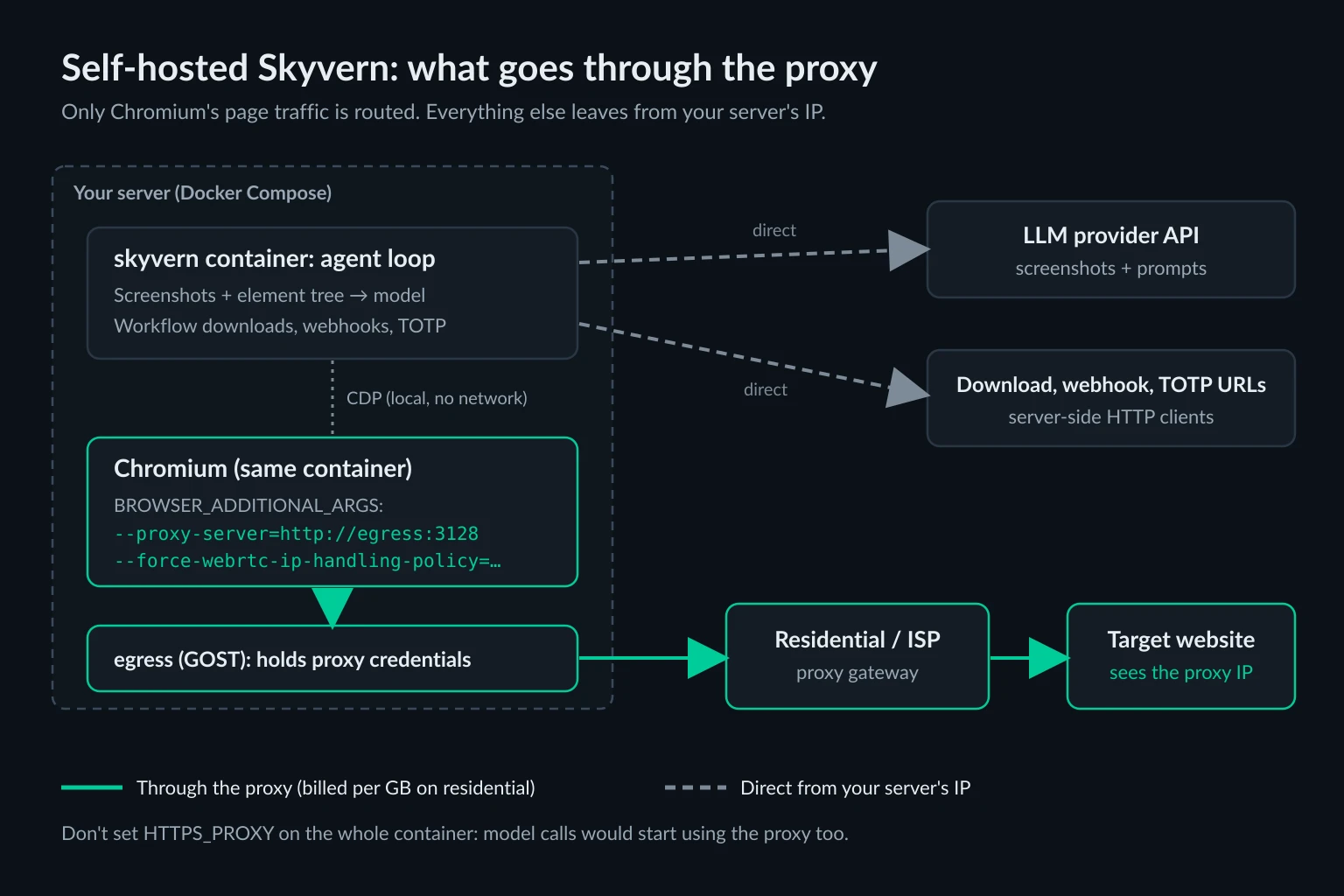
The Docker Compose stack runs Chromium inside the skyvern container. The goal is to route that Chromium's traffic through your proxy without exposing the password. The page-loading traffic should cross the proxy, while model API calls and Skyvern's internal traffic stay direct. The OpenClaw browser proxy guide uses the same GOST forwarder pattern for its managed Chrome. A local Stagehand proxy setup needs the same workaround, because Stagehand rejects authenticated local proxies outright.
Step 1: Add a forwarder service
GOST is a single-binary proxy tunnel. It accepts unauthenticated connections on a private listener and forwards them to your provider with credentials. Put it next to Skyvern in a docker-compose.override.yml, which Docker Compose merges with the main file automatically:
services:
  egress:
    image: gogost/gost:3
    restart: always
    command:
      - "-L"
      - "http://:3128"
      - "-F"
      - "http://${PROXY_USER}:${PROXY_PASS}@${PROXY_HOST}:${PROXY_PORT}"
Put PROXY_USER, PROXY_PASS, PROXY_HOST, and PROXY_PORT in the .env file next to the Compose files. Compose substitutes them when it starts the stack. Don't add a ports: entry for egress. Its listener has no password, so it should only be reachable from other containers on the Compose network.
If your proxy supports source-IP allowlisting, you can allowlist the server's IP and point Chromium straight at the provider instead.
Step 2: Point Skyvern's Chromium at it
Add this line to Skyvern's .env:
BROWSER_ADDITIONAL_ARGS=["--proxy-server=http://egress:3128","--force-webrtc-ip-handling-policy=disable_non_proxied_udp"]
Skyvern appends BROWSER_ADDITIONAL_ARGS to its own Chromium flags on every launch. The value has to be a JSON list. Skyvern loads settings with pydantic-settings, which parses list fields as JSON. A bare --proxy-server=... string makes startup fail with error parsing value for field "BROWSER_ADDITIONAL_ARGS". We checked that Compose passes the bracketed value through to the container unchanged.
The second flag matters more than it looks. With only --proxy-server set, Chromium still sends WebRTC's UDP traffic directly. We ran a STUN check in Chromium behind a proxy: without the flag, the page collected a srflx candidate showing the machine's own public IP. With disable_non_proxied_udp, it collected no candidates, so nothing leaked. A vision agent won't notice the difference, but a fingerprinting script on the target page will.
Step 3: Restart and verify the exit
docker compose up -d
docker run --rm --network "$(basename "$PWD")_default" curlimages/curl -s -x http://egress:3128 https://api.ipify.org
The last command asks the forwarder for its exit IP from a throwaway container on the same network. Compose names that network after the project directory by default. Run docker network ls if yours differs. Then give Skyvern a one-line task, "Open https://api.ipify.org and return the IP address shown," and check that the output matches. If Skyvern returns your server's IP instead, the browser flags didn't load. Usually the .env change wasn't picked up because the container wasn't recreated.
For more on why the credentials should stay out of the agent's reach, see the computer use agents guide. It runs the same forwarder pattern for a desktop sandbox and adds network isolation for agents that have a shell.
One Exit per Skyvern Server, or One per Browser
BROWSER_ADDITIONAL_ARGS is global. Every browser the Skyvern server launches uses the same forwarder, and therefore the same upstream proxy. Whether that's a problem depends on the upstream endpoint you choose.
- Sticky residential session or a single ISP IP upstream: every task shares one identity. That works for a single worker running related tasks, but parallel tasks on different accounts will all come from the same IP.
- Rotating residential endpoint upstream: Chromium opens many connections per page. Each one can exit from a different IP, so a login can start on one address and submit from another. That suits almost no Skyvern task.
When tasks need separate identities, launch a browser per identity yourself. The embedded SDK makes that straightforward, because launch_local_browser accepts Chromium arguments directly. Install it with pip install "skyvern[server]", and run one forwarder per identity, for example on ports 3128 and 3129:
import asyncio
from skyvern import Skyvern

async def run_with_exit(skyvern: Skyvern, forwarder_port: int, prompt: str, url: str):
    browser = await skyvern.launch_local_browser(
        headless=True,
        args=[
            f"--proxy-server=http://127.0.0.1:{forwarder_port}",
            "--force-webrtc-ip-handling-policy=disable_non_proxied_udp",
        ],
    )
    try:
        page = await browser.get_working_page()
        return await page.agent.run_task(prompt, url=url, max_steps=15)
    finally:
        await browser.close()

JOBS = [
    (3128, "Return the order status for order 1001", "https://portal-a.example.com"),
    (3129, "Return the order status for order 2002", "https://portal-b.example.com"),
]

async def main():
    skyvern = Skyvern.local()
    for port, prompt, url in JOBS:
        run = await run_with_exit(skyvern, port, prompt, url)
        print(port, run.status, run.output)

asyncio.run(main())
A browser launched this way doesn't get Skyvern's timezone handling. Chromium on Linux reads the process's TZ environment variable, so start the script with TZ=Europe/Berlin when the exit is German. We confirmed that a Chromium launched with TZ=Europe/Berlin reports Europe/Berlin to pages, and reports UTC without it.
If you run the full server and want per-task routing, run_task also accepts a browser_address pointing at a Chrome you started with its own --proxy-server. Skyvern's SSRF guard rejects private hosts for that address unless you add them to ALLOWED_HOSTS. Chrome also rejects DevTools requests whose Host header isn't an IP address or localhost. The self-hosted browser docs cover the cdp-connect settings for that route.
Residential or ISP Proxies for a Skyvern Agent
Skyvern tasks are short sessions with a goal. They log in, fill a form, extract a table, and finish. That shape decides the proxy type more than the target site does.
| Task pattern | Proxy choice | Why |
|---|---|---|
| Same account every day (vendor portal, insurance quote form, internal admin) | ISP proxy, one IP per account | The site sees a stable address, so saved cookies and the IP stay together |
| Many different public sites, one-off tasks | Sticky residential session per task | Consumer IP space and country choice without keeping long-lived IPs |
| Region-specific checks (local pricing, geo-gated content) | Sticky residential in the target country or city | You need the location, and the session must hold for the whole task |
| Your own staging or internal apps | No proxy | Residential bandwidth on internal traffic is wasted money |
Unknown Proxies sticky residential sessions keep the same exit IP for up to 2 hours, which covers a typical Skyvern task many times over. The sticky vs rotating proxies guide explains the trade-off in more depth. The ISP vs residential comparison helps when you're deciding for long-lived accounts.
What Crosses the Proxy in a Vision-Based Agent
Skyvern decides what to do by sending screenshots and an element tree to a model. That sounds bandwidth-heavy, but none of it touches your proxy:
- Screenshots are captured locally over the DevTools protocol. They never leave the machine on the browser's network path.
- Model calls go from the Skyvern server to your LLM provider directly. That includes the screenshots, which are by far the largest payloads in a vision agent.
- Workflow file downloads, webhooks, and TOTP fetches use Skyvern's server-side HTTP clients. In PyPI release 1.0.55, those clients ignore proxy environment variables, so they leave from your server's IP. Current GitHub
mainadds an opt-inOUTBOUND_TRUST_ENV_PROXY=truesetting that isn't in that release yet. - Page loads go through Chromium, so they cross the proxy. This is what you pay for.
Don't try to cover the gaps by setting HTTPS_PROXY on the whole skyvern container. Most Python HTTP clients honor that variable, so your model calls and their screenshots would start going through a per-GB residential proxy. If a downloaded file must come from the proxy IP, have the agent download it in the browser instead of in a separate workflow block.
Each self-hosted run starts with a fresh temporary browser profile unless you attach a saved profile or a persistent session. That means a cold cache on every task. In our test, the Skyvern homepage cost 1.07 MB through the proxy on the first load. Two more visits in the same browser added nothing, because Chromium served them from its in-memory cache. Your per-task proxy cost is roughly the cold weight of each distinct page the agent visits. Use the data usage calculator to turn that into a monthly figure.
Skyvern also records a HAR file for each run and stores it with the run's artifacts. Loading it into the HAR analyzer shows which hosts used the bytes and which requests came back 403 or 429. That's the fastest way to see whether a failed task was blocked or just misread the page.
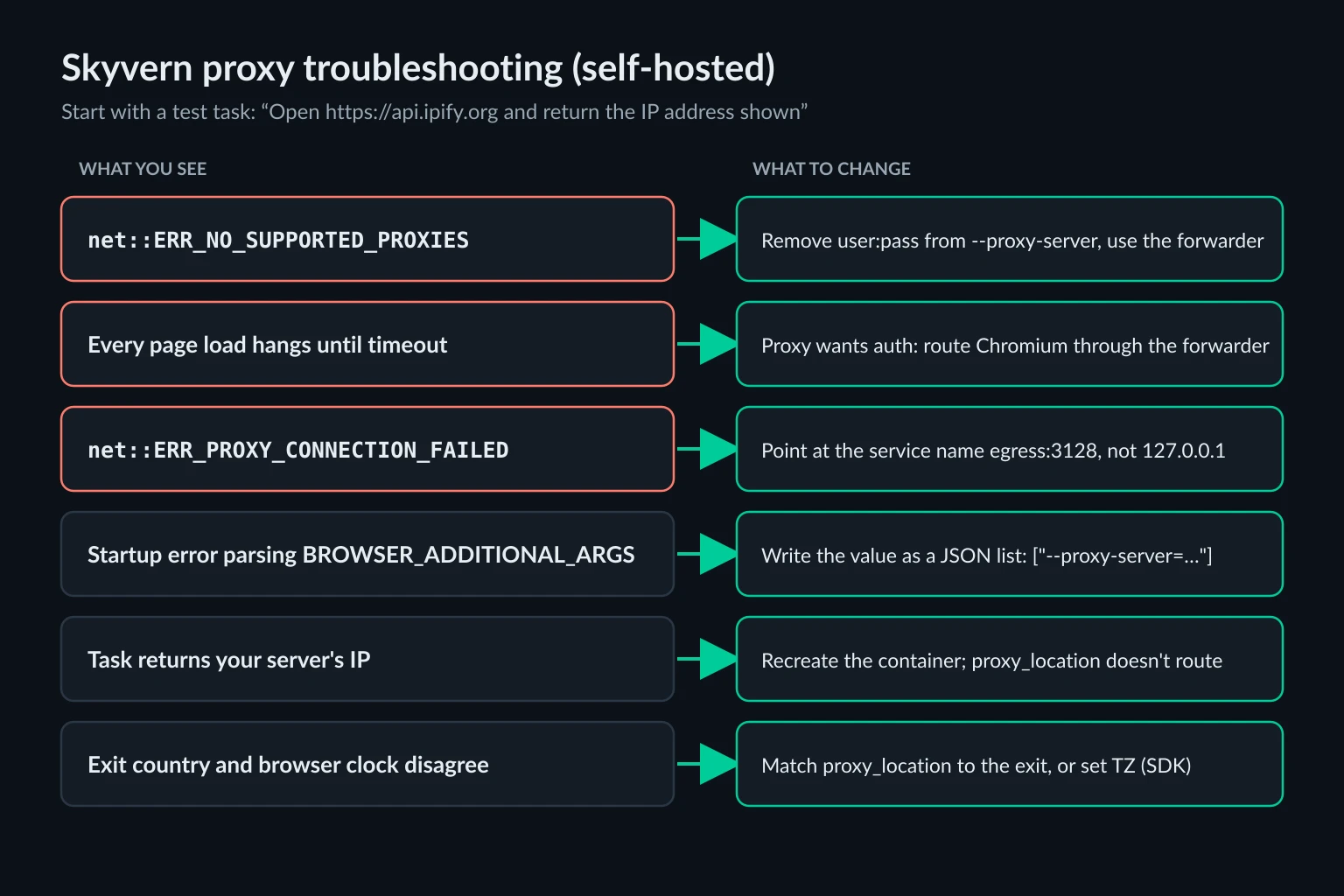
Troubleshooting a Skyvern Proxy
| Symptom | Likely cause | Fix |
|---|---|---|
net::ERR_NO_SUPPORTED_PROXIES on every page |
Credentials in the --proxy-server URL |
Remove them. Use a forwarder or IP allowlisting |
| Every navigation hangs until Skyvern's load timeout | Chromium points at an authenticated proxy directly, with no forwarder | In our headless test, the 407 challenge stalled the navigation instead of failing fast. Add the forwarder |
net::ERR_PROXY_CONNECTION_FAILED |
The forwarder isn't reachable from the browser, for example 127.0.0.1 used inside the container |
Use the Compose service name (egress) and check the service is up. See ERR_PROXY_CONNECTION_FAILED |
Skyvern won't start, error parsing value for field "BROWSER_ADDITIONAL_ARGS" |
The value isn't a JSON list | Wrap it as ["--proxy-server=http://egress:3128"] |
| The agent reports your server's IP | The flags didn't load, or you only set proxy_location |
Recreate the container with docker compose up -d, then check the exit again |
The forwarder's own test returns 407 |
Wrong upstream username or password | Test the upstream directly with curl -x. See 407 Proxy Authentication Required |
| The exit IP is German, but the browser clock says New York or UTC | proxy_location was left at its default or unset |
Pass the matching proxy_location, or set TZ for SDK-launched browsers |
Blocked tasks are expensive with a vision agent, because the model keeps spending steps describing a challenge page. Set max_steps, and add an error_code_mapping entry such as "blocked": "The page shows an access denied, verify you are human, or rate limit message". A failed run then comes back with a code your code can act on, such as retrying later from a new sticky session, instead of a free-form failure reason. The proxies for AI agents guide covers what the common 403 and 429 patterns mean.
Use Skyvern Within Site Rules
A proxy changes where requests come from. It doesn't change what you're allowed to do on a site. Automate accounts you own or are authorized to use, respect the site's terms and rate limits, and keep task volume at a level a person could plausibly produce. If a site offers an API or a data export, use it. A residential IP shouldn't be the answer to a site that clearly says no.
FAQ
Does Skyvern support proxies?
Yes. Skyvern Cloud has built-in residential and ISP proxies, selected per run with proxy_location. Self-hosted Skyvern doesn't route proxy_location anywhere. You add a proxy through Chromium flags in BROWSER_ADDITIONAL_ARGS or on a browser you launch yourself.
Can I pass my own proxy URL in proxy_location?
Skyvern documents a {"url": "http://user:password@host:port"} form for self-hosted deployments. In the open-source code, that value is stored but never passed to the browser, and the pull request to wire it in is still open. Use Chromium flags for now, and confirm the exit IP with a test task.
Why does my self-hosted Skyvern ignore proxy_location?
Because proxy routing is a Cloud feature. In the open-source code, proxy_location only selects a timezone for the browser. Set the proxy with --proxy-server and use proxy_location to match the timezone to your exit country.
Should Skyvern use rotating or sticky proxies?
Sticky. A Skyvern task takes several page loads and form submits. A rotating endpoint can change the IP partway through, which breaks logins and triggers security checks. Use a fresh sticky session per task, or an ISP IP per account.
Does a proxy stop CAPTCHAs in Skyvern?
Not on its own. A residential or ISP IP lowers the chance of a challenge compared with a datacenter address, but behavior, request rate, and the site's own rules still matter. Map challenge pages to an error code, so blocked runs fail fast instead of burning steps.
Does Skyvern send screenshots through the proxy?
No. Screenshots are captured locally and sent to the model provider from the Skyvern server, not through the browser. Only the browser's page traffic crosses the proxy, unless you set HTTPS_PROXY on the container.
Conclusion
The Skyvern proxy setup splits cleanly by deployment. On Cloud, choose a proxy_location per run and use browser sessions to hold one IP across related tasks. Self-hosted, treat proxy_location as a timezone setting. Route Chromium with BROWSER_ADDITIONAL_ARGS, through a forwarder that holds the credentials, with WebRTC limited to the proxy. Then verify the exit IP before the first real task.
For Skyvern agents that log into the same accounts every day, compare ISP proxy plans. For one-off tasks across many sites or countries, start with sticky sessions on residential proxies. If you also run other agent frameworks, the Browser Use proxy guide covers the same choices for an agent that takes proxy settings in code.